
Content ITV PRO
This is Itvedant Content department
Data Transformation for Analytical Reporting
Business Scenario
Welcome!
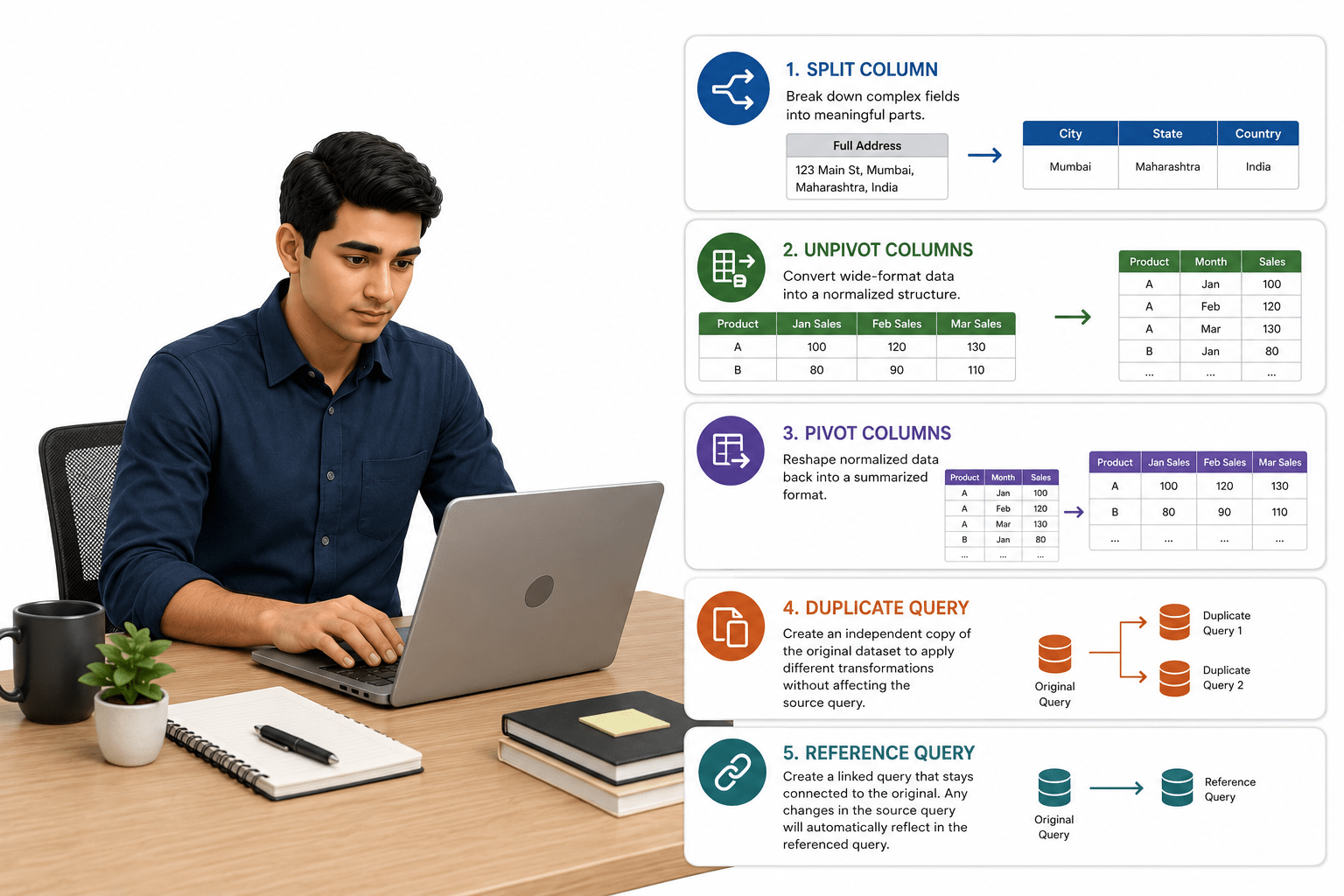
First, use Split Column in Power Query to break down complex fields. For example, separate a full address into city, state, and country, or split a combined date-time column. This makes your data more granular and easier to analyze.
Next, apply Unpivot Columns to convert wide-format data into a normalized structure. This helps you aggregate, filter, and compare values more dynamically.
When needed, use Pivot Columns to reshape the data back into a summarized format for reporting or analysis.
To efficiently reuse and manage transformations, create a Duplicate Query when you need an independent copy of the original dataset. This allows you to apply different transformations without affecting the source query.
Alternatively, create a Reference Query when you want the new query to stay linked to the original one. Any changes made to the source query will automatically reflect in the referenced query, helping you maintain consistency and reduce redundancy across transformation layers.
Pre-Lab Preparation
Topic : Cleaning & Transforming Data
1) Import Excel / CSV datasets
2) Remove errors and null values
3) Replace missing values
4) Remove unnecessary rows and columns
5) Split columns and format data
6) Pivot and unpivot columns
7) Create duplicate queries
8) Create reference queries
git pull origin branchNameGit Pull
Task 1: Split Column
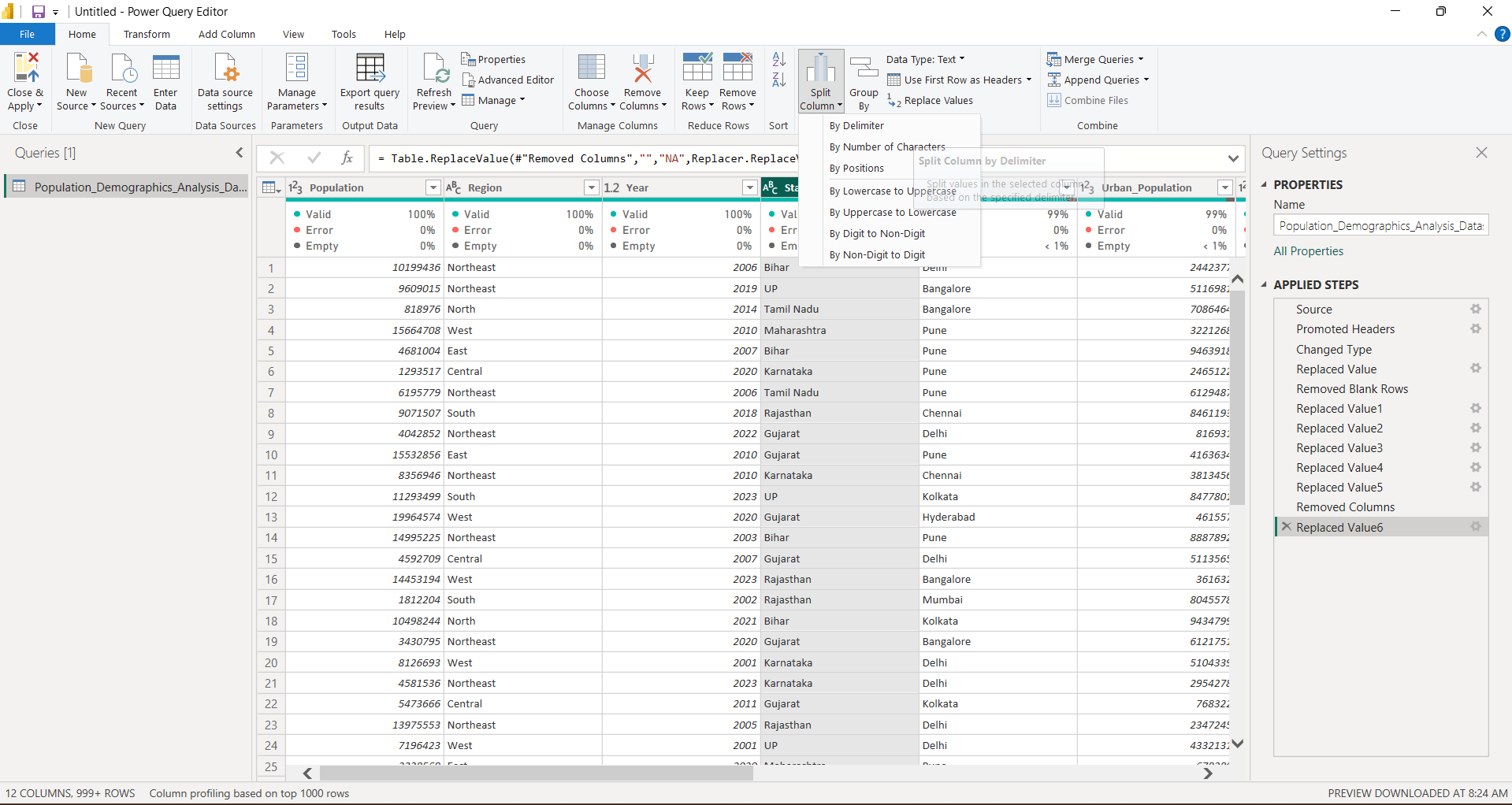
Consider State column in given dataset, If we can to remove spaces in between two words like “Tamil Nadu”, we can split column option
Select State column and go to Home tab→ Transform ribbon→ split column option
1
Select by delimiter Option
2
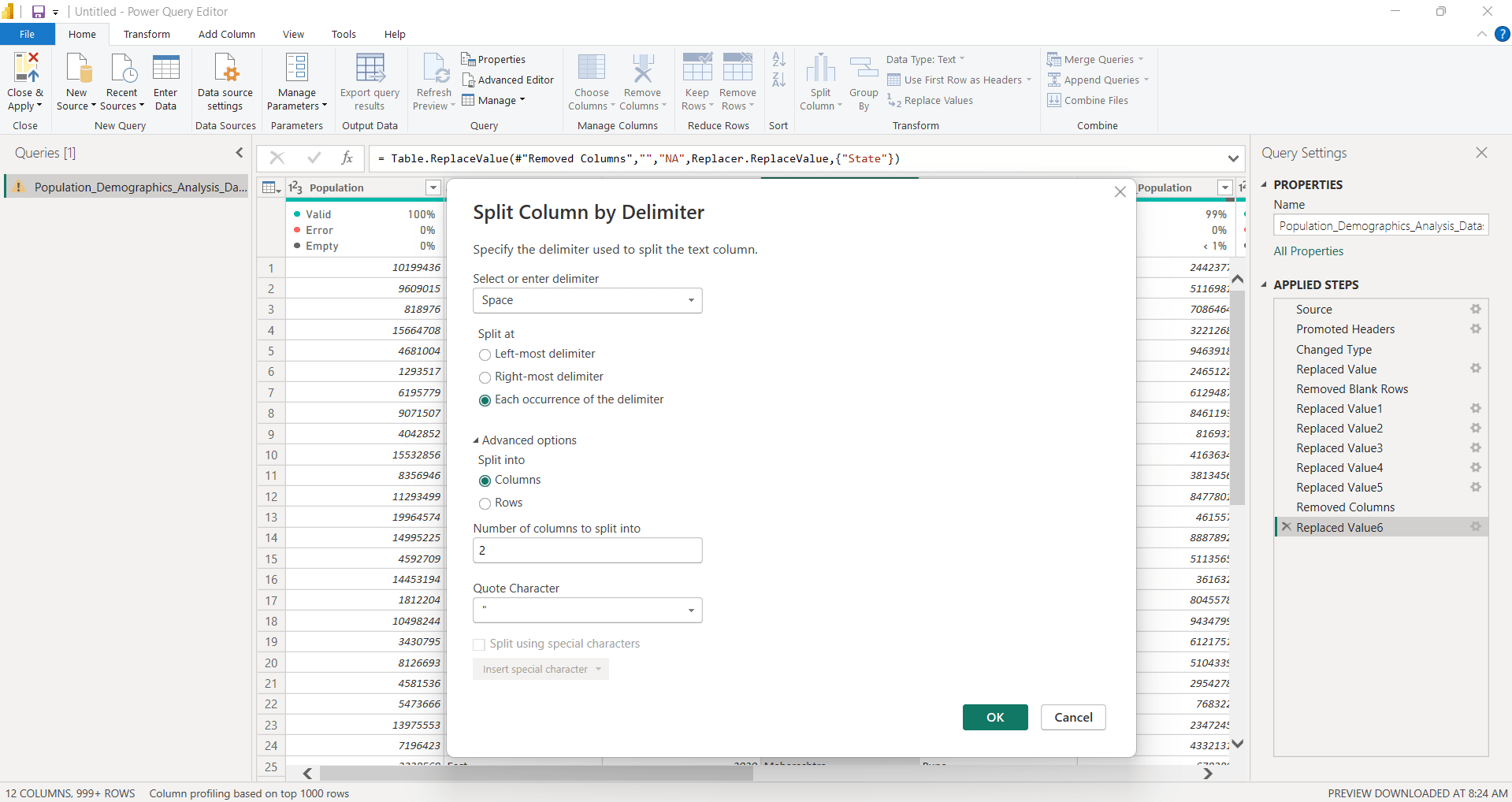
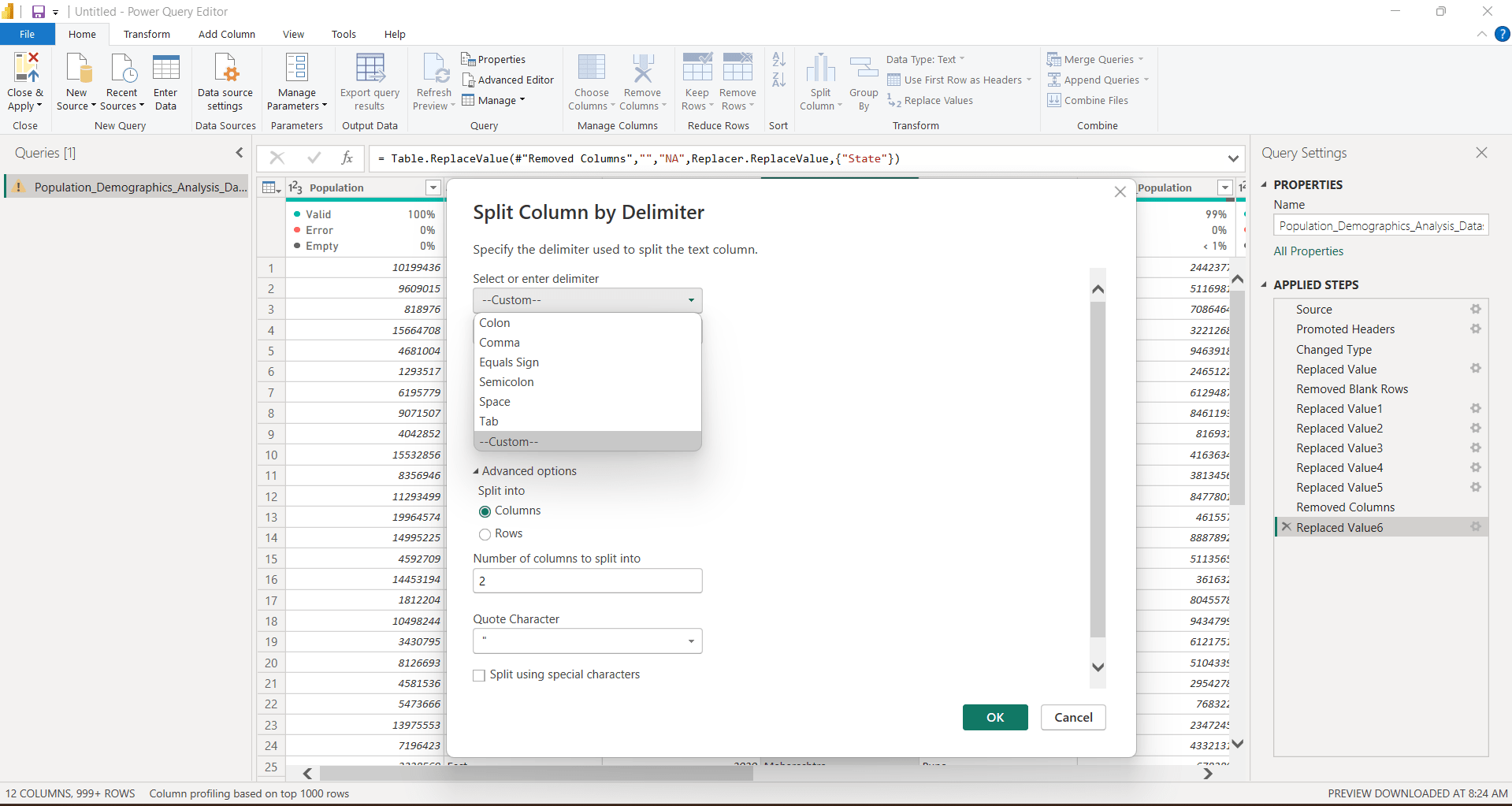
Select by which delimiter you want to split the column using drop down. If we don’t have default option, we can use custom delimiter also
3
Select Split at which position you want to split column from left,right or at each occurrence. Also select advance options , in how many columns or rows you want to split given column
4
Click on OK
5
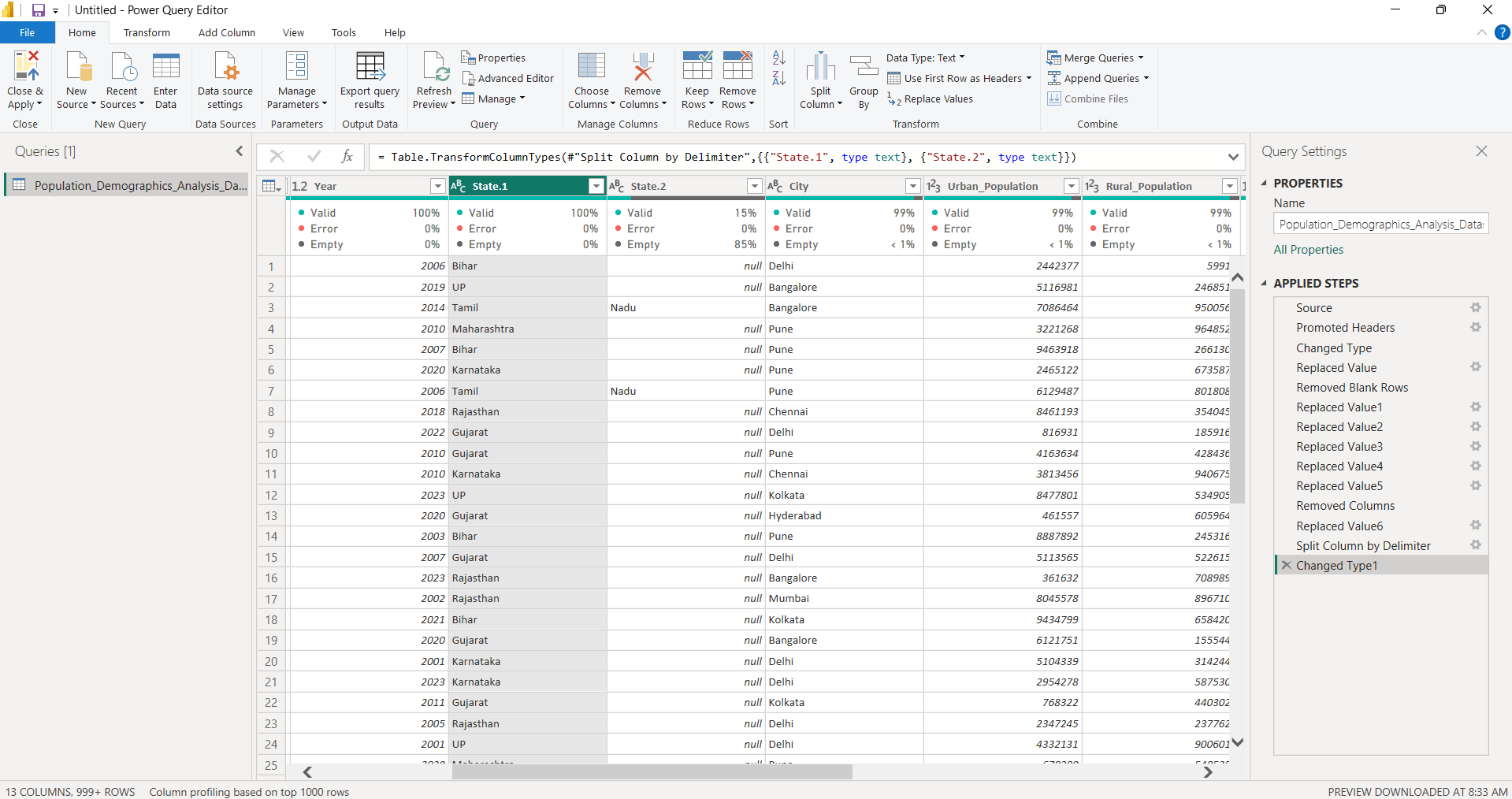
Column has successfully split into State.1 and State.2 columns one with data before space,another with after space.
6
Now we can remove null values using those already discussed in Task 1
Task 2: Merge Columns
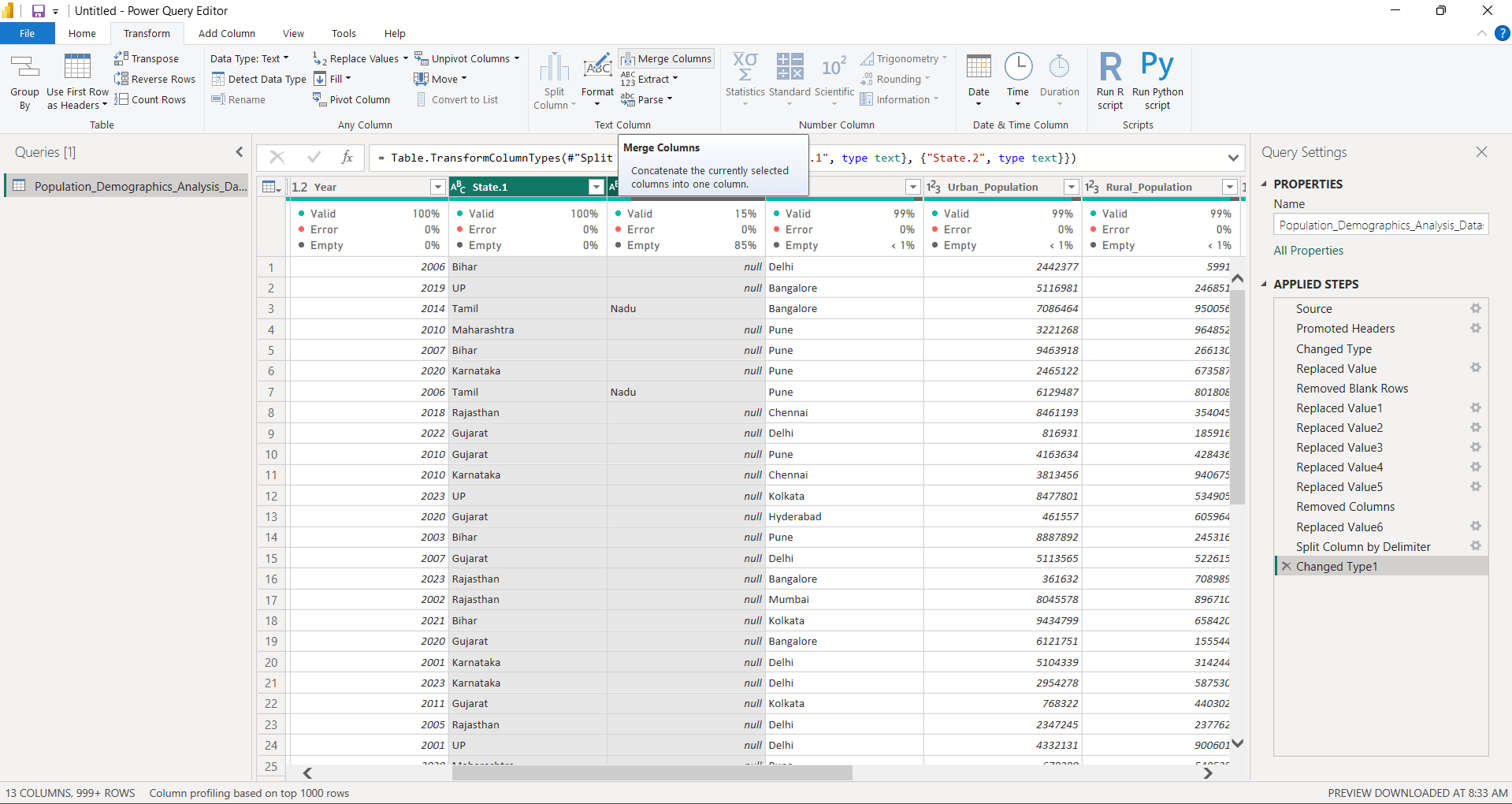
Now we have two split columns, lets merge them
Select both column and go to transform tab—> Text column Ribbon —> Merge column option
1
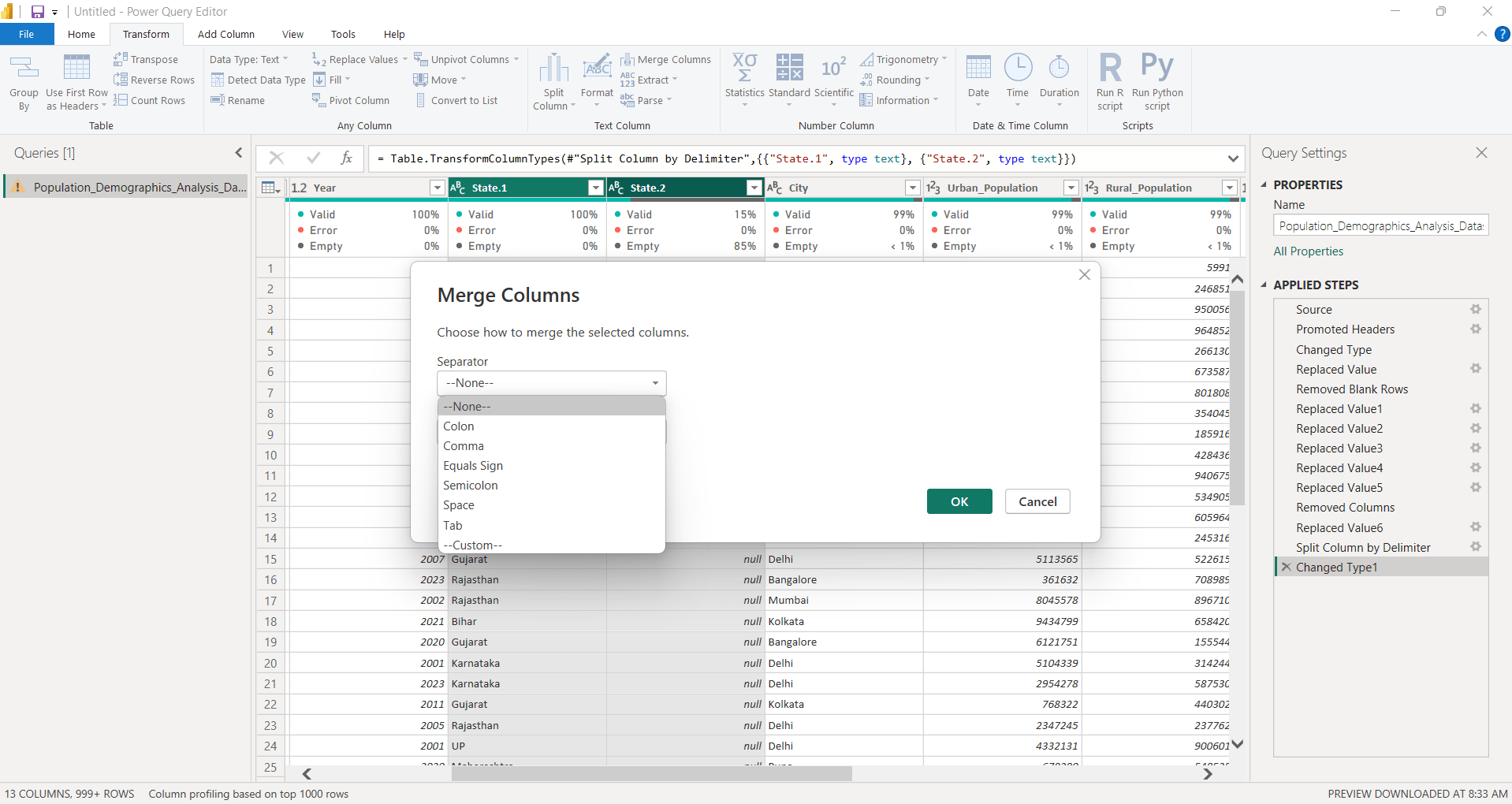
You can select a separator (optional) between two columns. And provide a new name to the merged column. Then click on OK
2
Task 3: Pivot and Unpivot Data
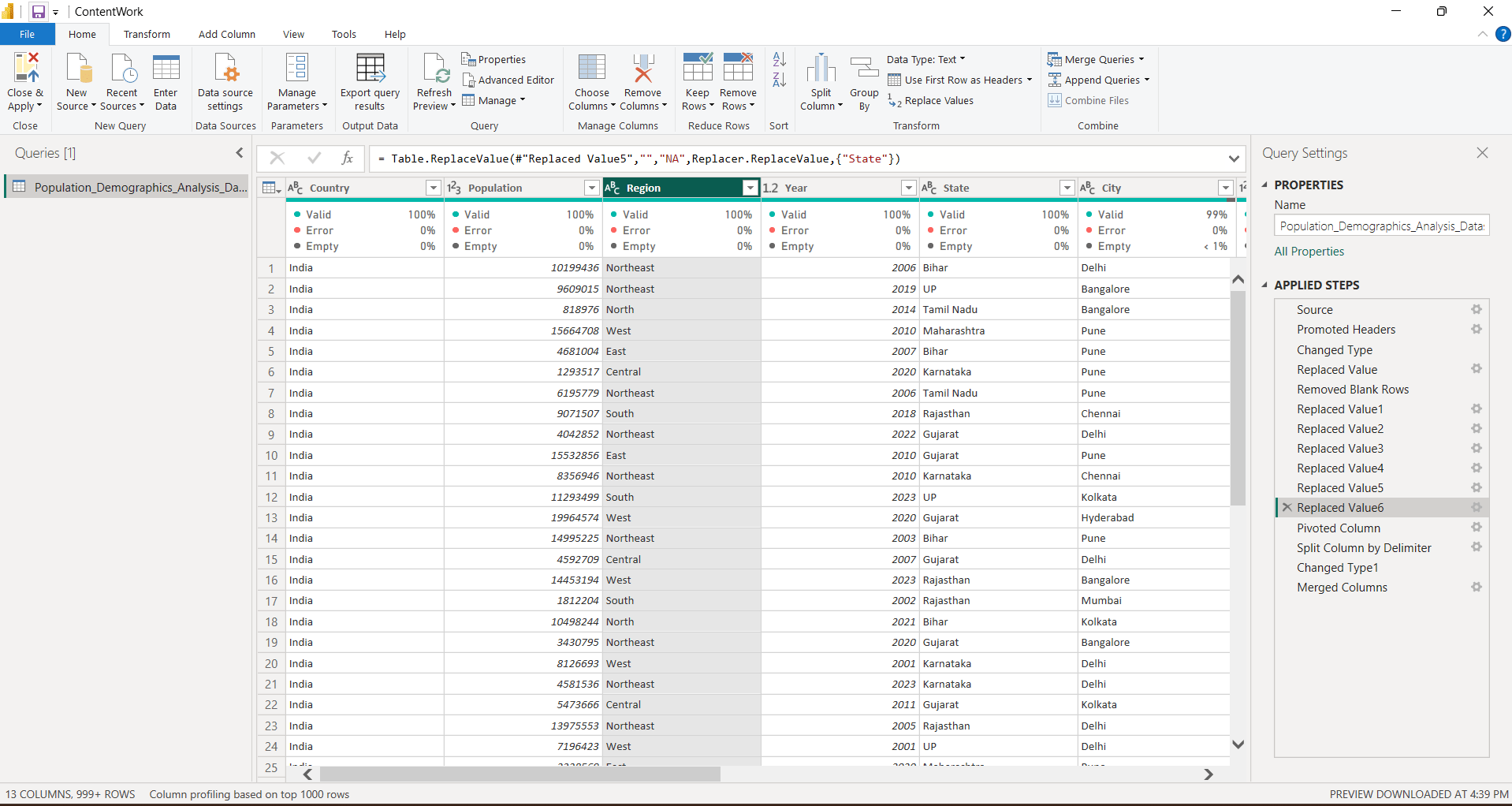
Select Region Column
1
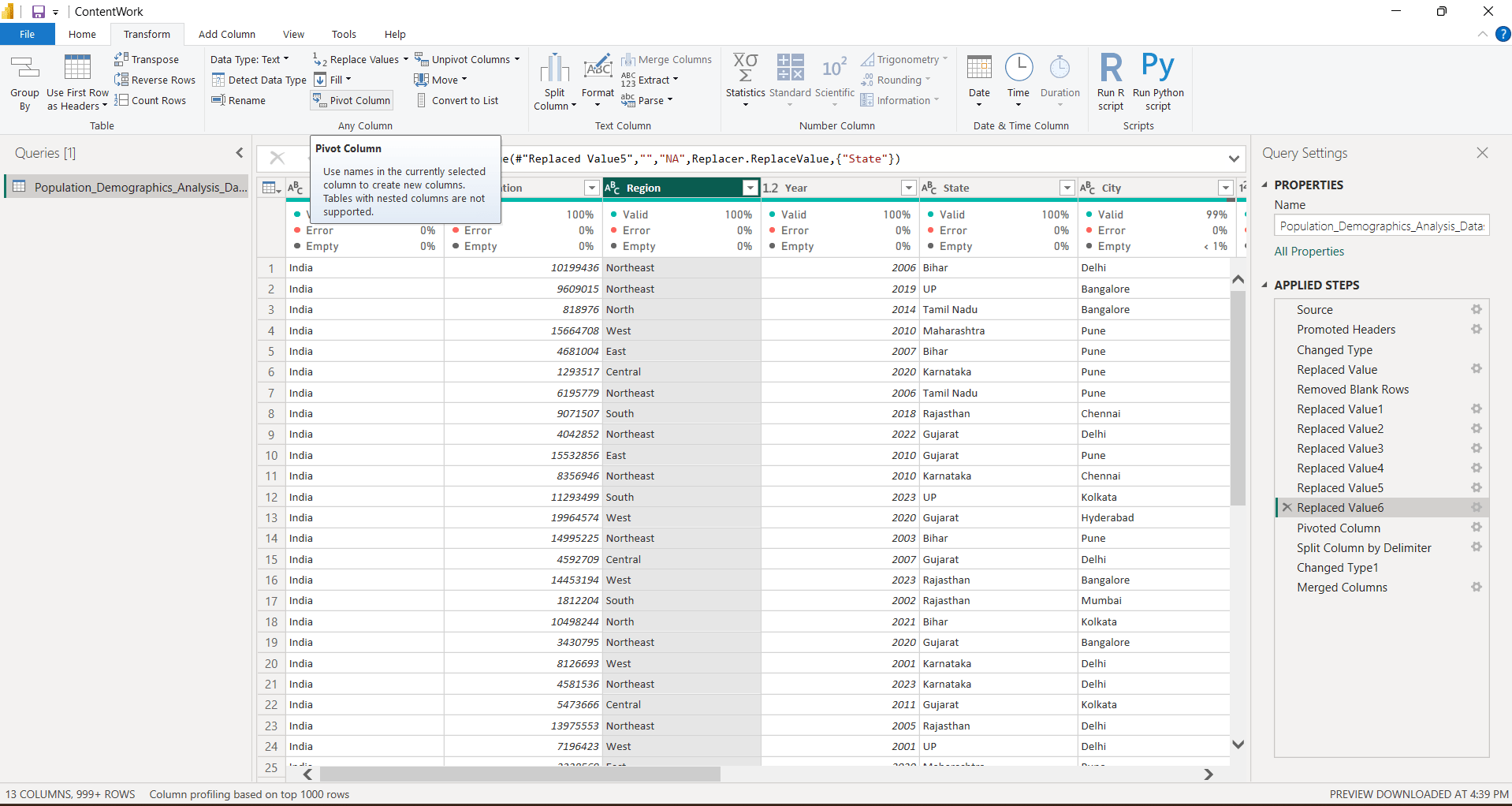
Go to Transform tab Click on Pivot column option from any column ribbon
2
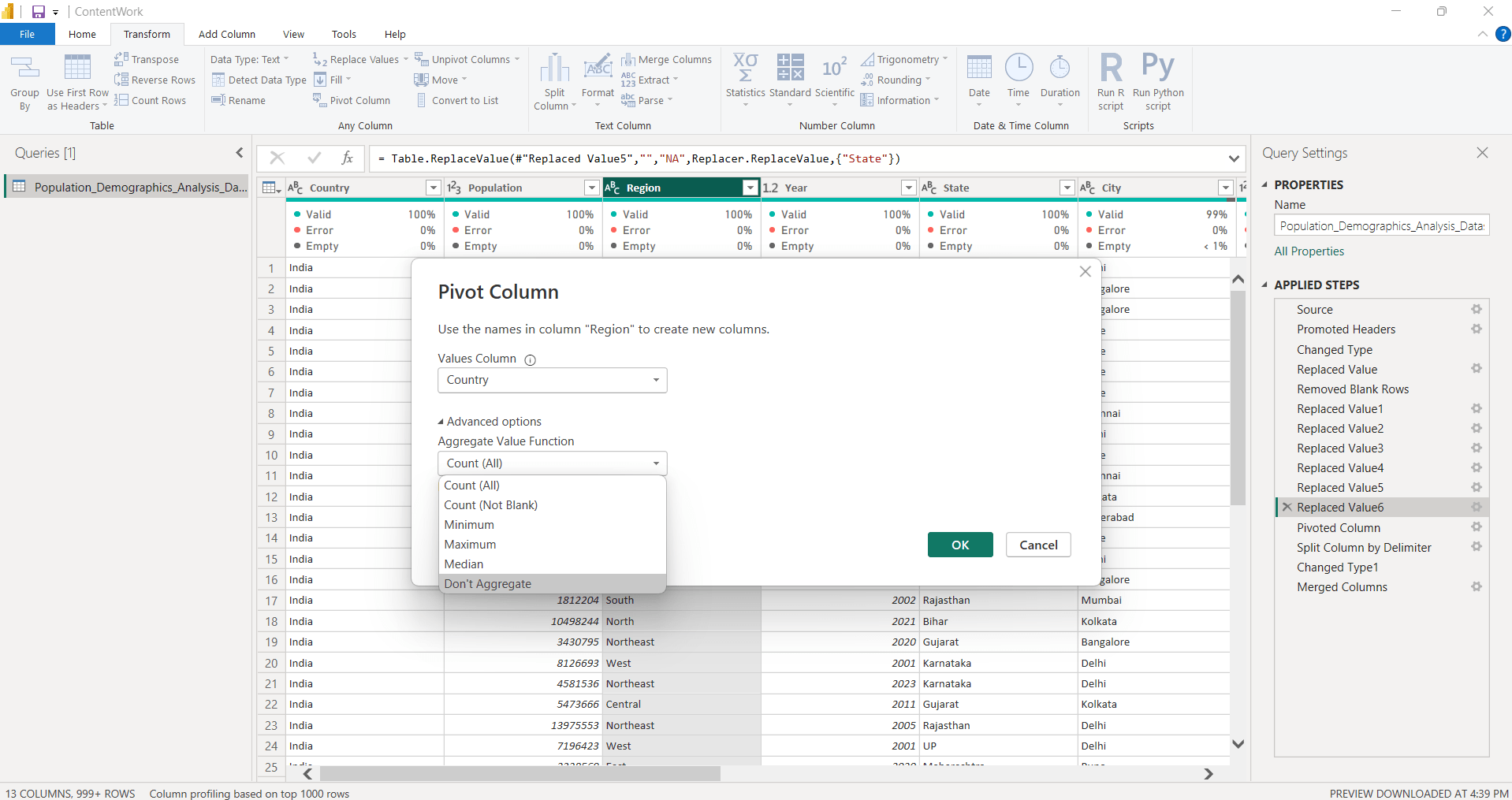
Add Country column in Value column option. Select Advance options → Aggregated value function —> Don’t Aggregate→ OK
3
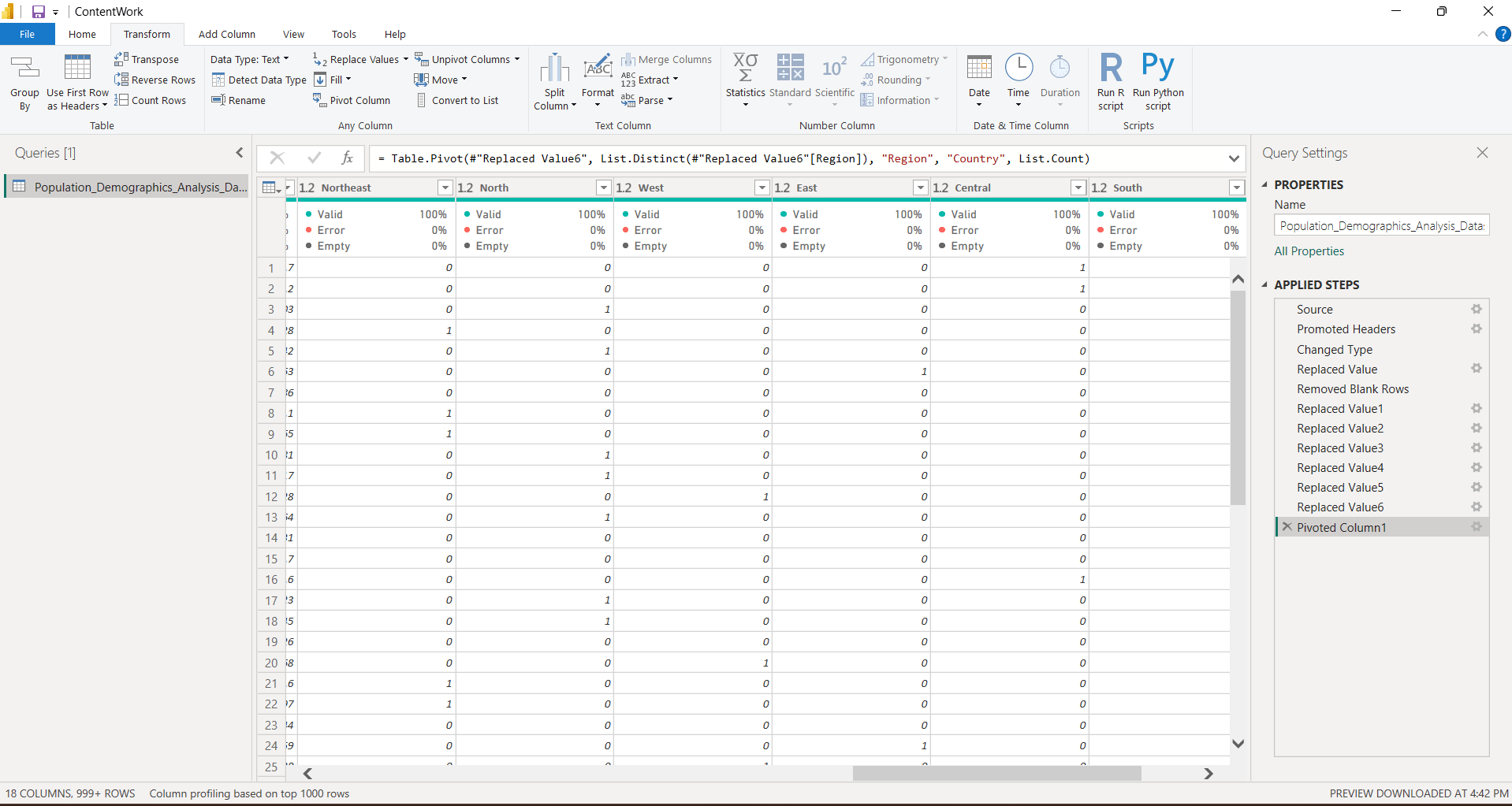
This is your final Pivot Column View
Now Let’s see the Unpivot Column
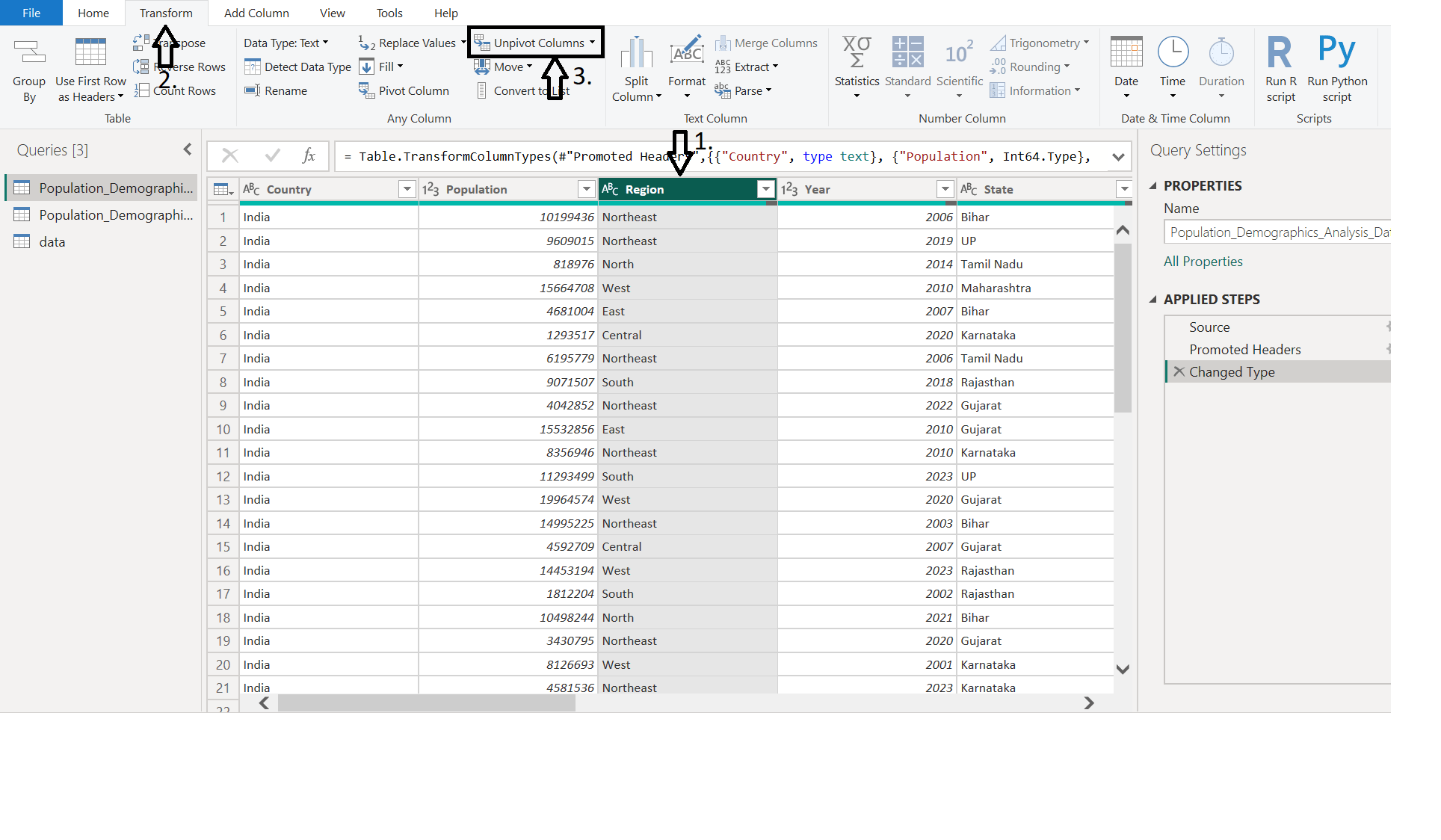
Click on Region Column. In transform tab→ Unpivot Column
4
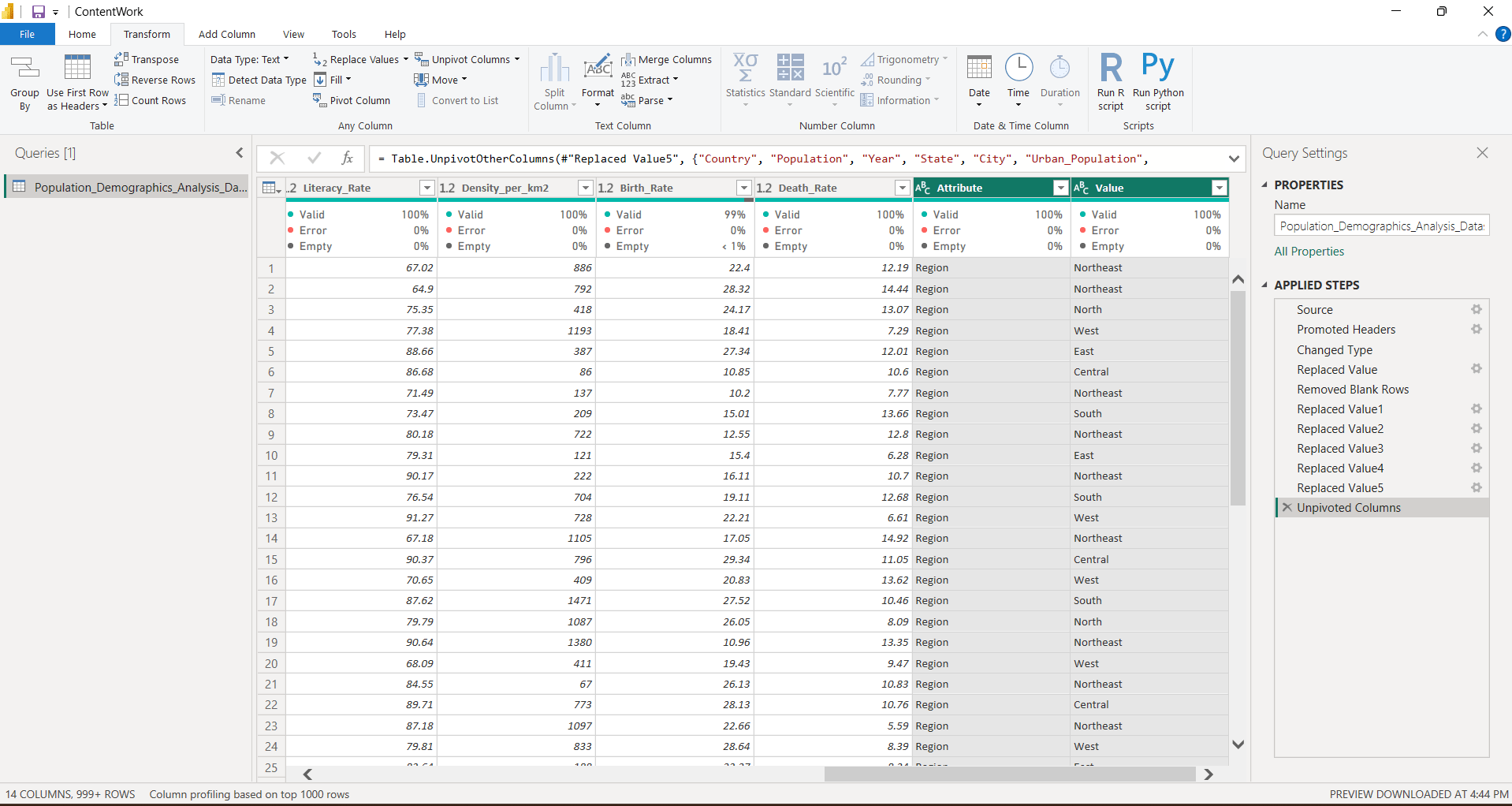
This is your final view of Unpivot column into Attribute and values
Task 4: Create duplicate queries
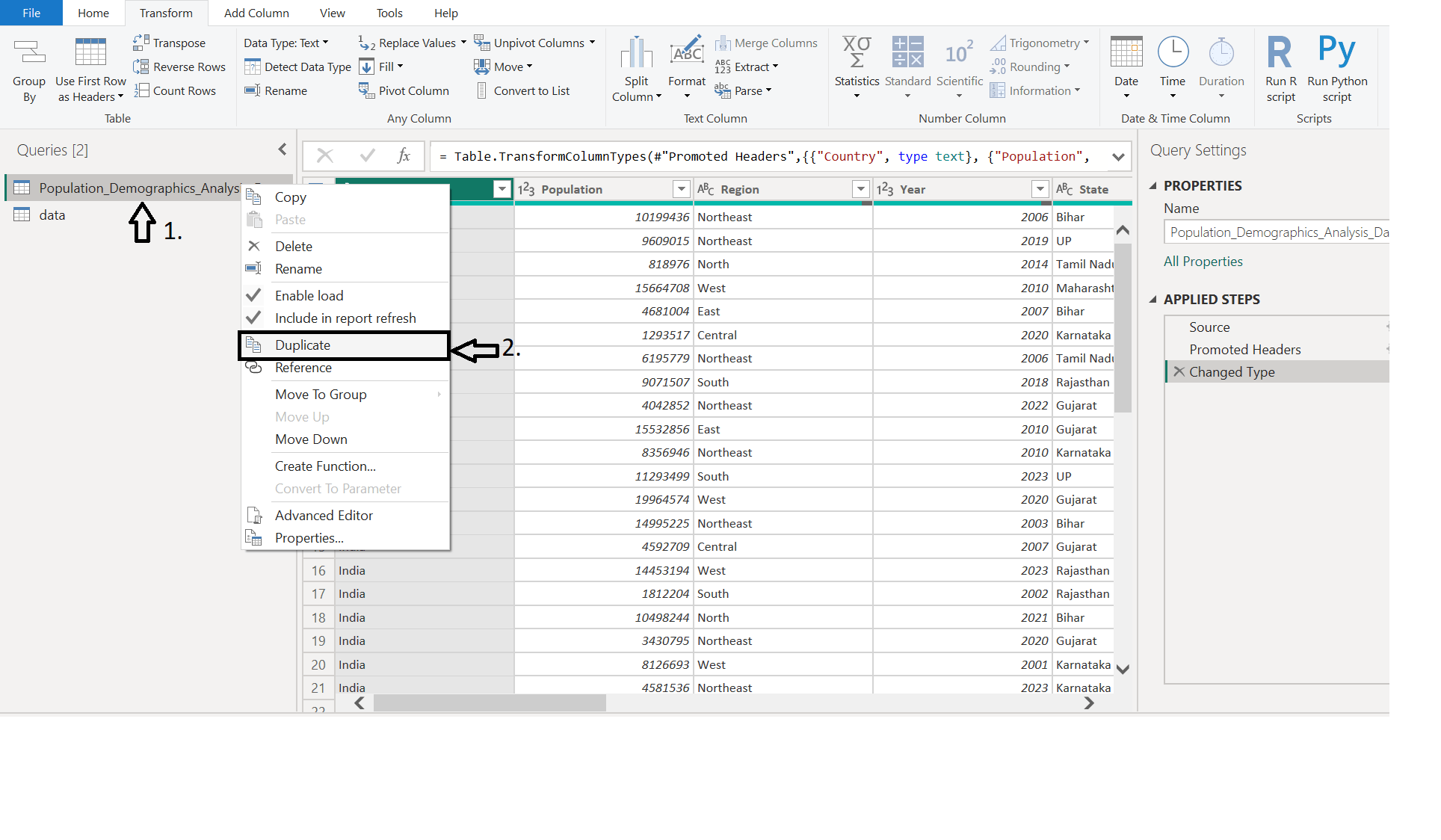
Right click on query/table on left side of your screen, Select duplicate option
1
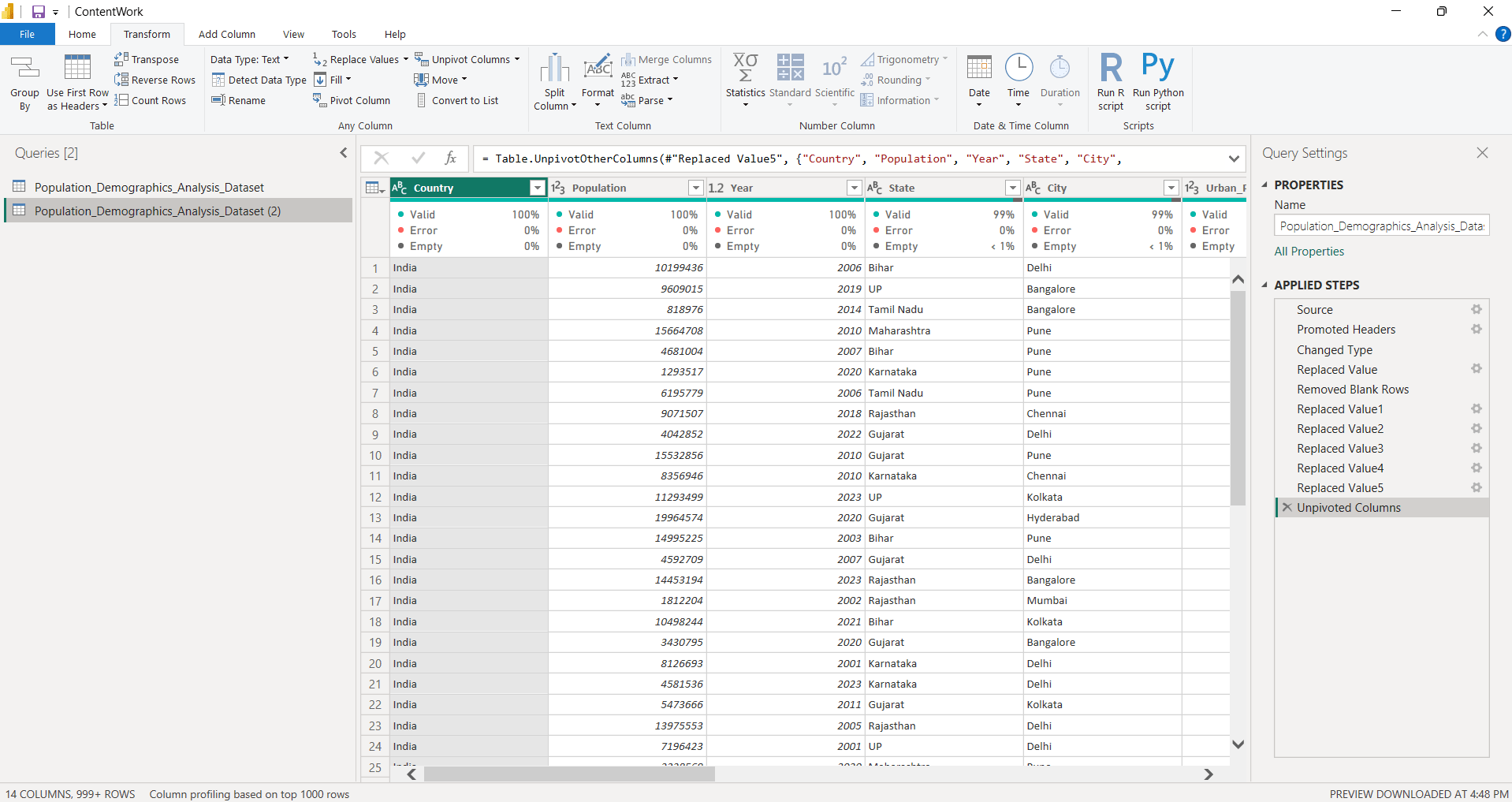
This is your final output
Task 5: Create reference queries
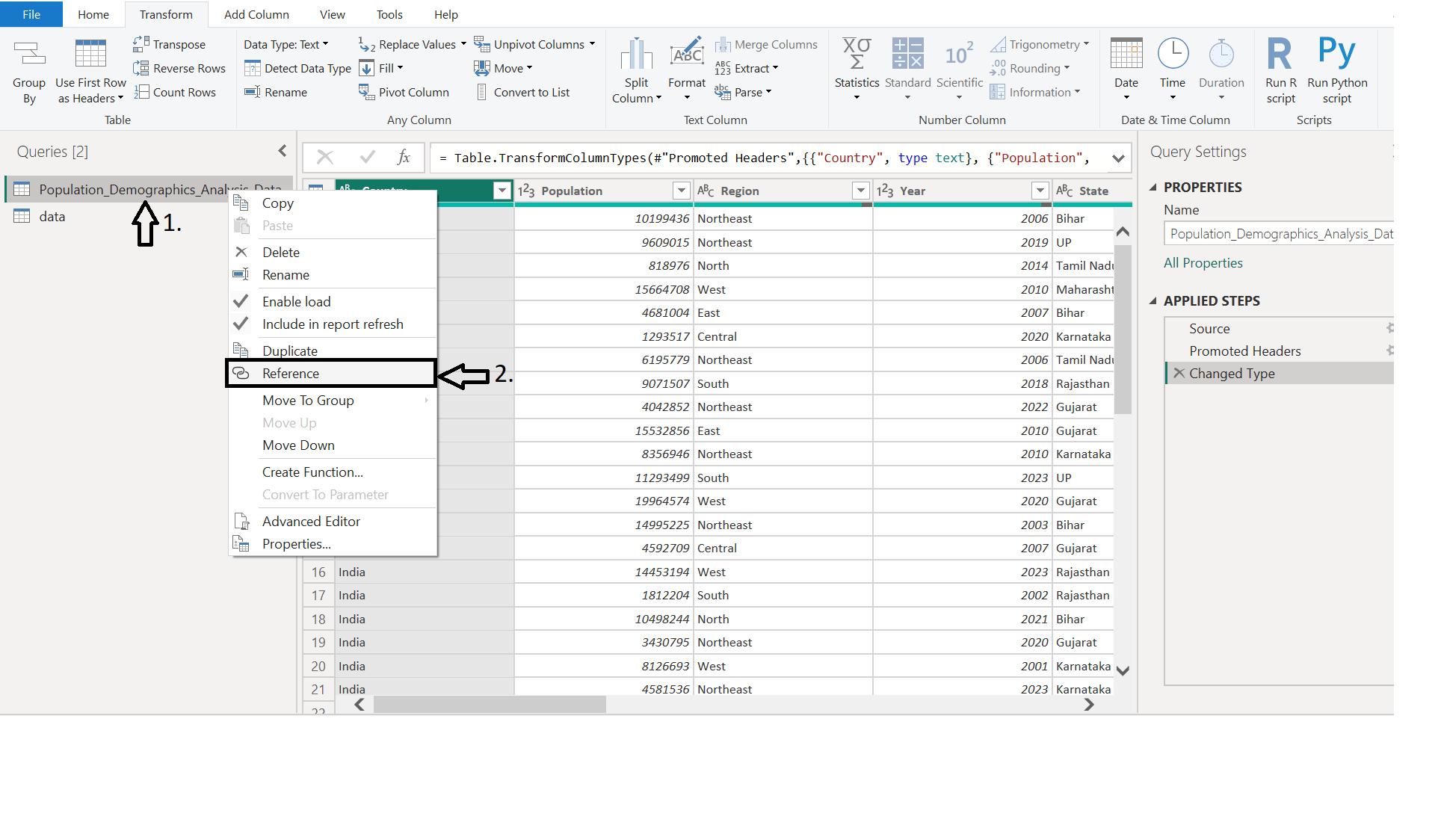
Right click on query/table, Select reference option
1
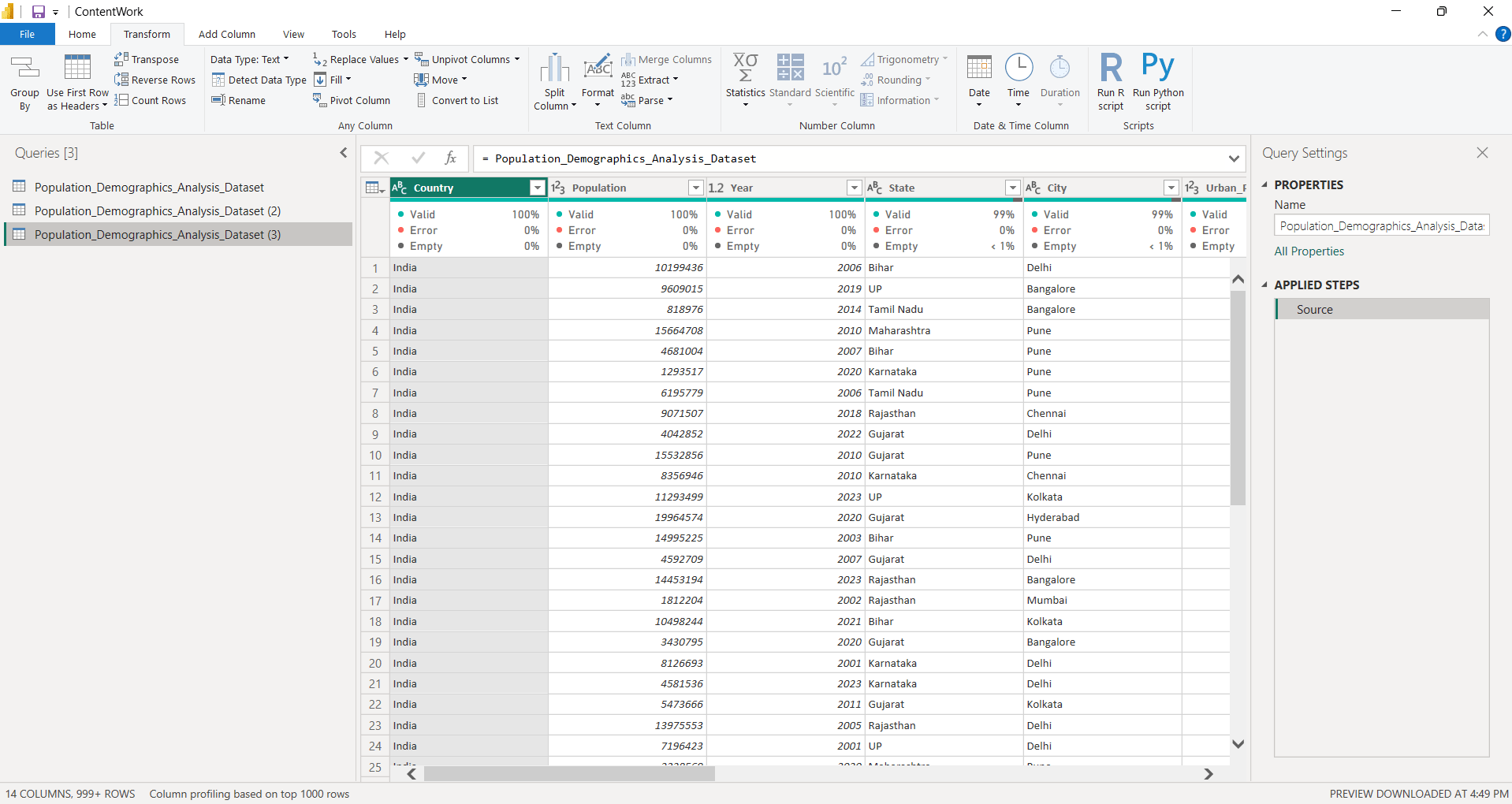
This is your final output
Great job!
By combining these Power Query techniques, you have:
Checkpoint
Next-Lab Preparation
Git Push
git push origin branchNameTopic : Modelling Data in Power BI
1) Data Modelling
2) Different types of Schemas (Star and Snowflake)
3) Manage Data Relationship
By Content ITV