



Content ITV PRO
This is Itvedant Content department
Classifying Sales Performance Using Logical Conditions
Business Scenario
Your reporting manager from the Retail Insights Team has now asked you to go beyond basic data structuring and start applying business logic to the dataset.
Welcome to your next phase as a Junior Data Analyst at DMart…
The dataset contains important fields such as Sales, Profit, Discount, Quantity, and Customer Type. However, raw numbers alone are not enough for decision-making.
Before this dataset is used in performance dashboards, your manager wants you to classify and evaluate business performance using logical formulas.
Your task is to apply IF conditions, nested logic, and error handling techniques to make the dataset more intelligent and decision-ready.
Pre-Lab Preparation
Module: Logical Functions and Error Handling in Excel
1) IF Function
2) Nested IF conditions
3) Logical Operators(AND, OR, NOT)
4) IFERROR Function
git pull origin branchNameGit Pull
Click to download Dataset: Dmart_RetailBusiness.xlsx
Task 1: Classify Sales Performance Using IF Function
Your first goal is to categorize sales data into meaningful performance labels so that management can quickly understand which products are performing well and which are not.
Instead of analyzing raw sales numbers, you will convert them into business-friendly categories like High Sales Low Sales.
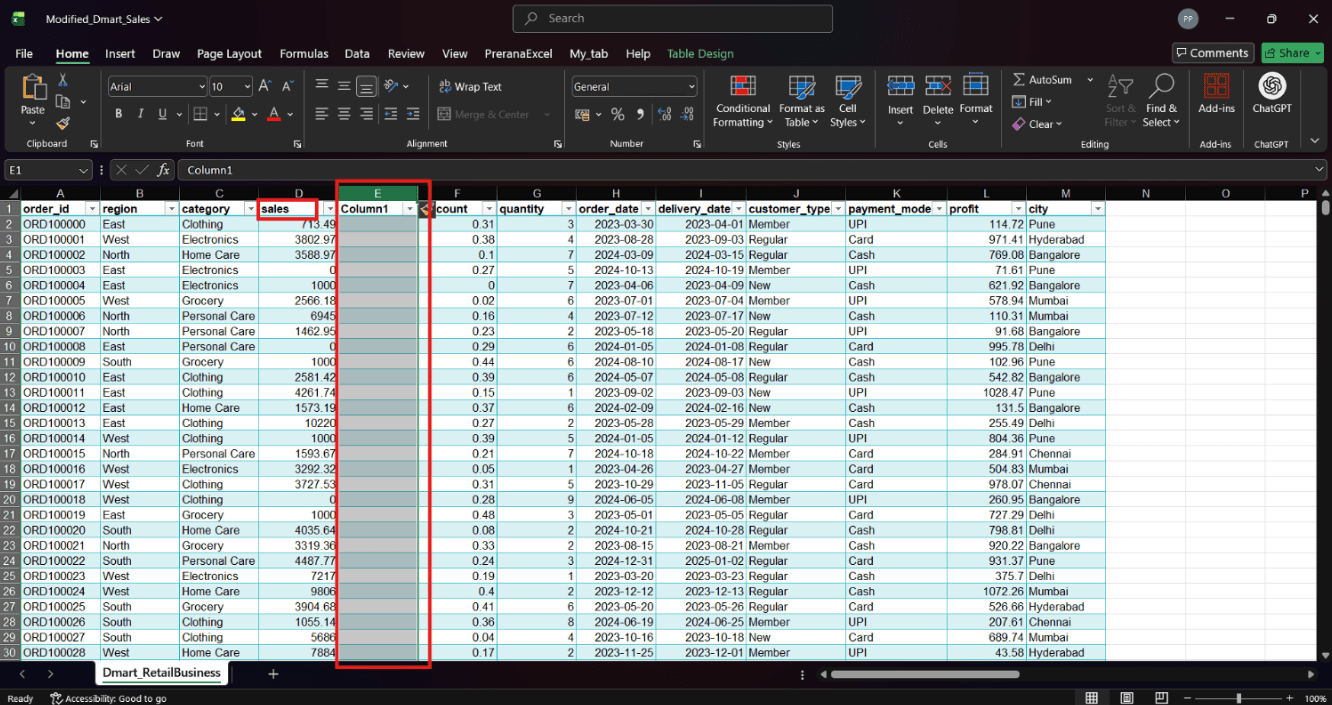
Add a new empty column next to the Sales column to display the classification.
1
2
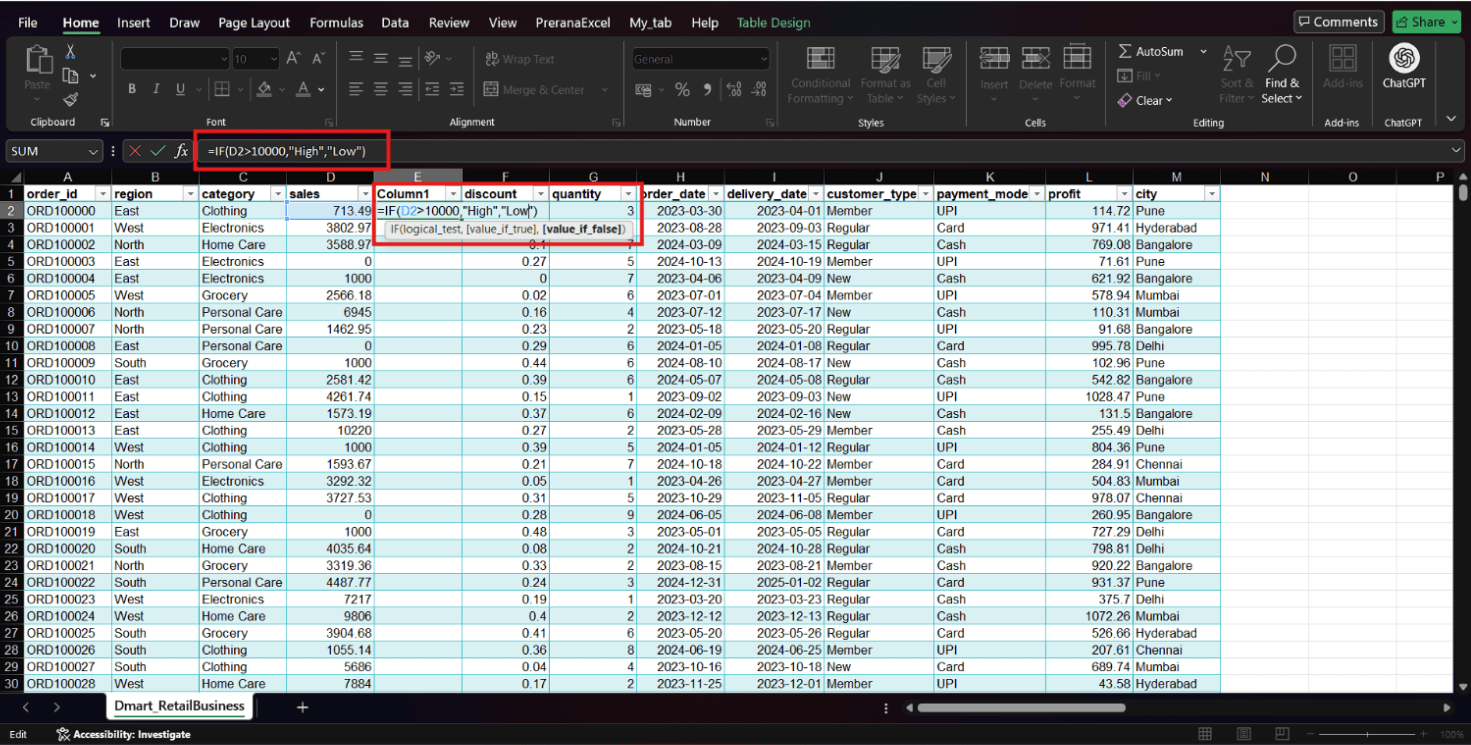
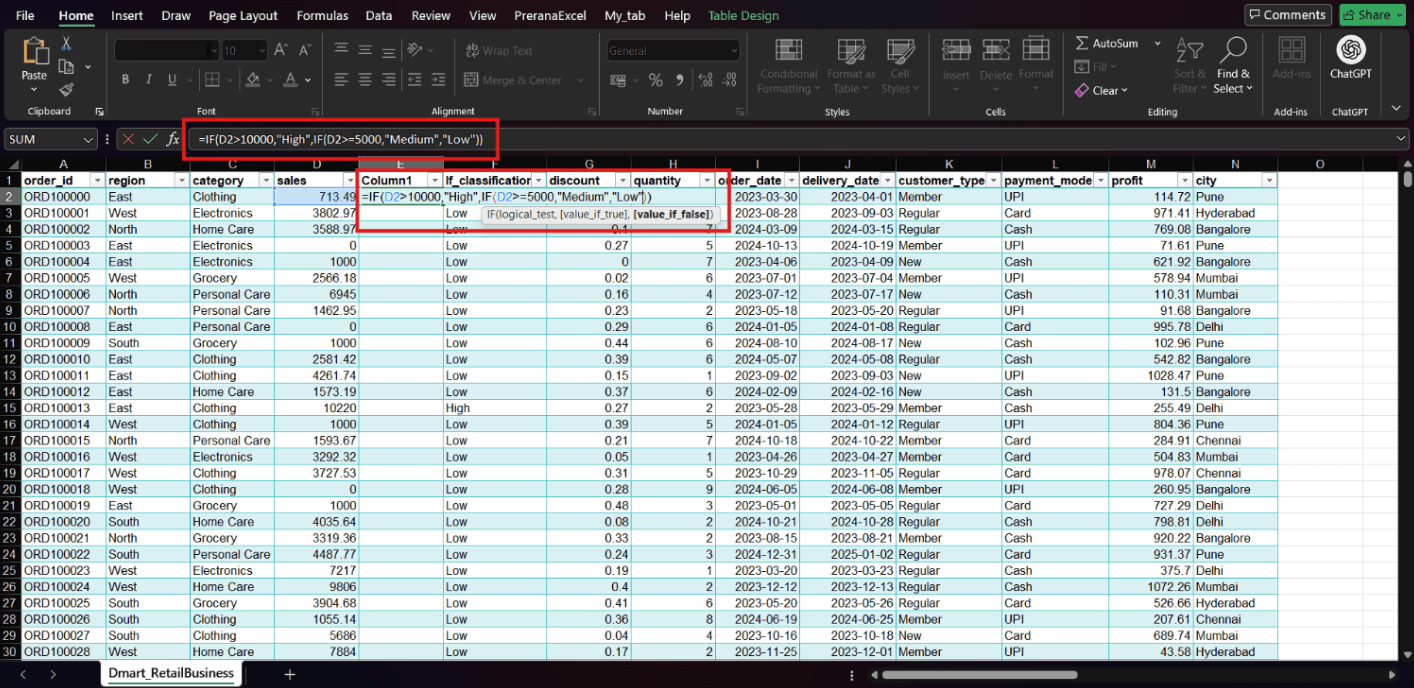
Enter an IF formula to classify sales values based on a condition.
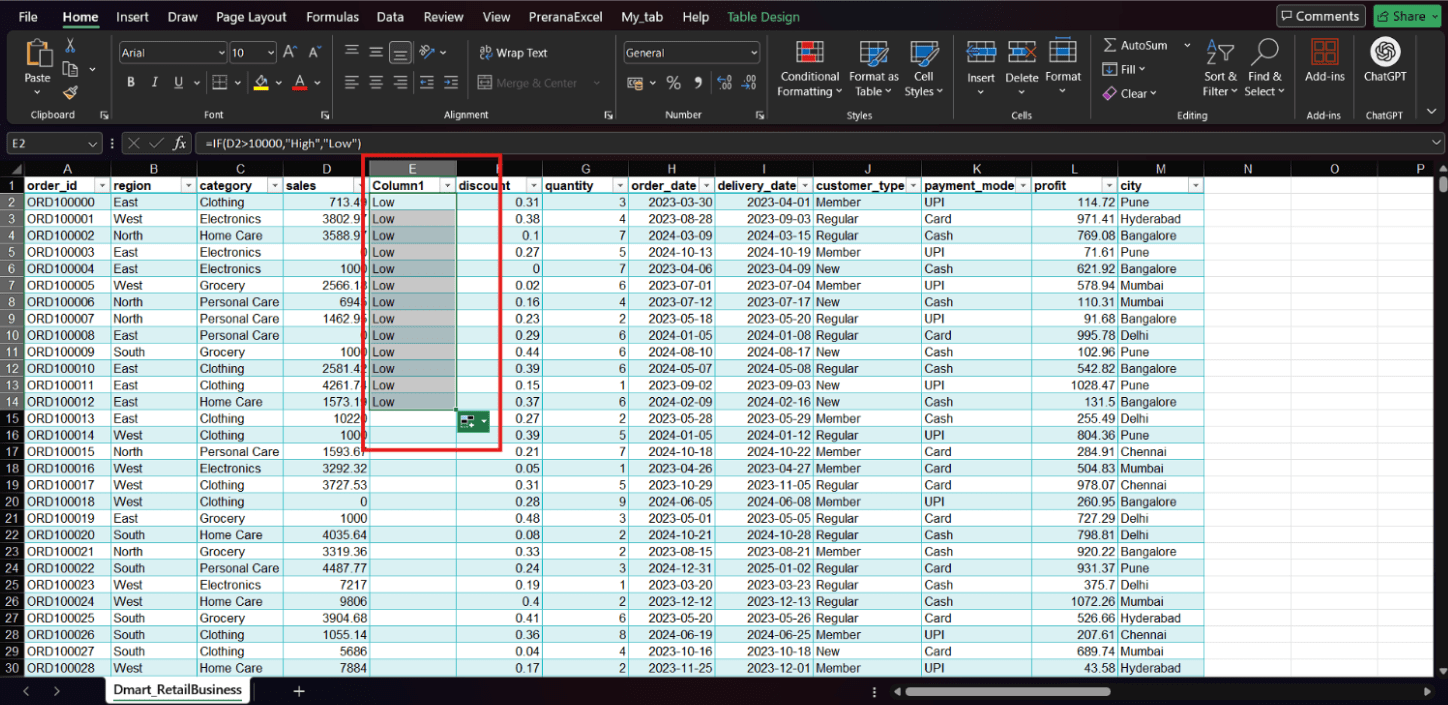
Press Enter and apply the formula to all rows using AutoFill.
3
Choose an empty column next to the Sales column where you want to display the classification.
4
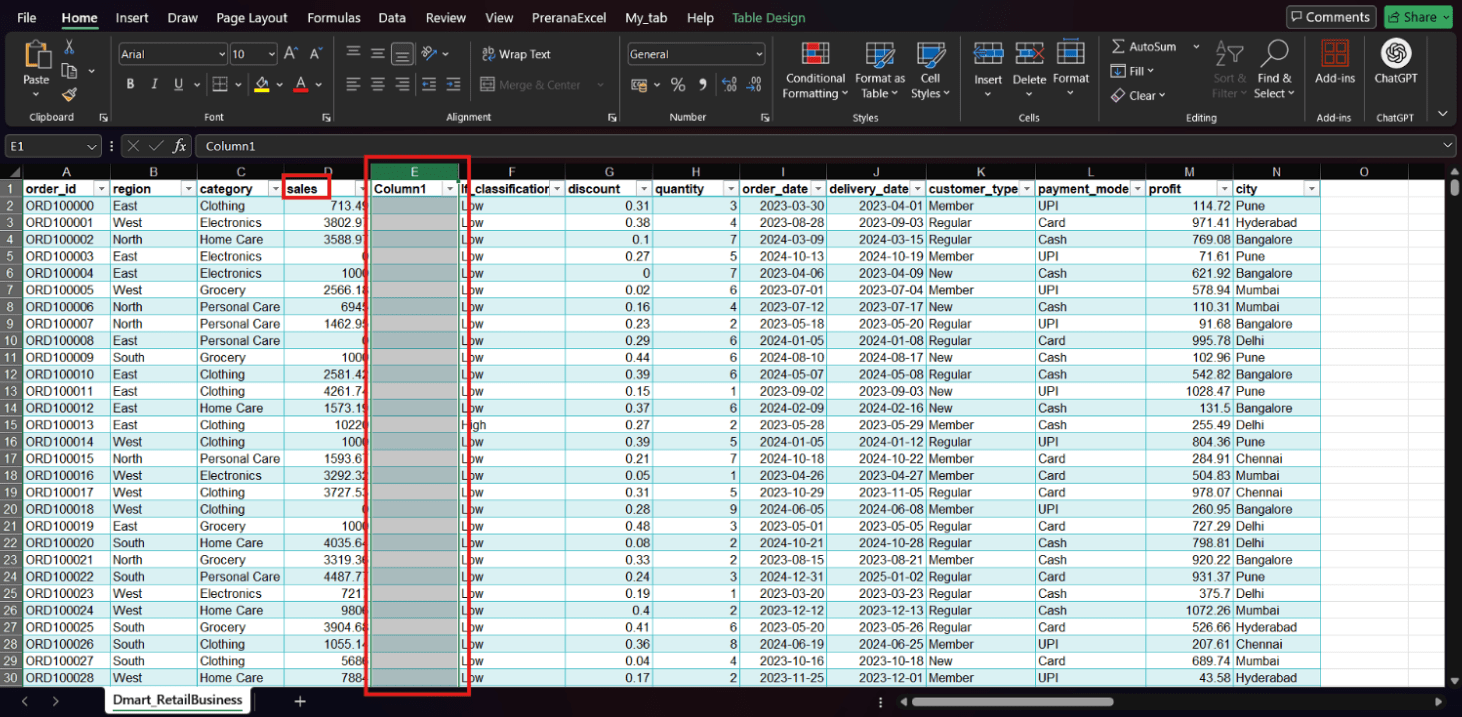
In this task, we used a simple IF condition to divide sales into High and Low categories.
However, real-world business scenarios often require more detailed classification, such as adding a Medium category.
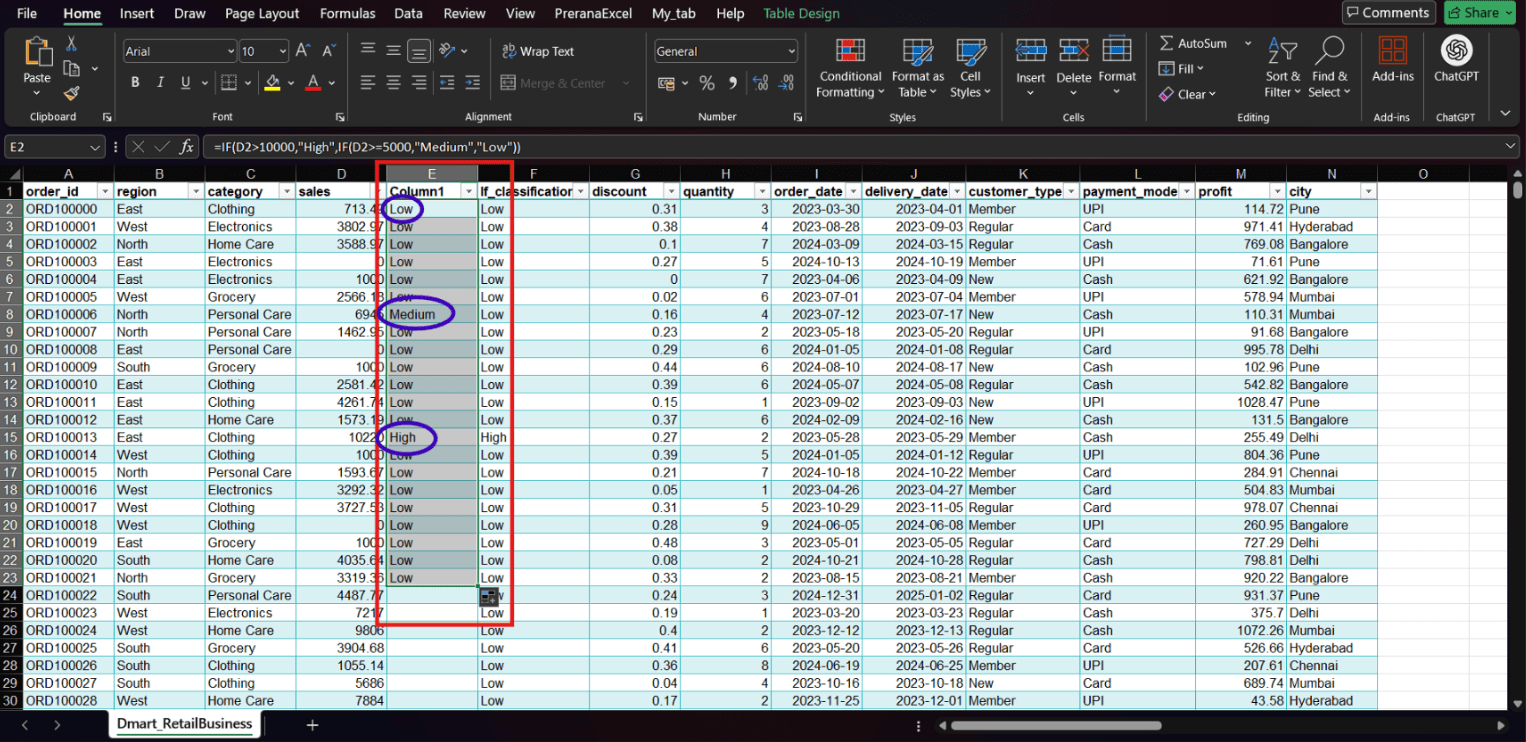
That’s why we use Nested IF, which allows us to apply multiple conditions in a single formula.
Enter the Nested IF Formula
5
Press Enter and apply the formula to all rows using AutoFill.
6
Task 2: Use Logical Operators (AND, OR, NOT) for Decision Making
Now your manager wants to analyze performance based on multiple conditions at the same time.
This is where logical operators like AND, OR, and NOT are used.
Using AND Function
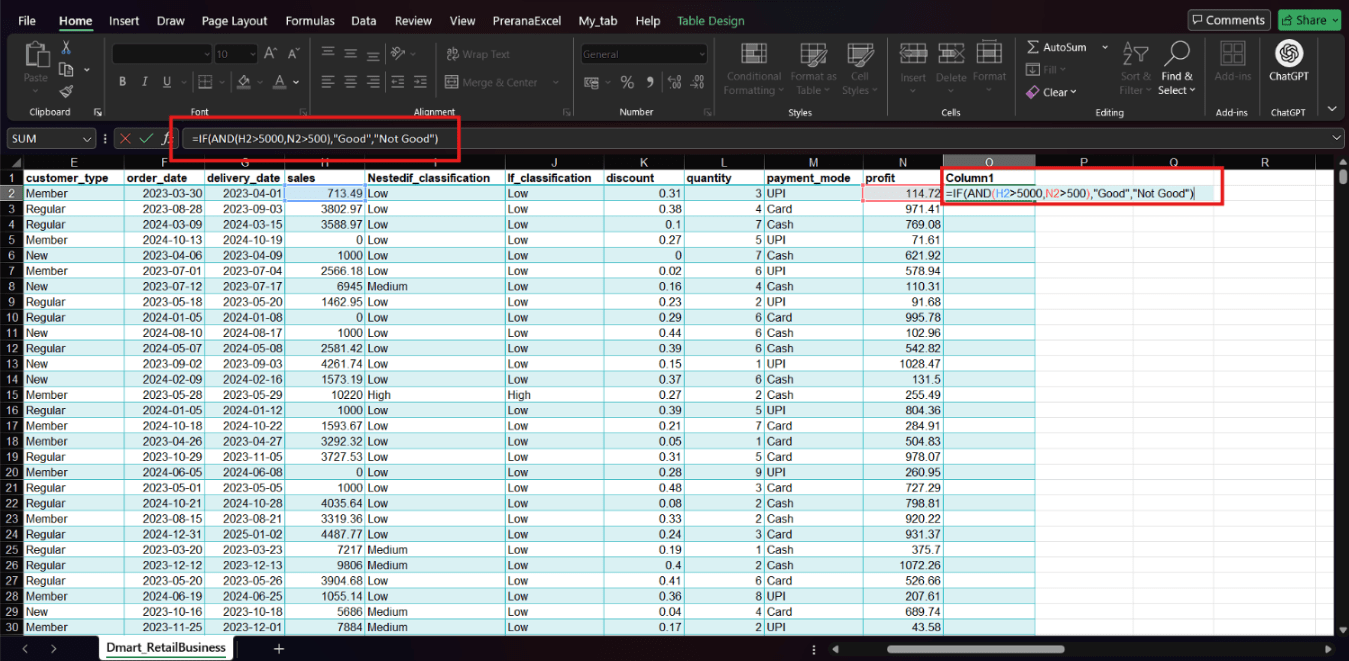
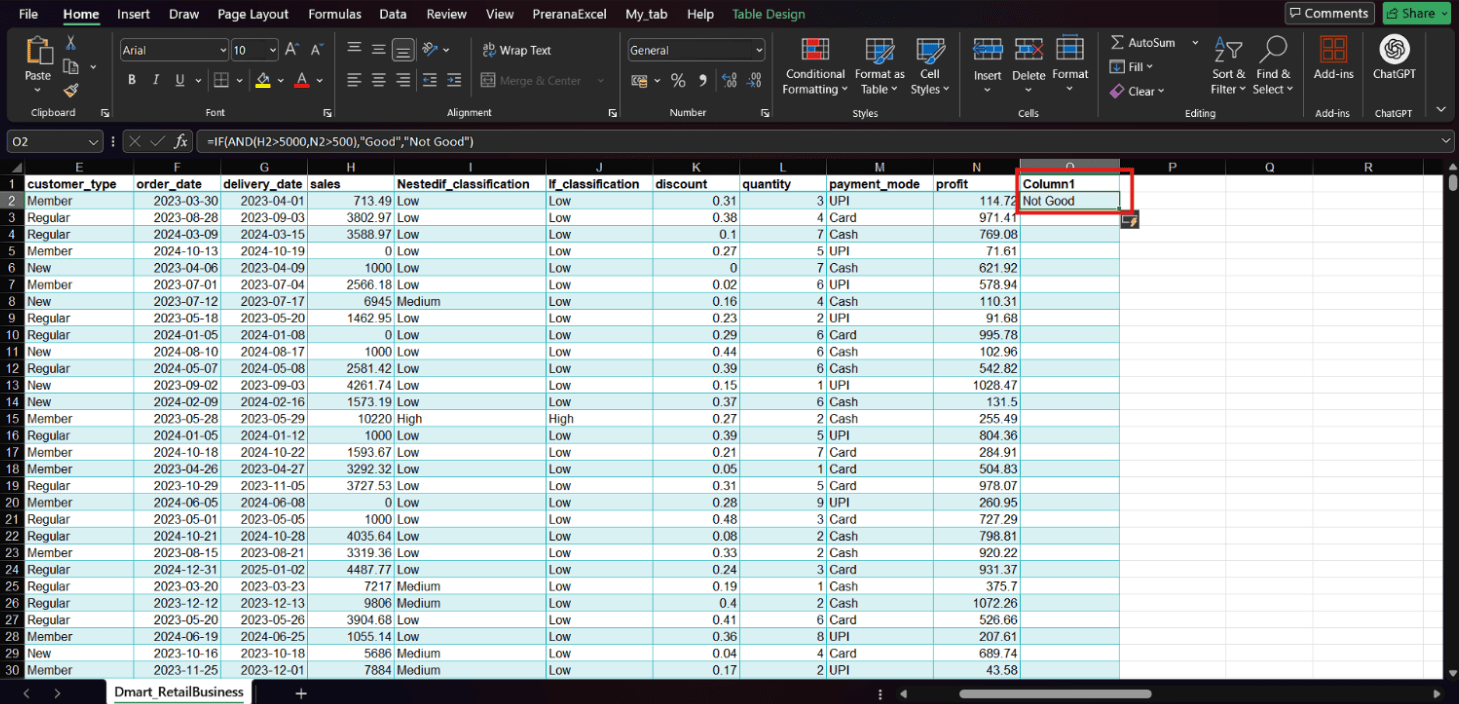
Use the AND function to check multiple conditions together.
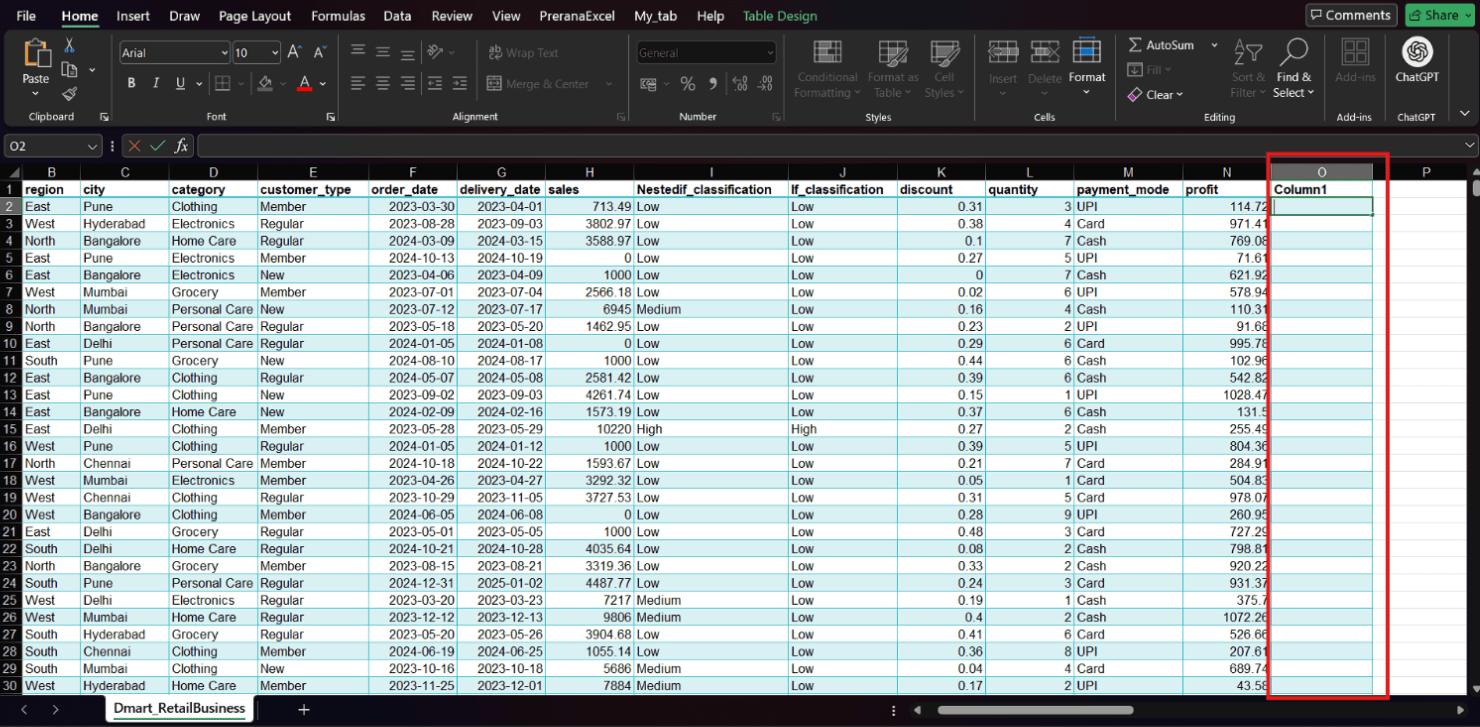
Select an empty cell .
1
Enter the formula
2
Press Enter.
3
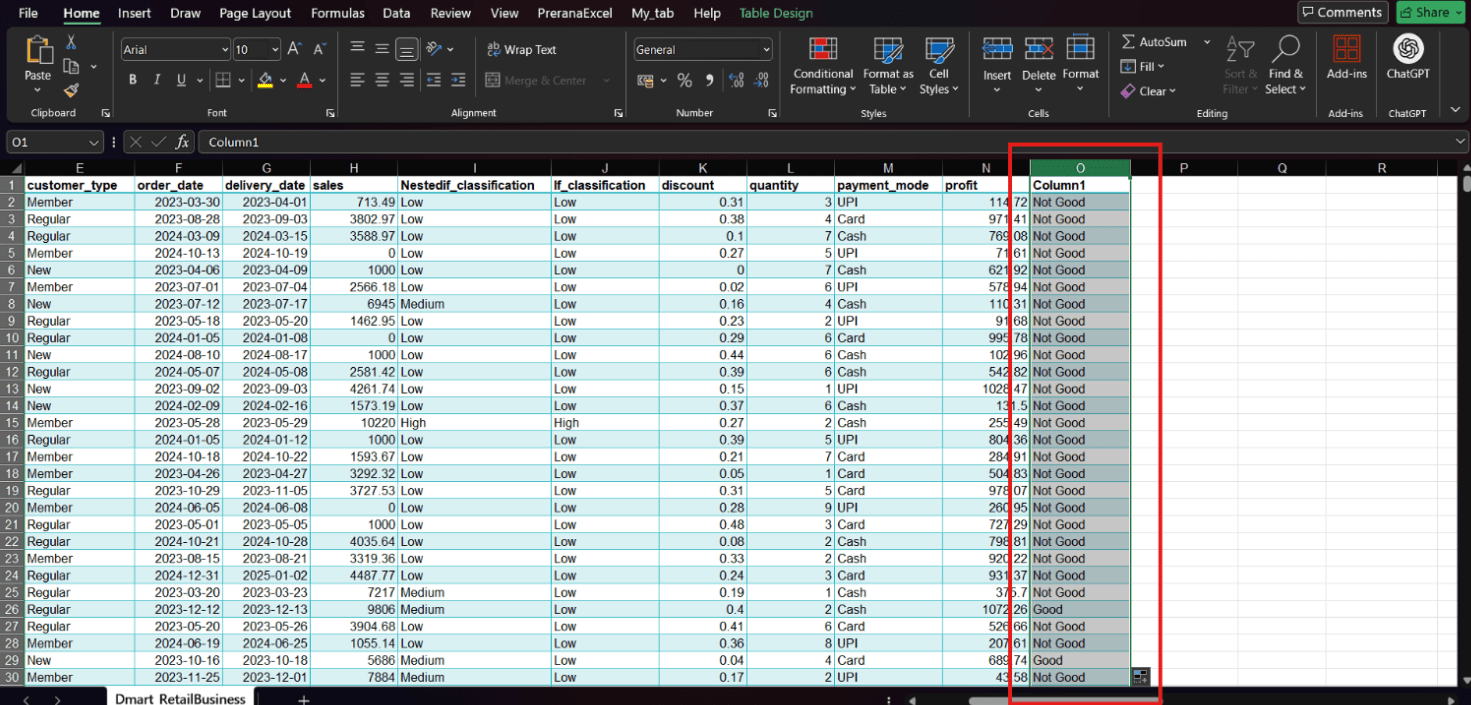
Drag the fill handle down to apply it to all rows.
4
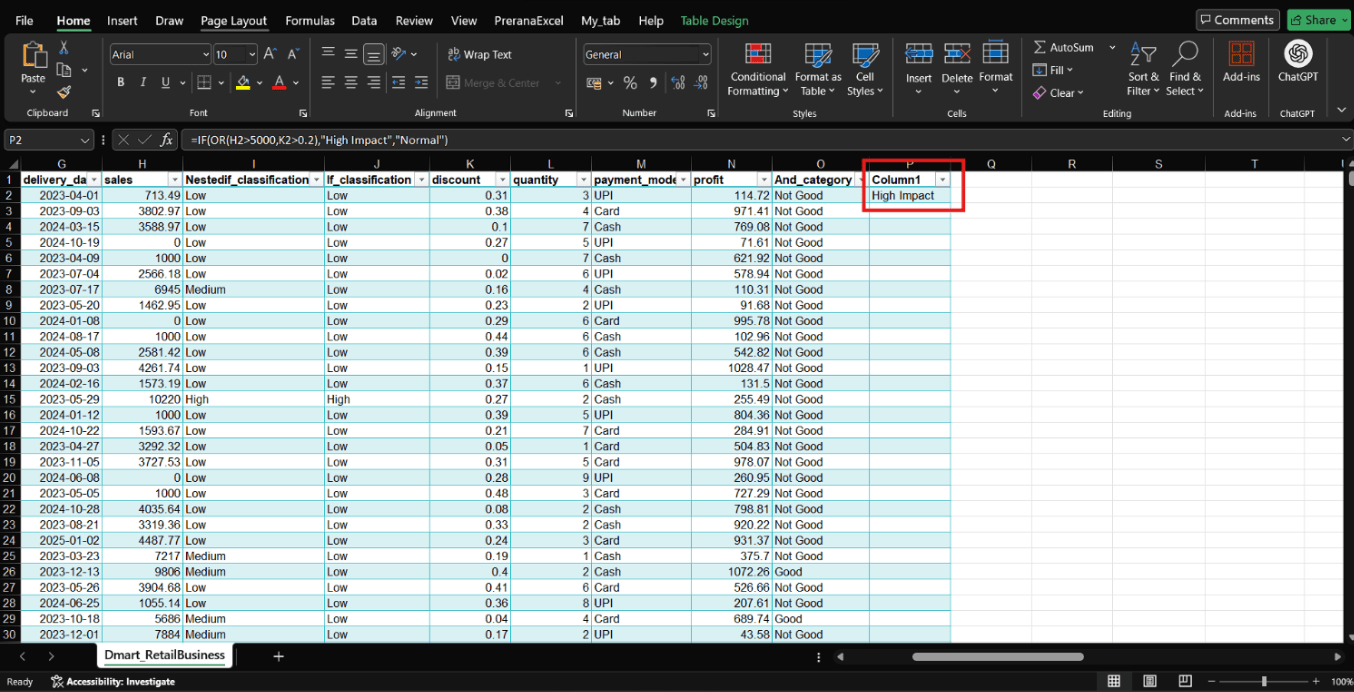
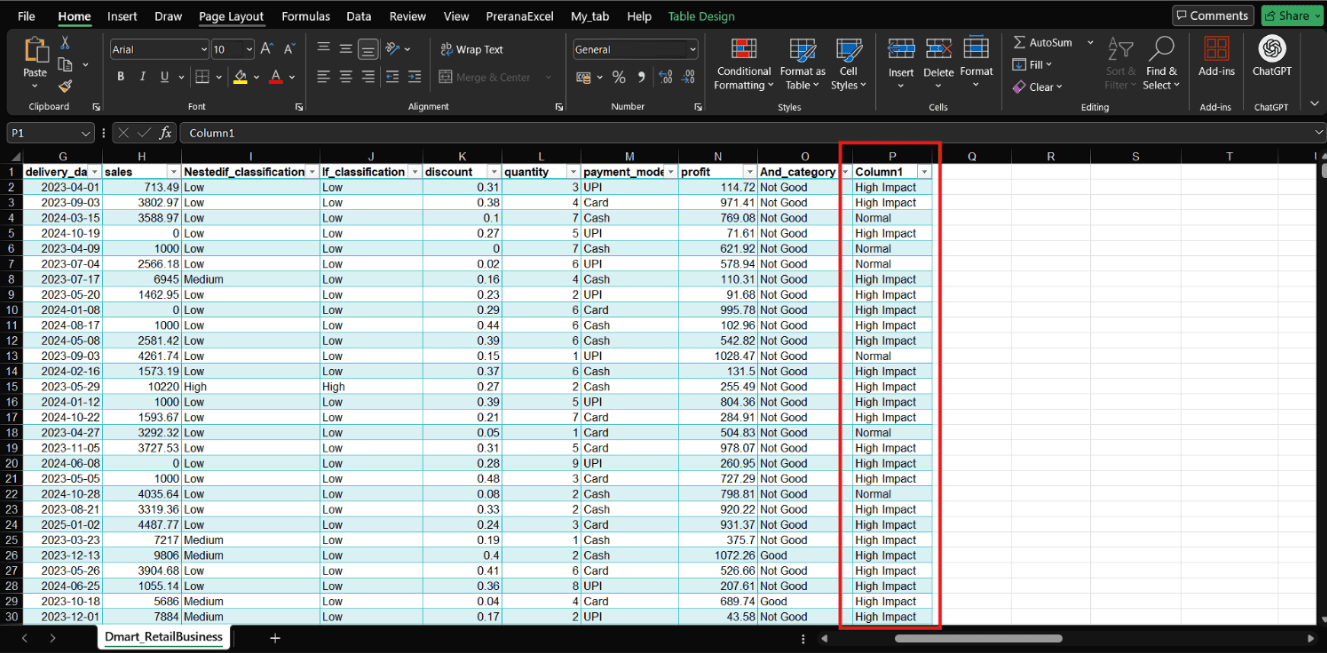
Using OR Function
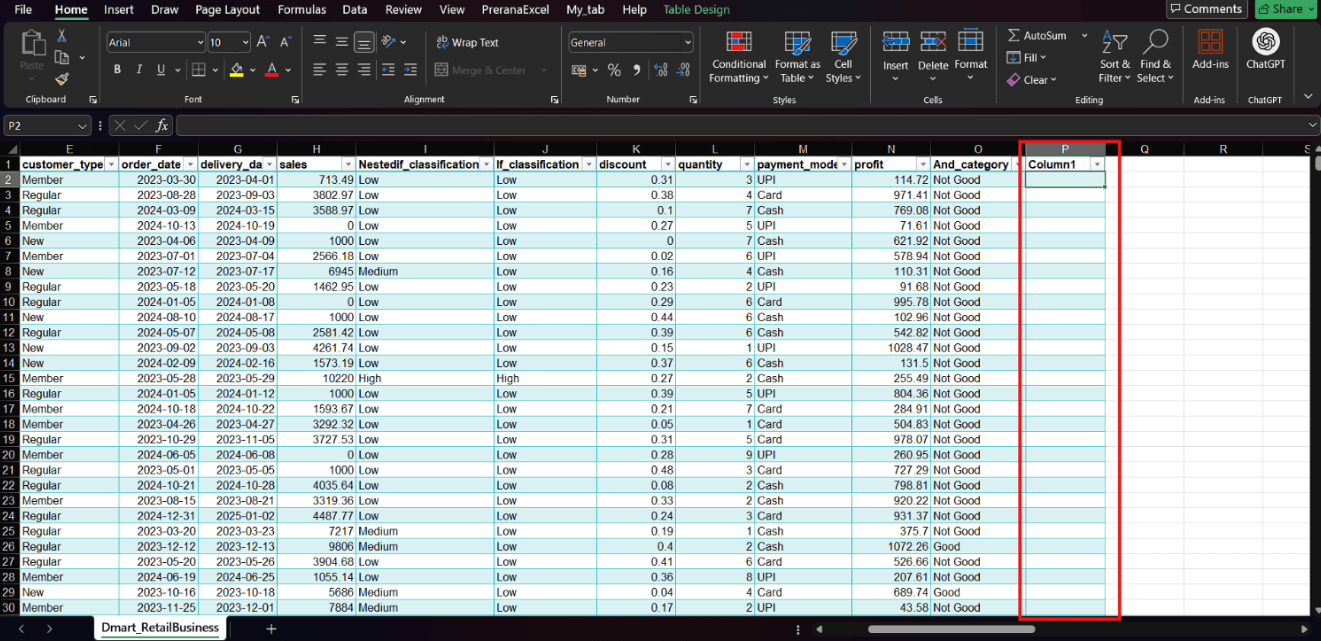
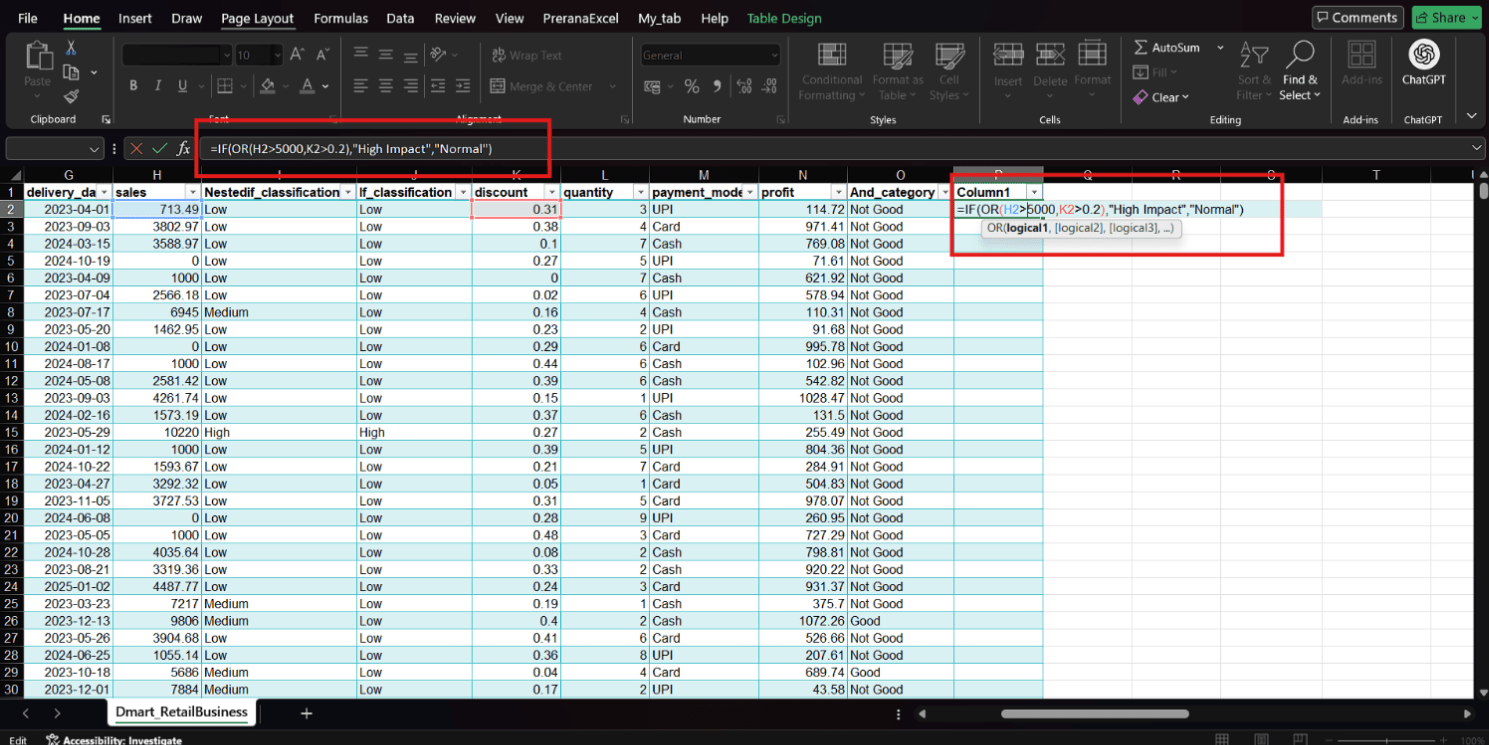
Use the OR function to check if at least one condition is true.
Select another empty cell
1
Enter the formula:
2
Press Enter.
3
Drag to apply to all rows.
4
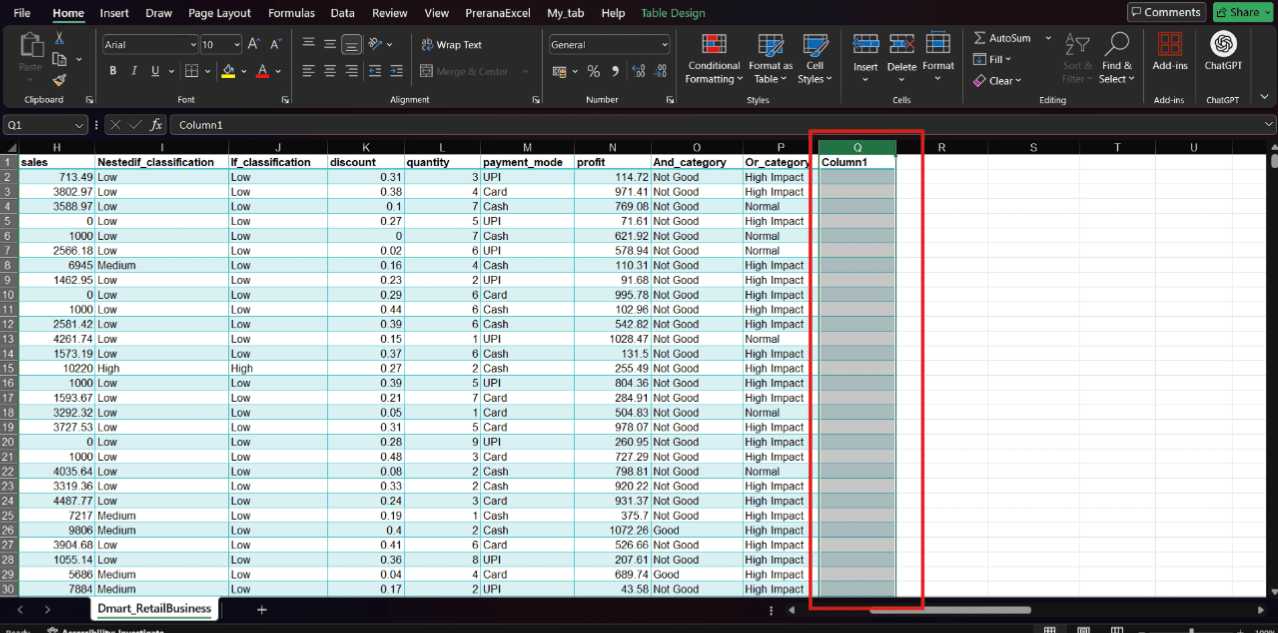
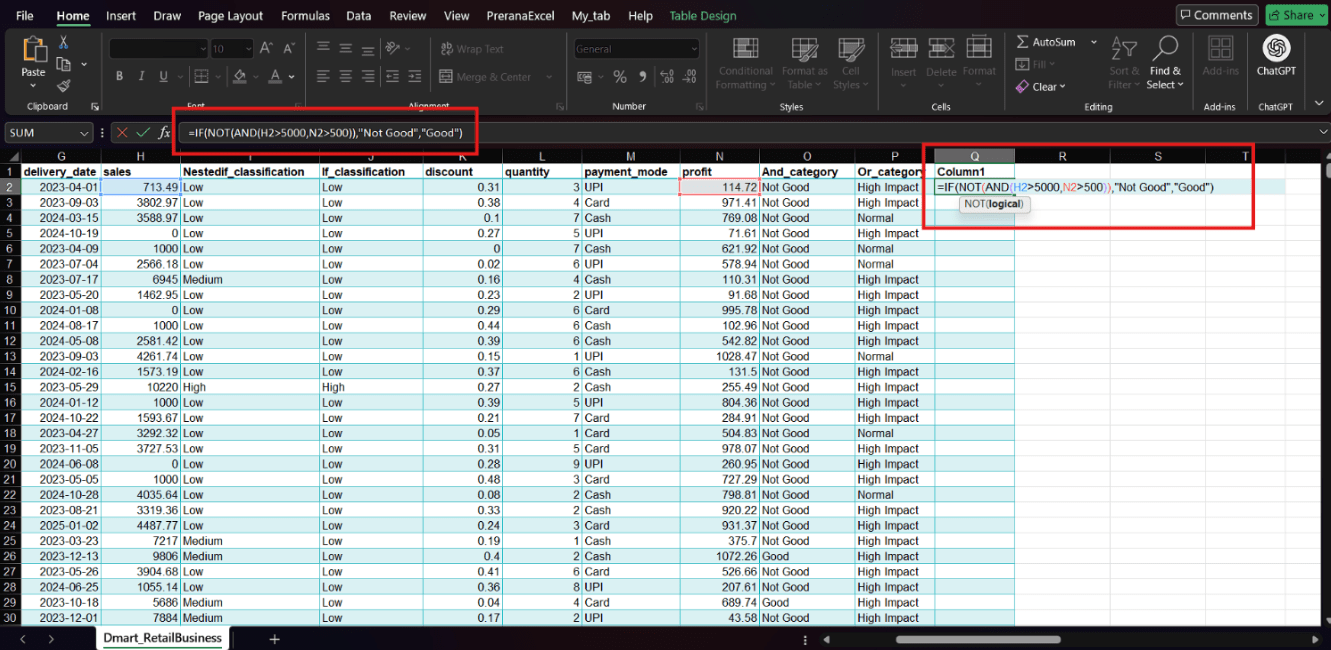
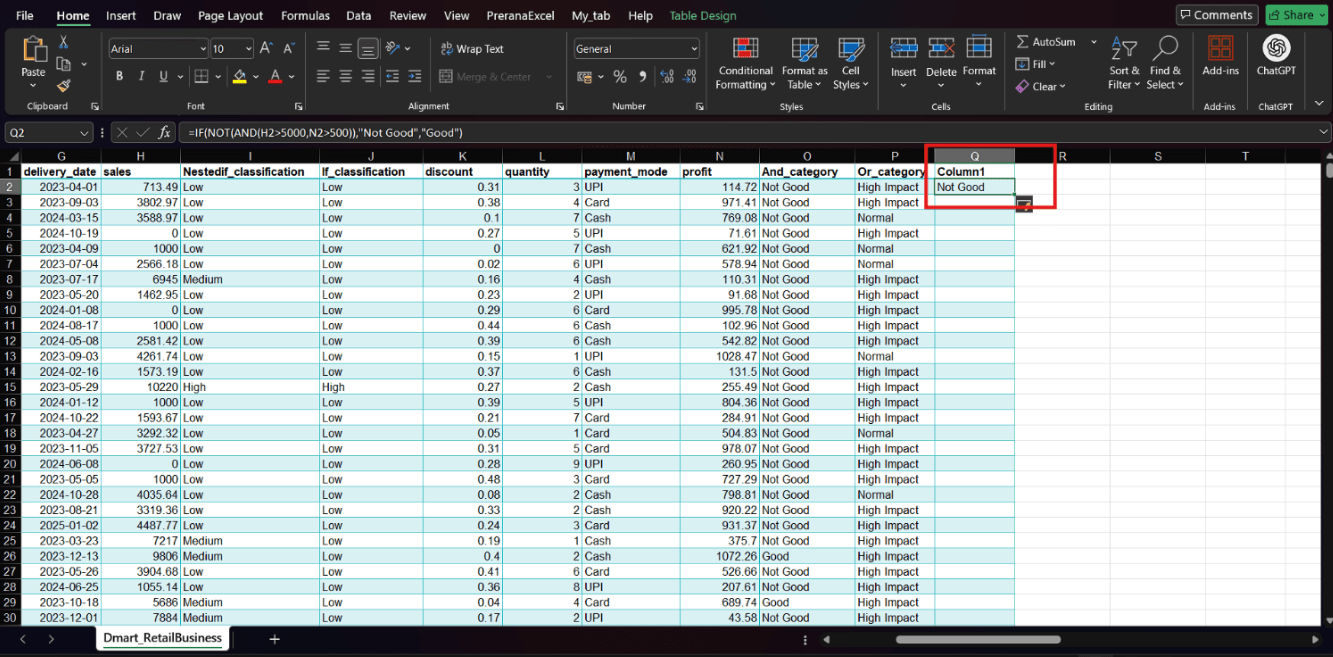
Using NOT Function
Use the NOT function to reverse a condition.
Select another empty cell
1
Enter the formula:
2
Press Enter
3
By Content ITV