Jenkins CI/CD Environment Setup for CartForge Commerce

Business Scenario
At CartForge, with the cloud infrastructure now secured through VPC, subnets, and route tables, the platform was ready for the next major step—automation.

The manager discovered a growing challenge:
Manual deployment processes were slow, repetitive, and increased the risk of errors, making future updates inefficient for the development team.

He assigned the responsibility to the junior DevOps engineer.
After evaluating the workflow, the DevOps engineer proposed the best solution:
Set up a robust Jenkins CI/CD environment to automate build, test, and deployment pipelines for the CartForge Commerce application.
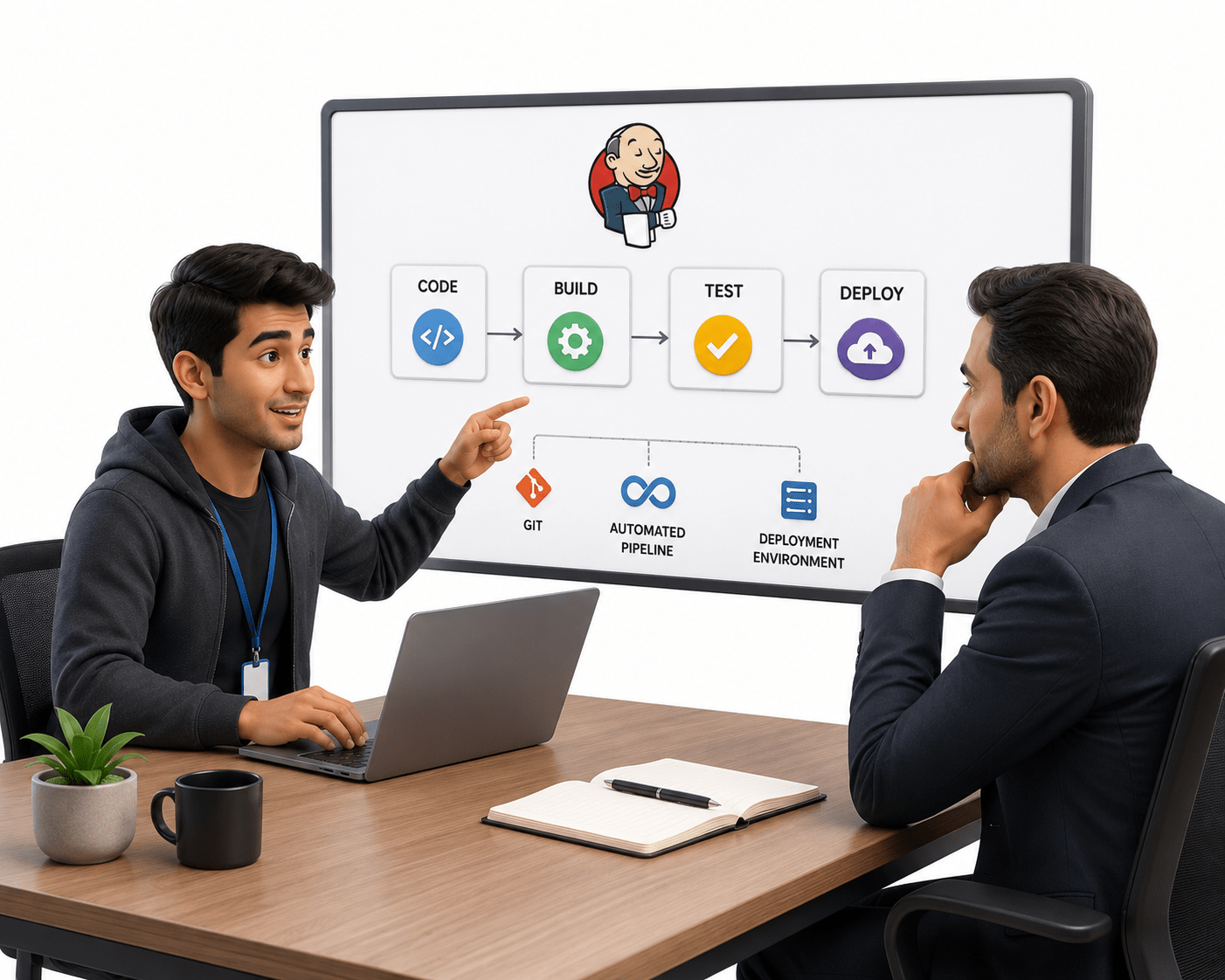
The DevOps engineer then explained the strategy to the team:
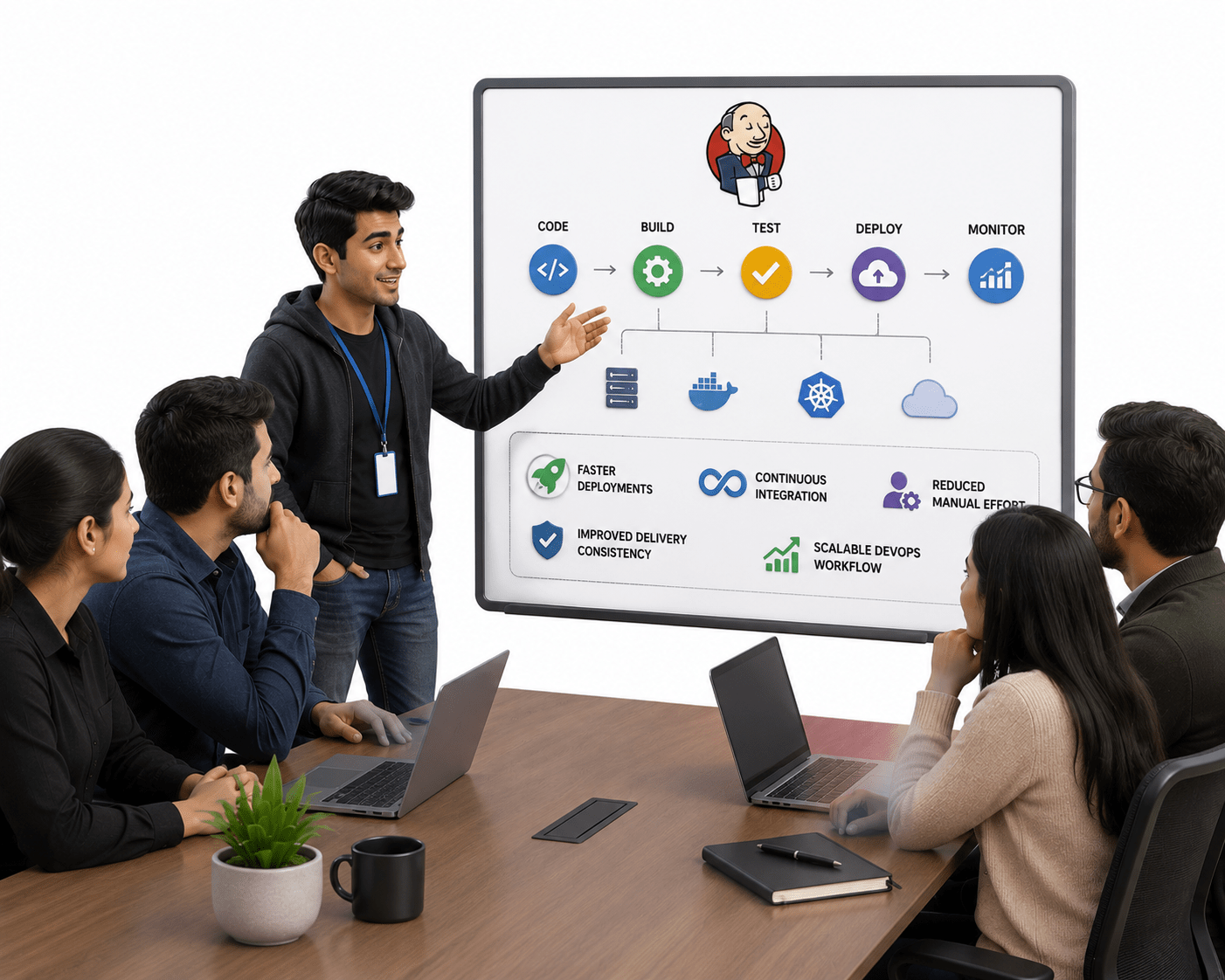
By implementing Jenkins automation, CartForge could achieve faster deployments, continuous integration, reduced manual effort, improved delivery consistency, and a scalable DevOps workflow for long-term growth.
Pre-Lab Preparation
In this lab, you will build a basic CI/CD environment for the CartForge application using Jenkins.
You will:
-
Understand how automated pipelines work using a real-world case study
-
Set up a Jenkins server
-
Configure a pipeline for CartForge
-
Execute an automated build
By the end of this lab, you will have a working CI/CD setup that automates basic tasks.
Task 1: Setup Jenkins Server
1
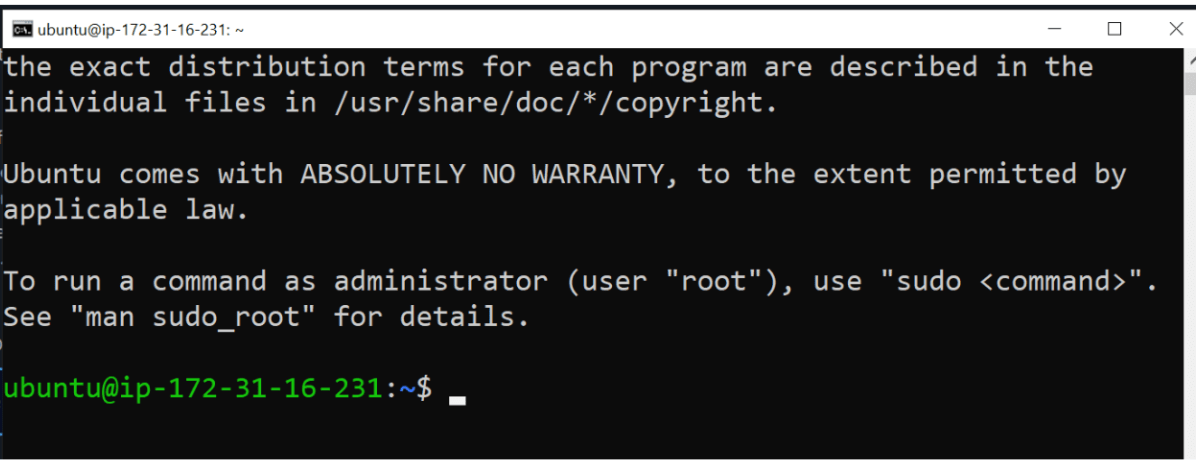
Connect to Your Server
ssh -i key.pem ubuntu@your-ip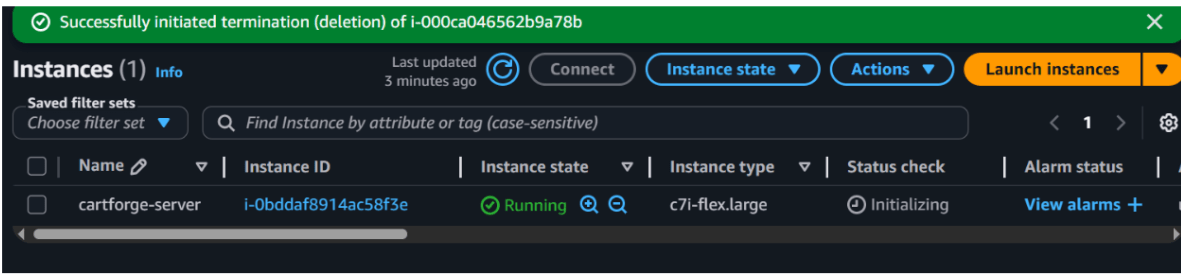
Update System
sudo apt update
sudo apt upgrade -y
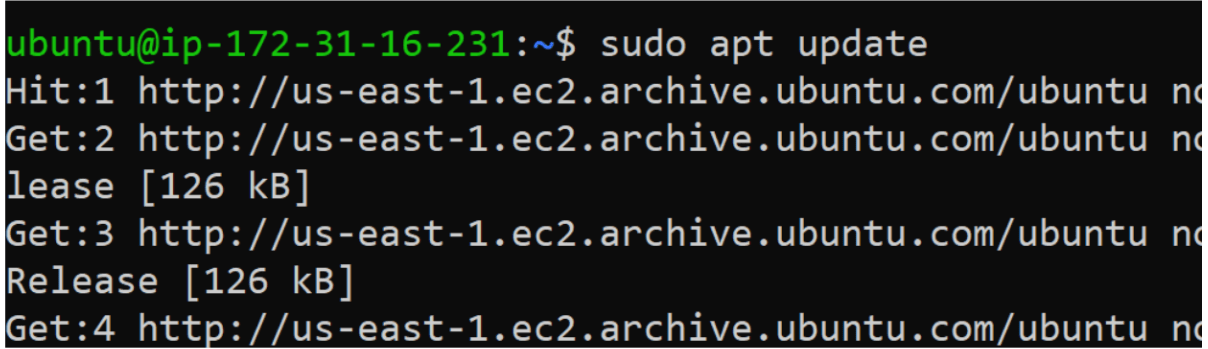
Install Java
sudo apt install openjdk-21-jdk -y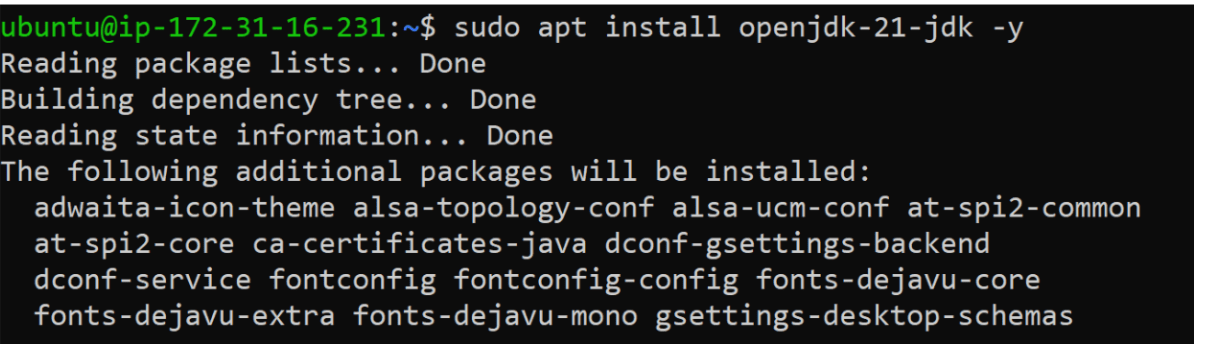
Verify Java
java -version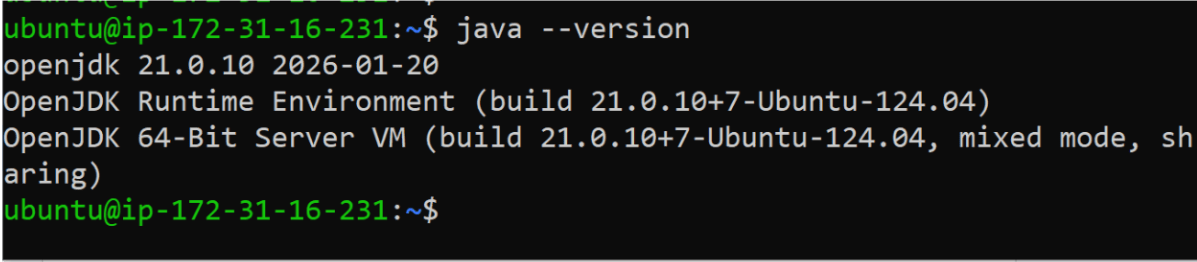
Install Jenkins
curl -fsSL https://pkg.jenkins.io/debian-stable/jenkins.io-2023.key | sudo tee \
/usr/share/keyrings/jenkins-keyring.asc > /dev/null
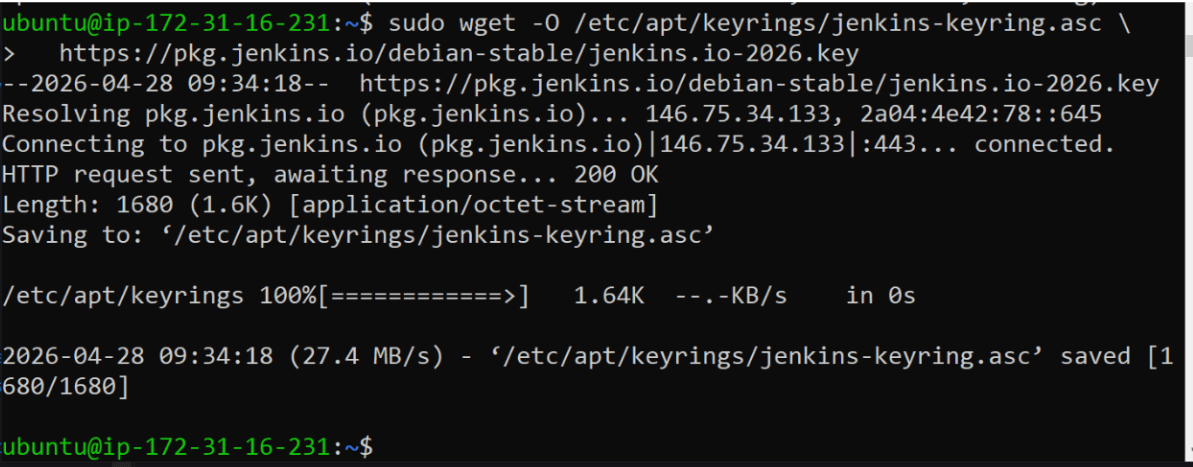
echo deb [signed-by=/usr/share/keyrings/jenkins-keyring.asc] \
https://pkg.jenkins.io/debian-stable binary/ | sudo tee \
/etc/apt/sources.list.d/jenkins.list > /dev/null

sudo apt update
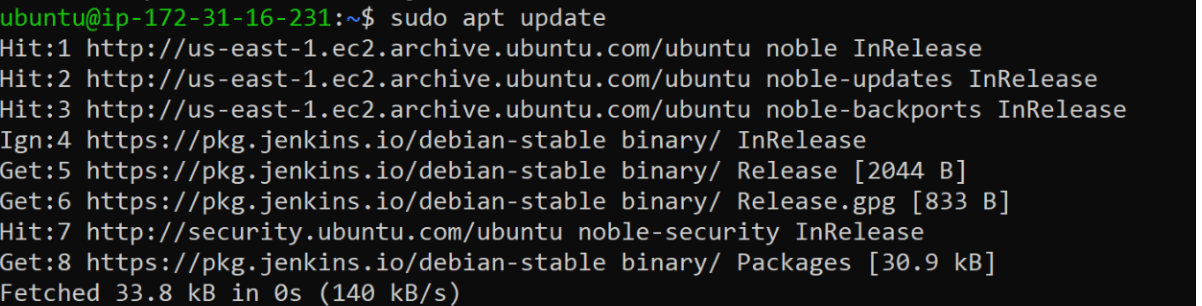
sudo apt install jenkins -y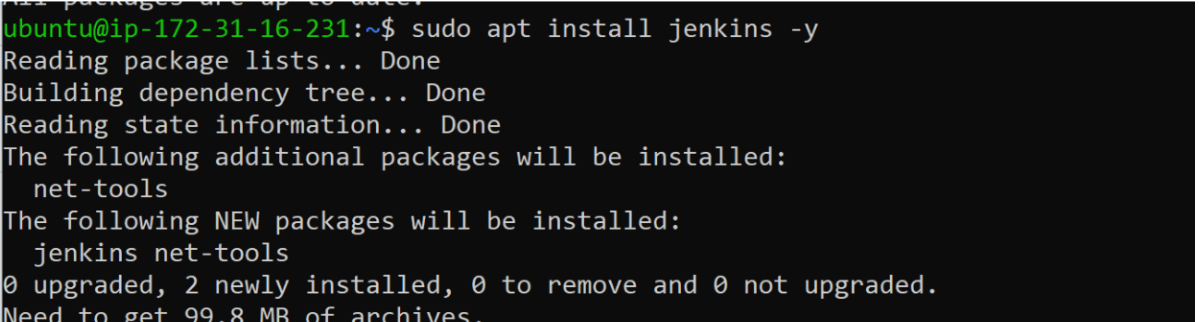
Start Jenkins
sudo systemctl start jenkins
sudo systemctl enable jenkins
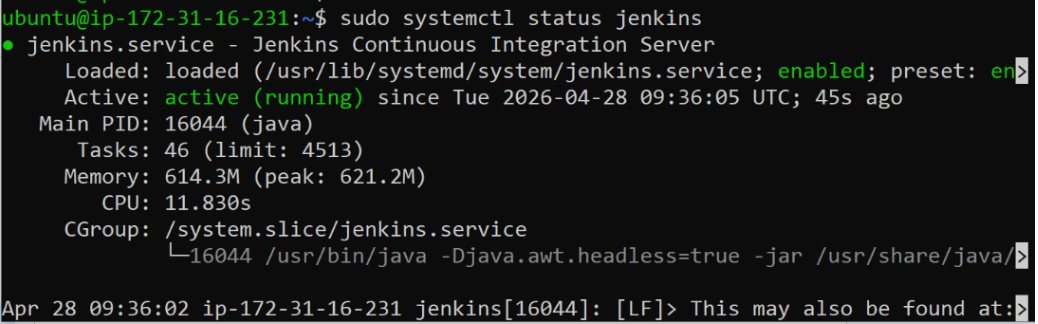
Check Status
sudo systemctl status jenkins
2
Open browser:http://your-public-ip:8080
Access Jenkins Dashboard
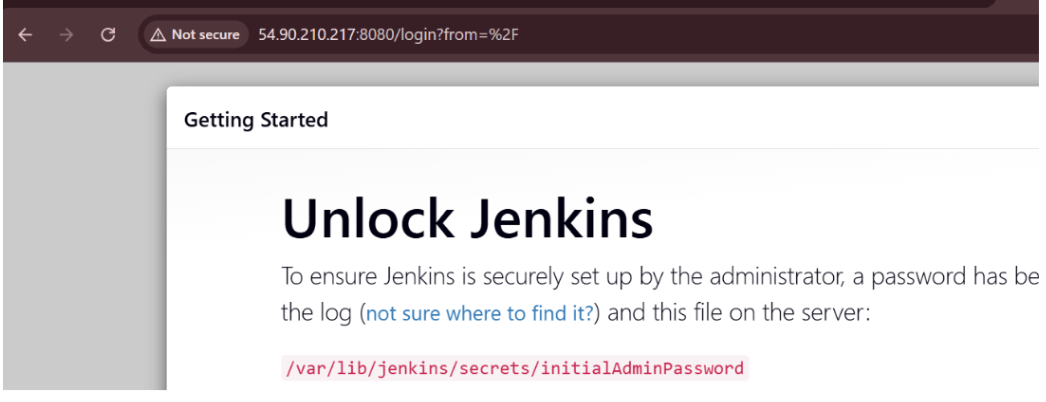
Get Initial Password
sudo cat /var/lib/jenkins/secrets/initialAdminPassword
Pre-Lab Preparation
- Explore different restaurants
-
View food items and menus
-
Add items to cart
-
Place orders online
Topic : Weaving the world of Web
1) Navigating the world of Web
2) Building Blocks of Website,
3) Tag Titans: Fundamental Web Construct.
git pull origin branchName
Git Pull
Task 1: Understanding BRD
Before you start building anything, you need to clearly understand what the client actually wants.So, let’s begin by understanding the BRD (Business Requirement Document) shared by the client.
BRD Full Form is Business Requirement Details.BRD like a plan for building a house. This plan helps the builder understand what to build.In the same way,BRD tells developers what the client wants to build
Click to download BRD : BiteBox_BRD.pdf
Activity
After going through BRD list down the Core Features and Web Pages in the tabulated Format as shown Below.
| Col 1 | Col 2 | Col 3 |
|---|---|---|
| Row 1 | ||
| Row 2 | ||
| Row 3 |
Formula
Profit = Revenue - Cost
Task 2: Create WireFrame
Now that you understand the requirements, don’t jump into coding yet. Before development, we always visualize the layout.
Now lets create a simple wireframe for the homepage.
A wireframe is like a layout plan of a house. Before building, you decide where rooms, doors, and windows will be placed.Similarly, a wireframe helps you plan where elements like headers, images, and buttons will appear on a webpage—before adding design or colours.
Task 3: Code Editor Installation
Good work on completing the planning phase.
Now we will start development. Before that, make sure your system is ready with the required tools.
In this step we will install the VS code editor that will help to Write code efficiently,Organize files , Run and test your application
Go to the visual studio code official website
1
Click to download Homepage Wireframe : Homepage Wireframe
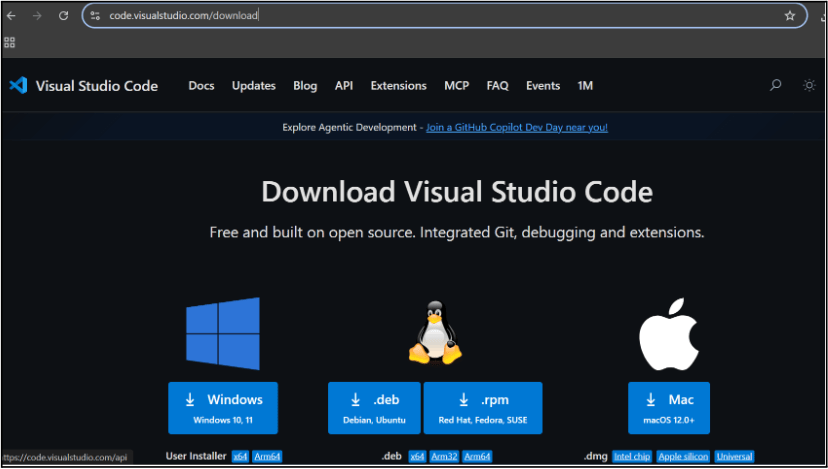
Choose your operating system(windows / Mac) and download the installation file.
Double click on the download app and Accept the agreement and click next
2
It is a long established fact that a reader will be distracted
b
Sub Steps
a
Double click on the download app and Accept the agreement and click next
public class MathSample {
    public static void main(String[] args) {
        int x = 10;
        int y = 20;
        int sum = x + y;

        System.out.println("The sum is: " + sum);
    }
}
public class MathSample {
public static void main(String[] args) {
int x = 10;
int y = 20;
int sum = x + y;
System.out.println("The sum is: " + sum);
}
}
public class MathSample {
public static void main(String[] args) {
int x = 10;
int y = 20;
int sum = x + y;
System.out.println("The sum is: " + sum);
}
}
Great job!
You have successfully completed your first lab on BiteBox Project Onboarding.
In this lab, you have: Understood the BRD, Created a wireframe, Set up your development environment, Organised your project structure, Run your first program
You are now ready to move to the next stage of development
Checkpoint
Next-Lab Preparation
Git Push
git push origin branchNameTopic : Working with a Text and Listin HTML
1) Power of HTML text tags
2) Customizing your style with CSS
3) Listing it right using HTML
4) HTML Link up , attributes of tag, block vs inline elements
Text box Width : 887
Business Scenario, Pre-lab Preparation, Next-lab Preparation, Task, Activity, Checkpoint : 90%.
Steps : 1,2,3 [Sub Steps - a,b,c]
Normal Text, Topic Name : 80%
Subtopic : 70%
Code Box font Size : 16px