StreamCheck UI Automation Fundamentals

Business Scenario
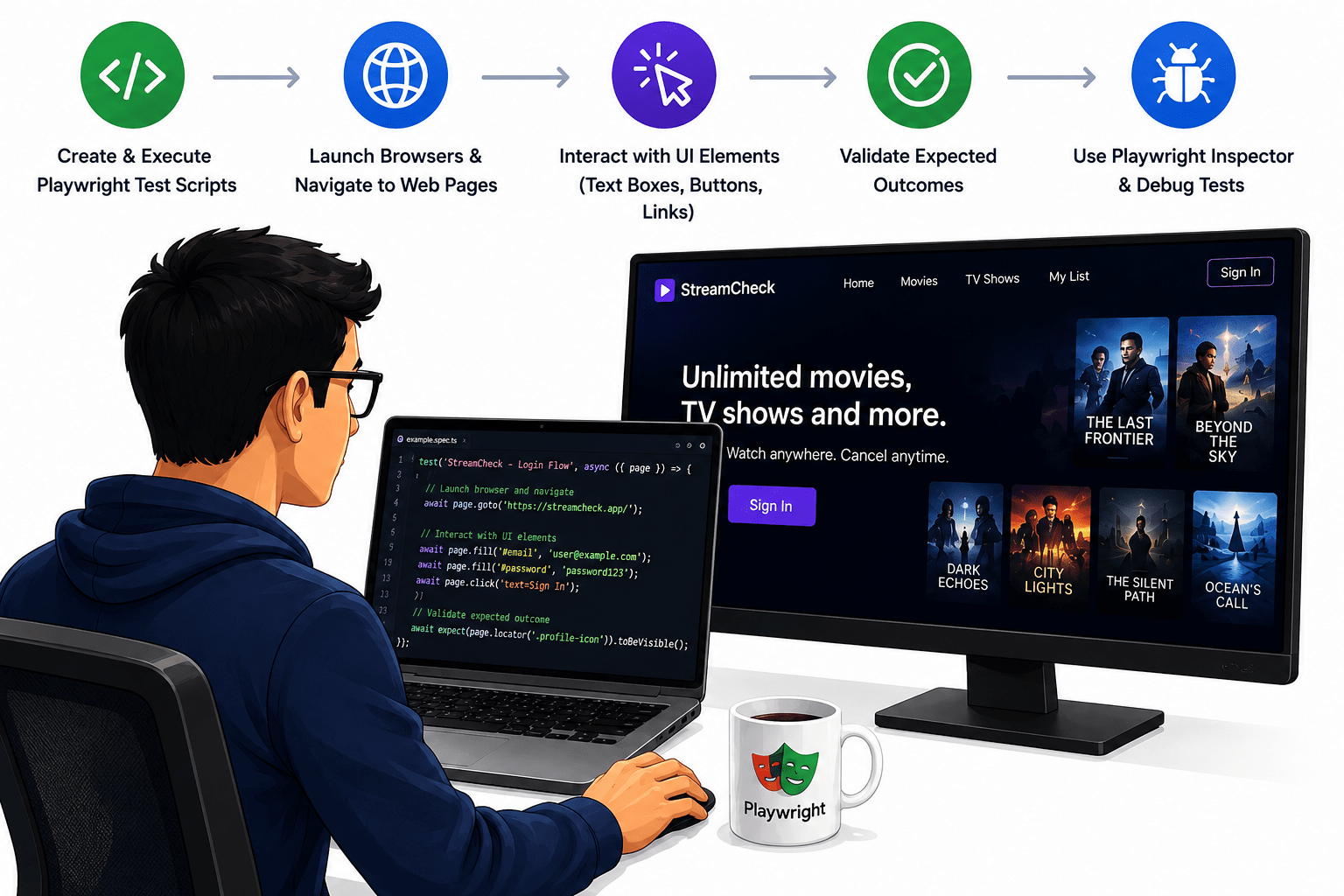
Congratulations! You have been assigned to the QA Automation Team at StreamCheck Media Solutions to automate the testing of core user interface functionalities of the StreamCheck streaming platform. Before working on advanced automation scenarios, you need to understand the fundamentals of UI automation using Playwright.
In this lab, you will learn how to create and execute basic Playwright test scripts, launch browsers, navigate to web pages, interact with UI elements such as text boxes, buttons, and links, and validate expected outcomes. You will also explore the Playwright Inspector and basic debugging techniques. By the end of this lab, you will be able to automate simple user interactions and verify UI behavior on the StreamCheck platform.

Pre-Lab Preparation
basic Playwright test scripts, launch browsers, navigate to web pages, interact with UI elements such as text boxes, buttons, and links, and validate expected outcomes. You will also explore the Playwright Inspector and basic debugging techniques. By the end of this lab, you will be able to automate simple user interactions and verify UI behavior on the StreamCheck platform.
Topic: Core Playwright Concepts
1)Locators (getByRole, getByText, CSS, XPath)
2)Actions (click, fill, hover, press)
3)Wait mechanisms (auto-wait, explicit wait)
4)Assertions (visibility, text, URL, state validation)
git pull origin branchNameGit Pull

Task 1: Automate basic UI interactions
Create the Java class
1
In Eclipse, create a class named BasicUIInteractions inside the package com.automation
package com.automation;

public class BasicUIInteractions {

    public static void main(String[] args) {

    }
}
git pull origin branchNameGit Pull
Task 1: Automate basic UI interactions
-
Launch Eclipse IDE.
-
Open the StreamCheck automation project.
-
Ensure the project builds successfully.
Open the StreamCheck Playwright Project
1
Create a New Test Class
2
Navigate to the src/test/java folder
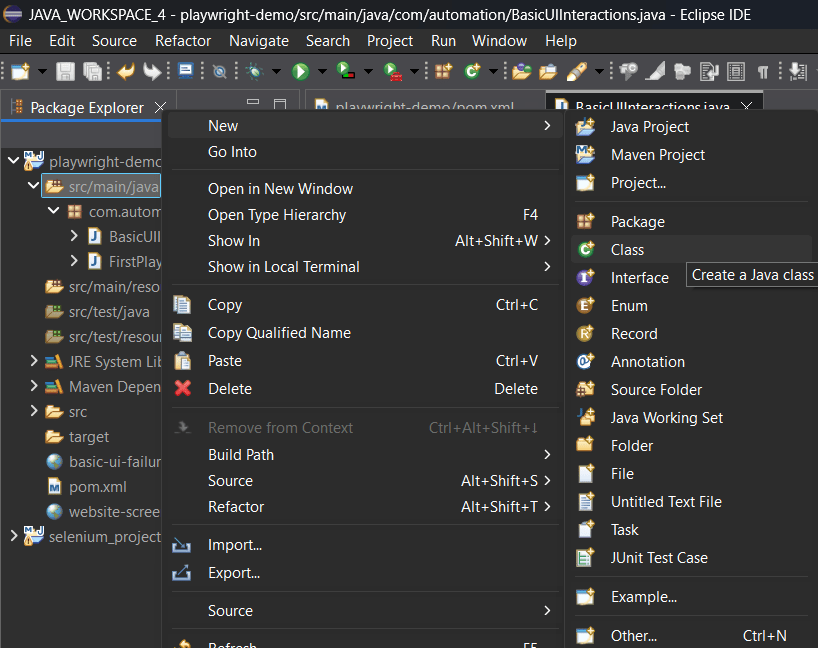
Create a new Java class named
3
Create a new Java class named BasicUIInteractions
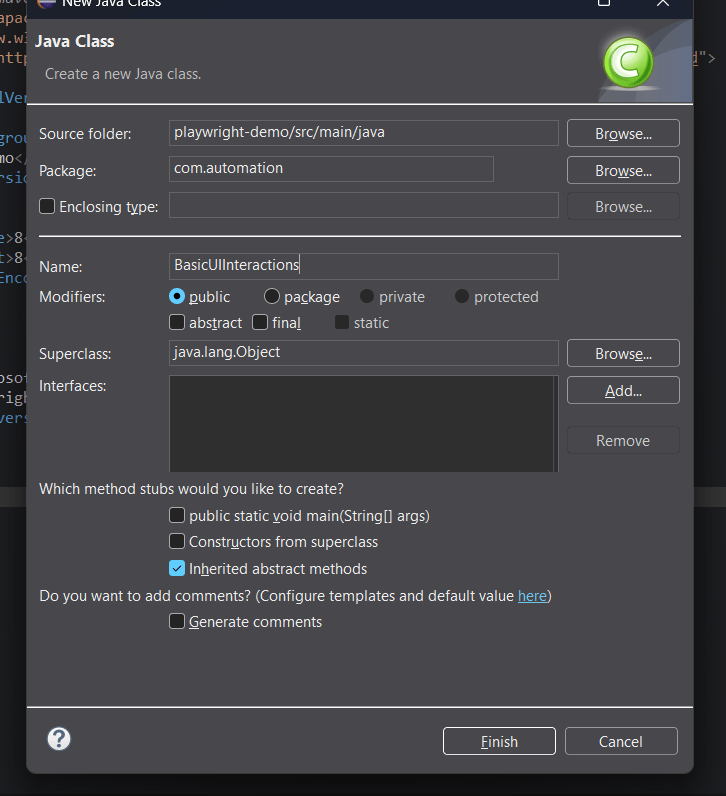
Create the Java class
4
In Eclipse, create a class named BasicUIInteractions inside the package com.automation
package com.automation;

public class BasicUIInteractions {

    public static void main(String[] args) {

    }
}
package com.automation;
public class BasicUIInteractions {
public static void main(String[] args) {
}
}Add the imports
5
Place these below the package declaration:
“The main() method is where Java starts executing our program.”
import static com.microsoft.playwright.assertions.PlaywrightAssertions.assertThat;

import java.nio.file.Paths;
import java.util.List;
import java.util.regex.Pattern;

import com.microsoft.playwright.Browser;
import com.microsoft.playwright.BrowserType;
import com.microsoft.playwright.Locator;
import com.microsoft.playwright.Page;
import com.microsoft.playwright.Playwright;
import com.microsoft.playwright.options.AriaRole;
import com.microsoft.playwright.options.SelectOption;
import static com.microsoft.playwright.assertions.PlaywrightAssertions.assertThat;
import java.nio.file.Paths;
import java.util.List;
import java.util.regex.Pattern;
import com.microsoft.playwright.Browser;
import com.microsoft.playwright.BrowserType;
import com.microsoft.playwright.Locator;
import com.microsoft.playwright.Page;
import com.microsoft.playwright.Playwright;
import com.microsoft.playwright.options.AriaRole;
import com.microsoft.playwright.options.SelectOption;| Class or method | Purpose |
|---|---|
| Playwright | Starts browser automation |
| Browser | Represents the browser |
| Page | Represents a browser tab |
| Locator | Finds an element |
| AriaRole | Identifies links, buttons, headings, and inputs |
| SelectOption | Selects a dropdown option |
| assertThat() | Checks expected behavior |
| Paths | Provides the screenshot file path |
Start Playwright and launch the browser
6
Inside main(), write:
try (Playwright playwright = Playwright.create()) {

    Browser browser = playwright.chromium().launch(
        new BrowserType.LaunchOptions()
            .setHeadless(false)
            .setSlowMo(1500)
    );

    Page page = browser.newPage();
}- Playwright.create() starts Playwright.
- setHeadless(false) makes the browser visible.
- setSlowMo(1500) slows automation actions for demonstration.
- newPage() opens a browser tab.
- The outer try automatically closes Playwright afterward.
Add the error-handling structure
7
After creating page, add:
try {
    // Write the automation steps here.

} catch (RuntimeException | AssertionError error) {
    System.out.println("FAILED: " + error.getMessage());
    throw error;

} finally {
    browser.close();
}
The try contains our test, catch reports failures, and finally closes the browser.
Open the website and validate its heading
8
Inside the inner try, write:
page.navigate("https://streamcheck-six.vercel.app/");

Locator homeHeading = page.locator("#featured-title");

assertThat(homeHeading).isVisible();
assertThat(homeHeading).hasText("Eclipse Protocol");

System.out.println("PASS: Home page opened.");

page.waitForTimeout(3000);
We open the website and find the featured heading using its unique HTML ID. We then check its visibility and text.
The # symbol indicates an ID selector.
Click Library and check navigation
9
page.getByRole(
    AriaRole.LINK,
    new Page.GetByRoleOptions()
        .setName("Library")
        .setExact(true)
).click();

assertThat(page).hasURL(
    "https://streamcheck-six.vercel.app/library"
);

assertThat(page.getByRole(
    AriaRole.HEADING,
    new Page.GetByRoleOptions()
        .setName("Find your next favorite")
        .setExact(true)
        .setLevel(1)
)).isVisible();

System.out.println("PASS: Library page opened.");

page.waitForTimeout(3000);
page.getByRole(
AriaRole.LINK,
new Page.GetByRoleOptions()
.setName("Library")
.setExact(true)
).click();
assertThat(page).hasURL(
"https://streamcheck-six.vercel.app/library"
);
assertThat(page.getByRole(
AriaRole.HEADING,
new Page.GetByRoleOptions()
.setName("Find your next favorite")
.setExact(true)
.setLevel(1)
)).isVisible();
System.out.println("PASS: Library page opened.");
page.waitForTimeout(3000);Clicking a link is an action. Checking the destination URL and heading validates that the action worked.
setLevel(1) selects an h1 heading.
Find the search box and enter text
10
Locator searchBox = page.getByRole(
    AriaRole.TEXTBOX,
    new Page.GetByRoleOptions()
        .setName("Search movies")
        .setExact(true)
);

searchBox.fill("Neon");

assertThat(searchBox).hasValue("Neon");

System.out.println("PASS: Search text entered.");

page.waitForTimeout(3000);
A locator identifies the textbox. fill() enters text, and hasValue() verifies it.”
This checks text entry; it does not check the movie results
Select a release year
11
Locator releaseYear = page.getByRole(
    AriaRole.COMBOBOX,
    new Page.GetByRoleOptions()
        .setName("Release year")
        .setExact(true)
);

String defaultYear = releaseYear.inputValue();

releaseYear.selectOption(
    new SelectOption().setLabel("2026")
);

assertThat(releaseYear.locator("option:checked"))
    .hasText("2026");

System.out.println("PASS: Release year selected.");

page.waitForTimeout(3000);
We remember the original dropdown value, select 2026, and check the selected option.
Print button names for debugging
12
System.out.println("Current URL: " + page.url());
System.out.println("BUTTONS ON THE PAGE:");

List<Locator> buttons =
    page.getByRole(AriaRole.BUTTON).all();

for (int i = 0; i < buttons.size(); i++) {
    System.out.println("Button " + (i + 1) + ":");
    System.out.println(buttons.get(i).ariaSnapshot());
}
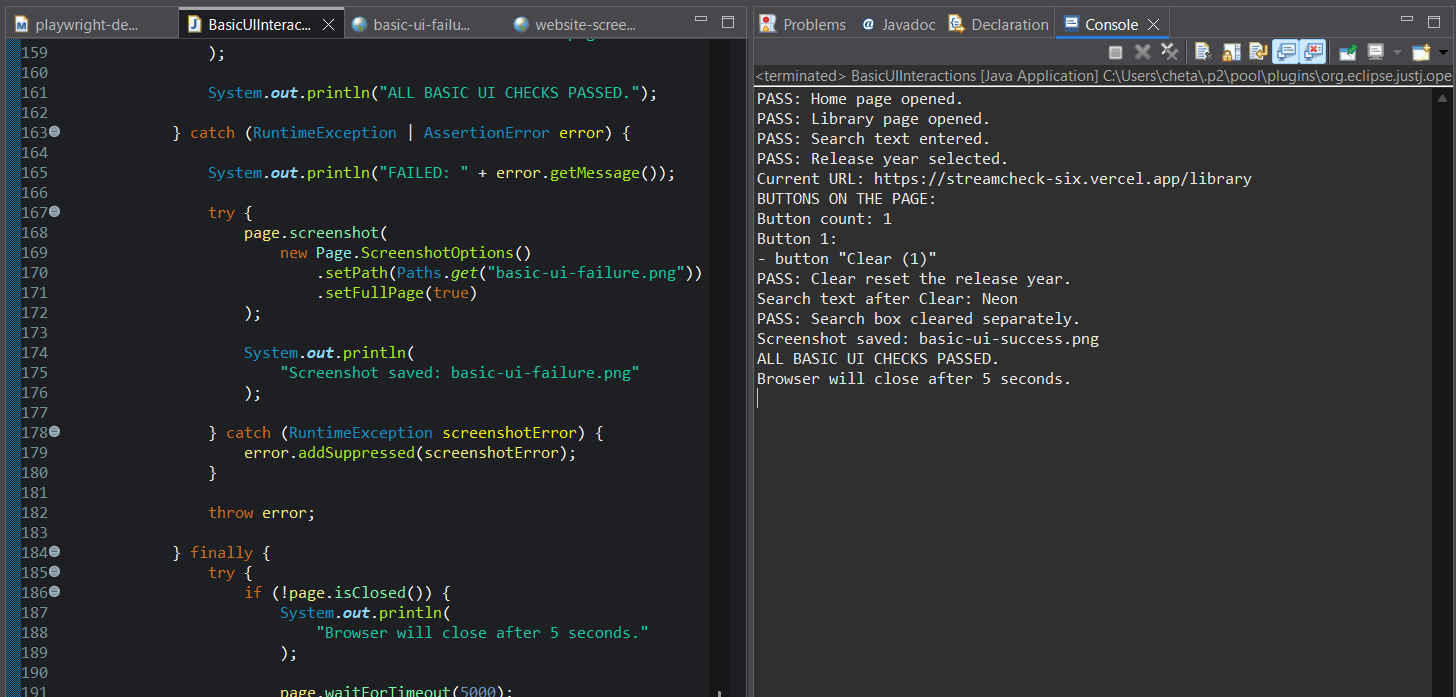
“This diagnostic section helps us discover the buttons’ accessible names when a selector fails.”
In your run, it revealed Clear (1), which explained why an exact match for Clear failed.
Find Clear and reset the year
13
Locator clearButton = page.getByRole(
    AriaRole.BUTTON,
    new Page.GetByRoleOptions()
        .setName(Pattern.compile(
            "^Clear(?:\\s*\\(\\d+\\))?$"
        ))
);

assertThat(clearButton).isVisible();
assertThat(clearButton).isEnabled();

clearButton.click();

assertThat(releaseYear).hasValue(defaultYear);

System.out.println("PASS: Clear reset the release year.");

System.out.println(
    "Search text after Clear: " + searchBox.inputValue()
);

page.waitForTimeout(3000);
Use this exact Java regex string:
The button name can contain a count. This pattern matches Clear with or without that count. After clicking, we verify the year returned to its original value.
Clear the search separately and verify it
14
Your pasted code is missing the assertion after fill(""). Include it:
searchBox.fill("");

assertThat(searchBox).hasValue("");

System.out.println("PASS: Search box cleared separately.");

page.waitForTimeout(3000);
In our earlier run, clicking Clear left the search text unchanged. Here, Playwright clears the textbox separately and verifies that action.
Save a screenshot
15
page.screenshot(
    new Page.ScreenshotOptions()
        .setPath(Paths.get("basic-ui-success.png"))
        .setFullPage(true)
);

System.out.println("Screenshot saved: basic-ui-success.png");
System.out.println("ALL BASIC UI CHECKS PASSED.");
The screenshot records the final page. The success message appears only after the preceding checks pass.
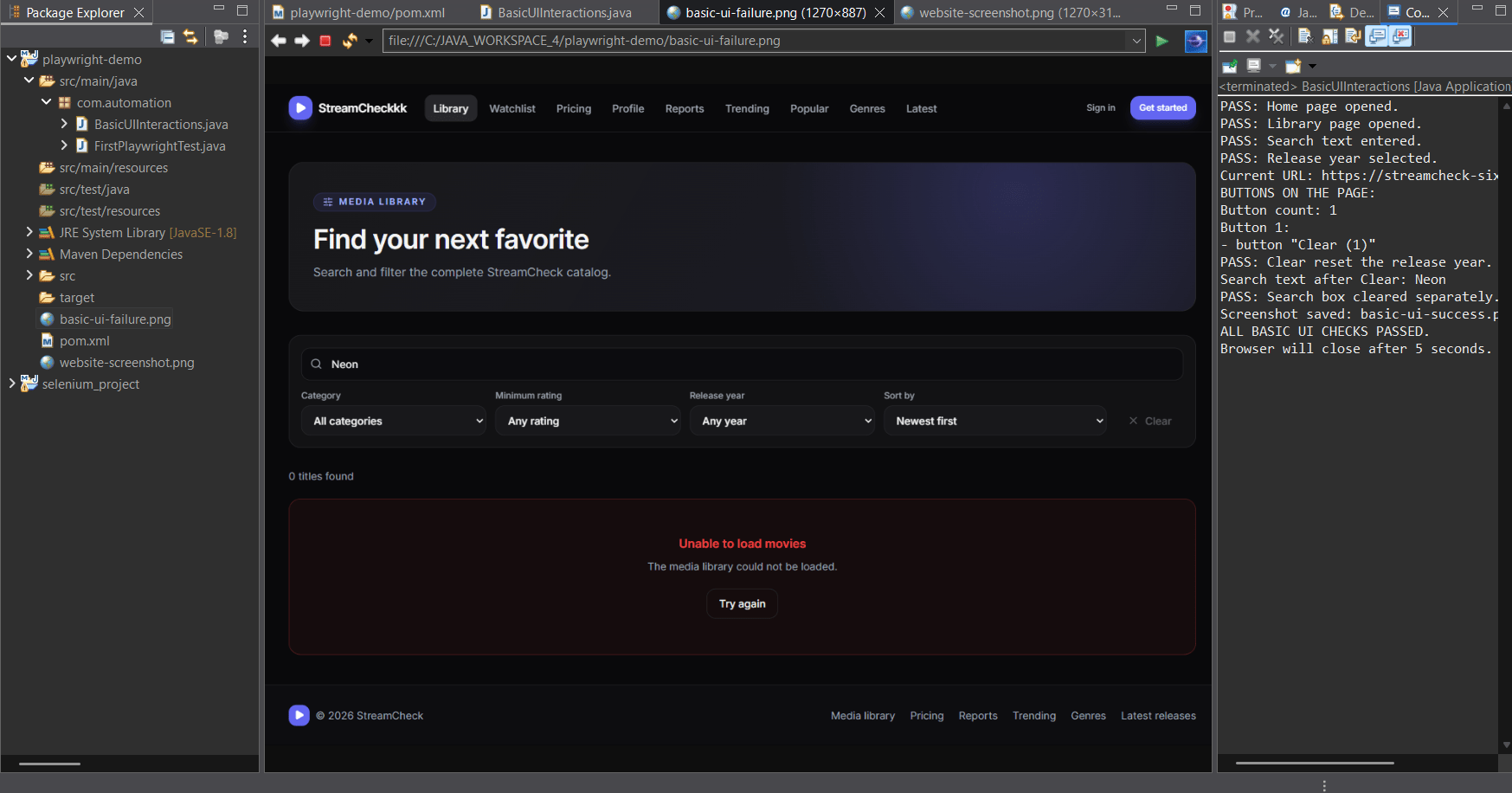
Failure capture and browser cleanup
16
In your full code, the catch block saves basic-ui-failure.png and rethrows the error. The finally block waits five seconds and closes the browser.
Whether the test passes or fails, we clean up the browser. If it fails, the Console error and screenshot help us investigate.
Run the program
17
In your full code, the catch block saves basic-ui-failure.png and rethrows the error. The finally block waits five seconds and closes the browser.
Whether the test passes or fails, we clean up the browser. If it fails, the Console error and screenshot help us investigate.
- Save with Ctrl + S.
- Right-click the class → Run As → Java Application.
- Observe the browser and Console.
Press F5 or Refresh on the project to see the screenshot.
18