
Content ITV PRO
This is Itvedant Content department
Build Relationships for Analytical Modeling
Business Scenario
Welcome!
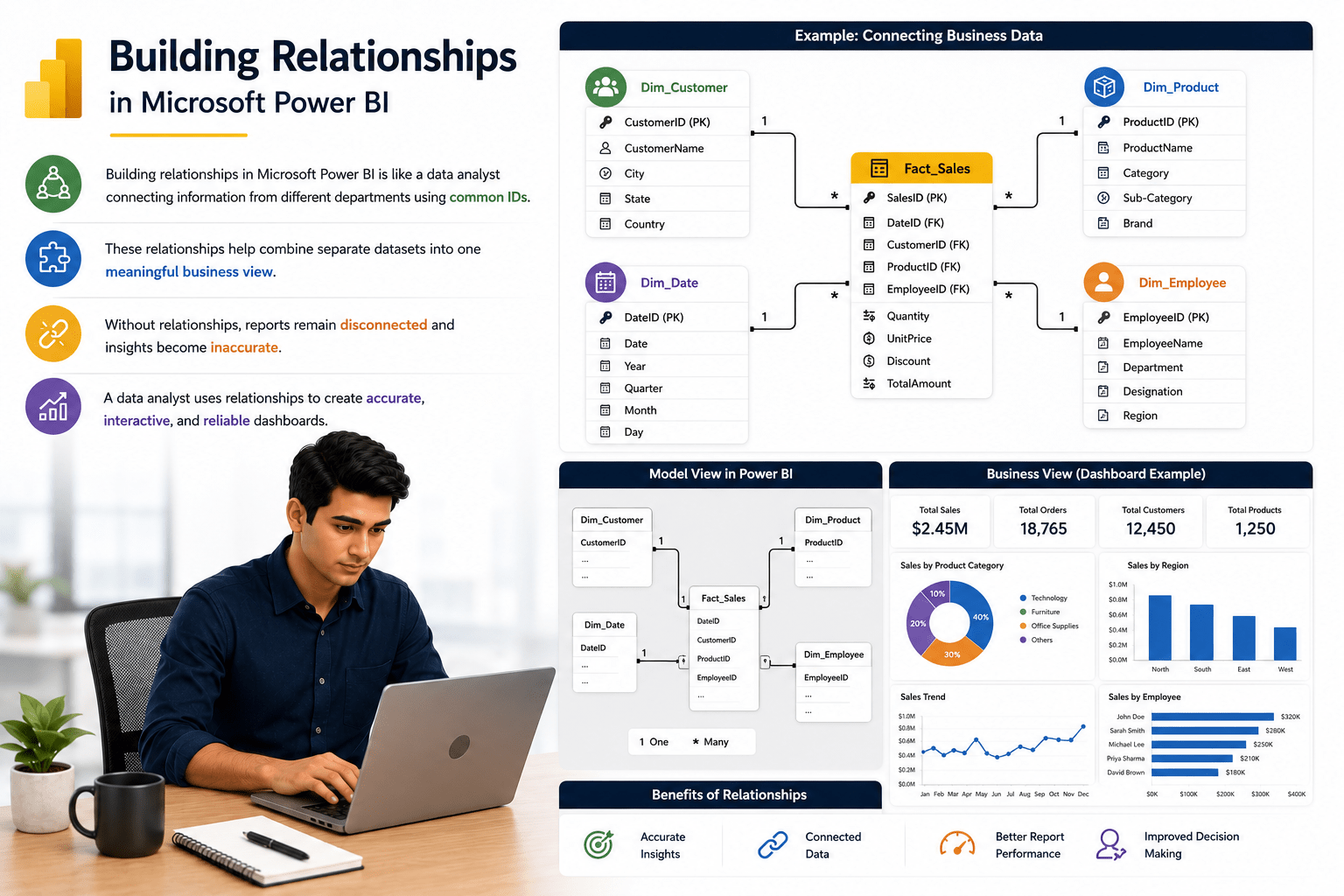
Building relationships in Microsoft Power BI is like a data analyst connecting information from different departments using common IDs.
These relationships help combine separate datasets into one meaningful business view.
Pre-Lab Preparation
Topic : Modelling Data in Power BI
1) Create relationships between tables
2) Define cardinality
3) Configure cross-filter direction
4) Manage relationships in model view
Task 1: Create Relationshiop between tables
1
Without relationships, reports remain disconnected and insights become inaccurate. A data analyst uses relationships to create accurate, interactive, and reliable dashboards.
Download the below dataset and import into Power BI desktop
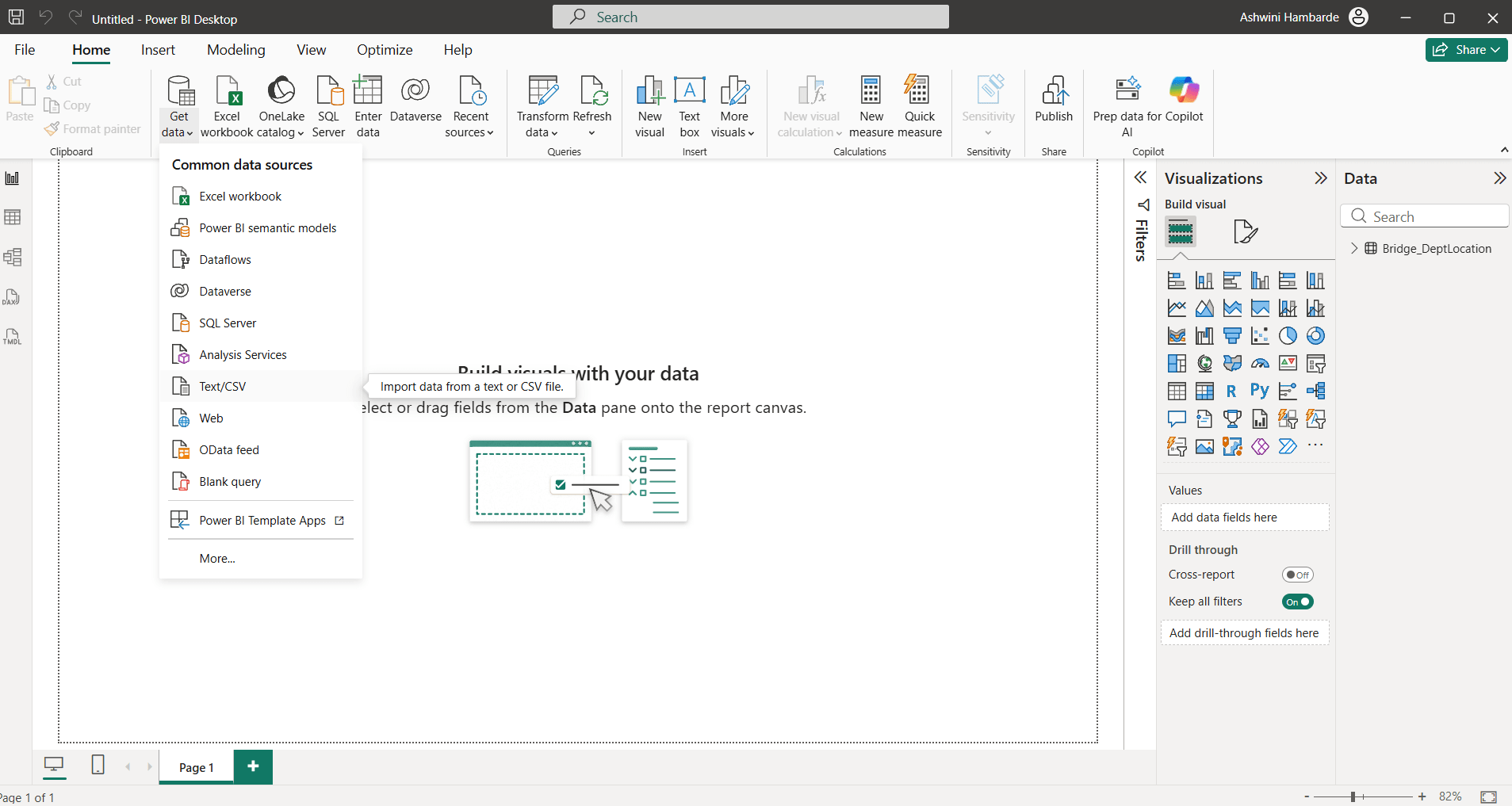
Home Tab—> Get Data→Text/CSV option
git pull origin branchNameGit Pull
2
Load this datasets into Power BI desktop,make sure all datasets are clean and already transformed
3
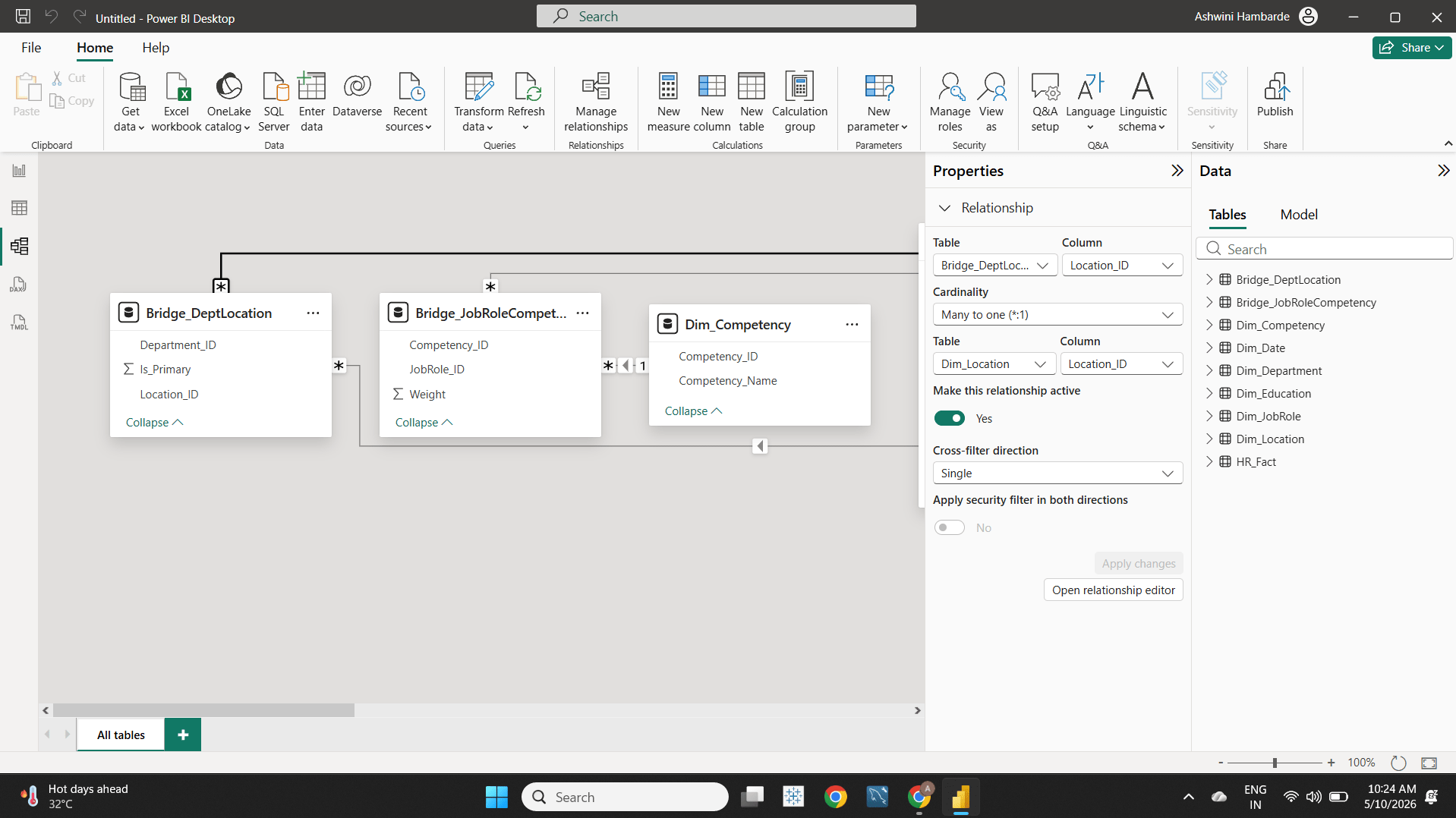
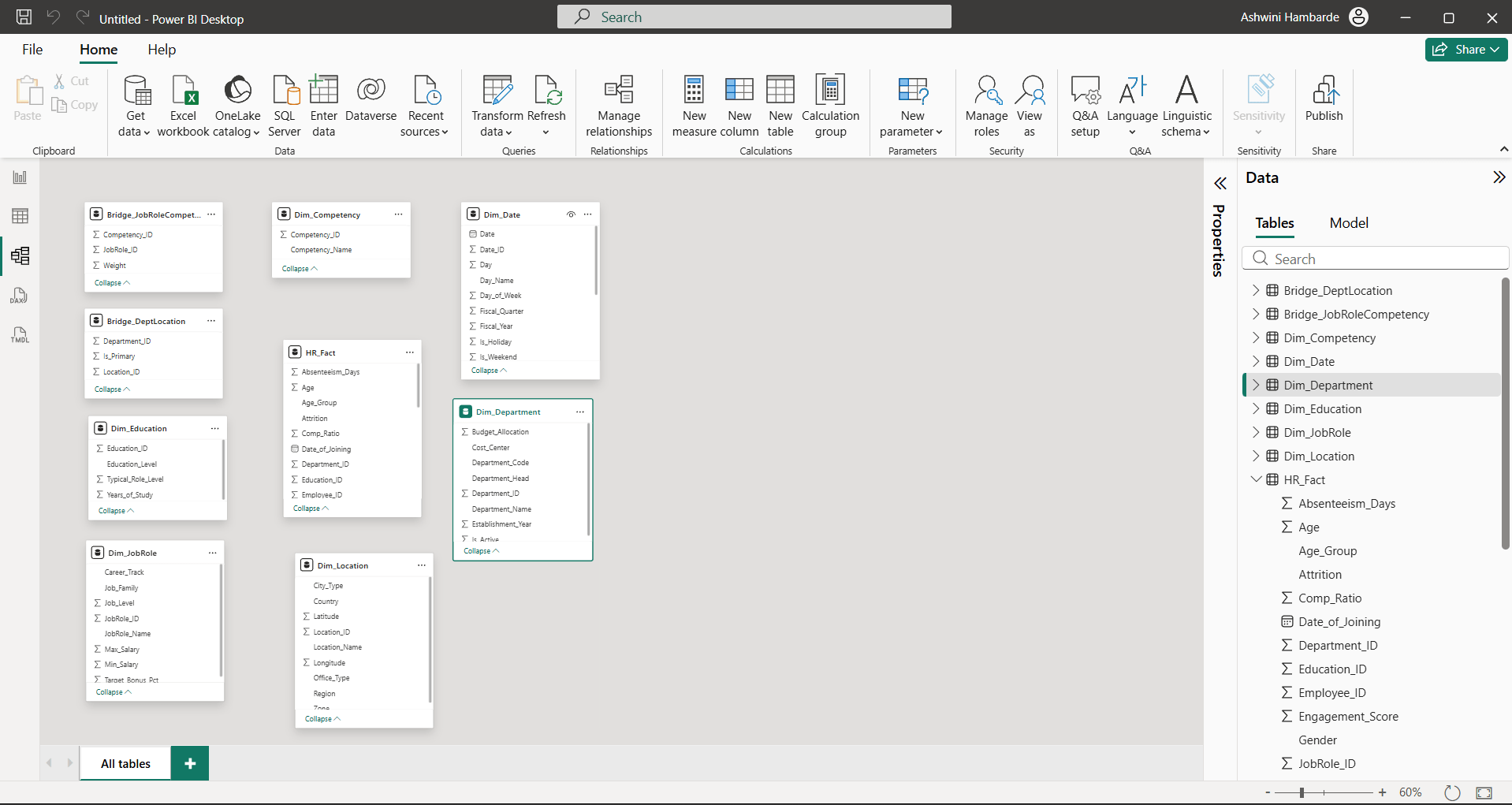
Go to model view, available in left side pane of your screen
4
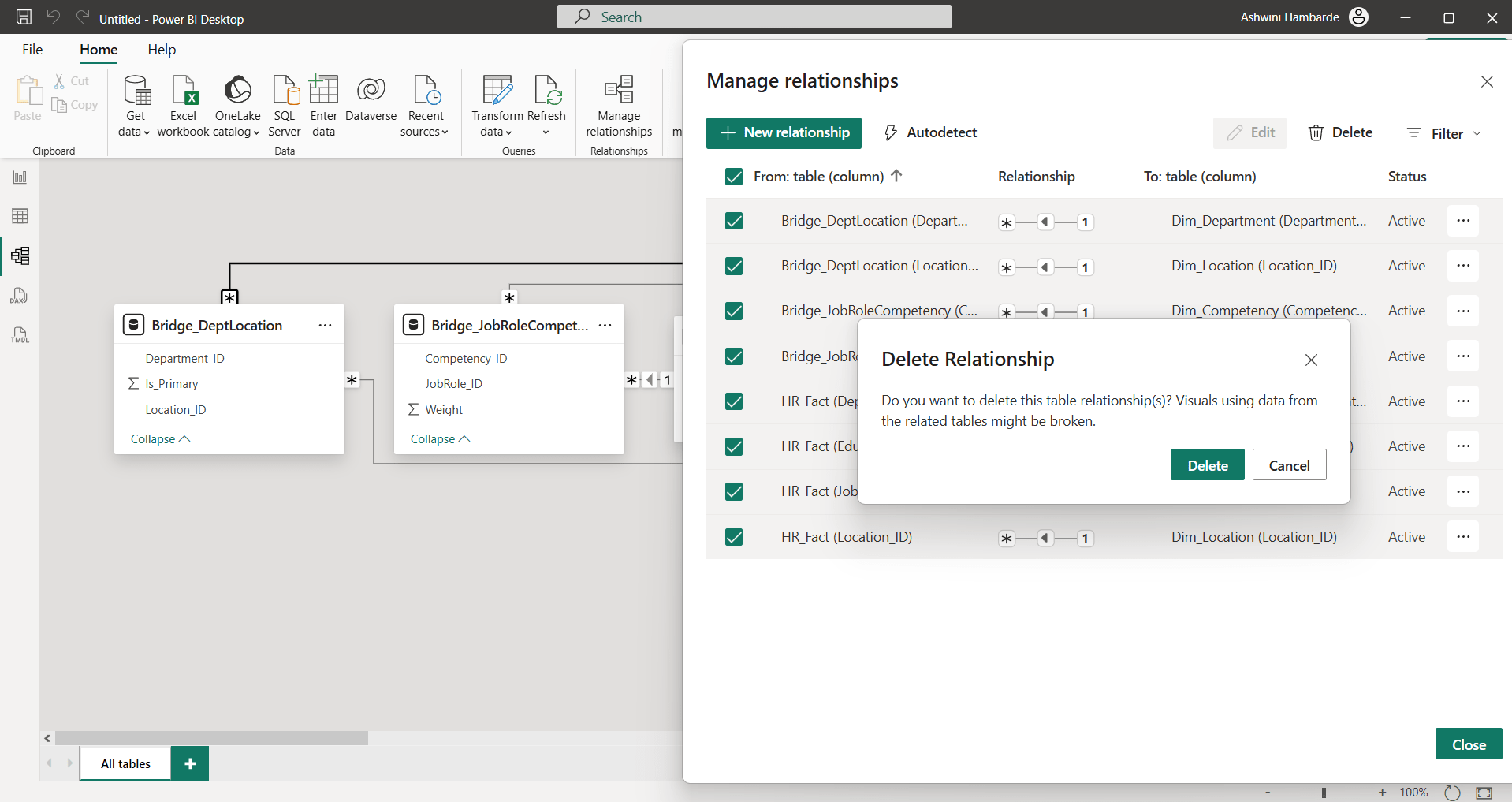
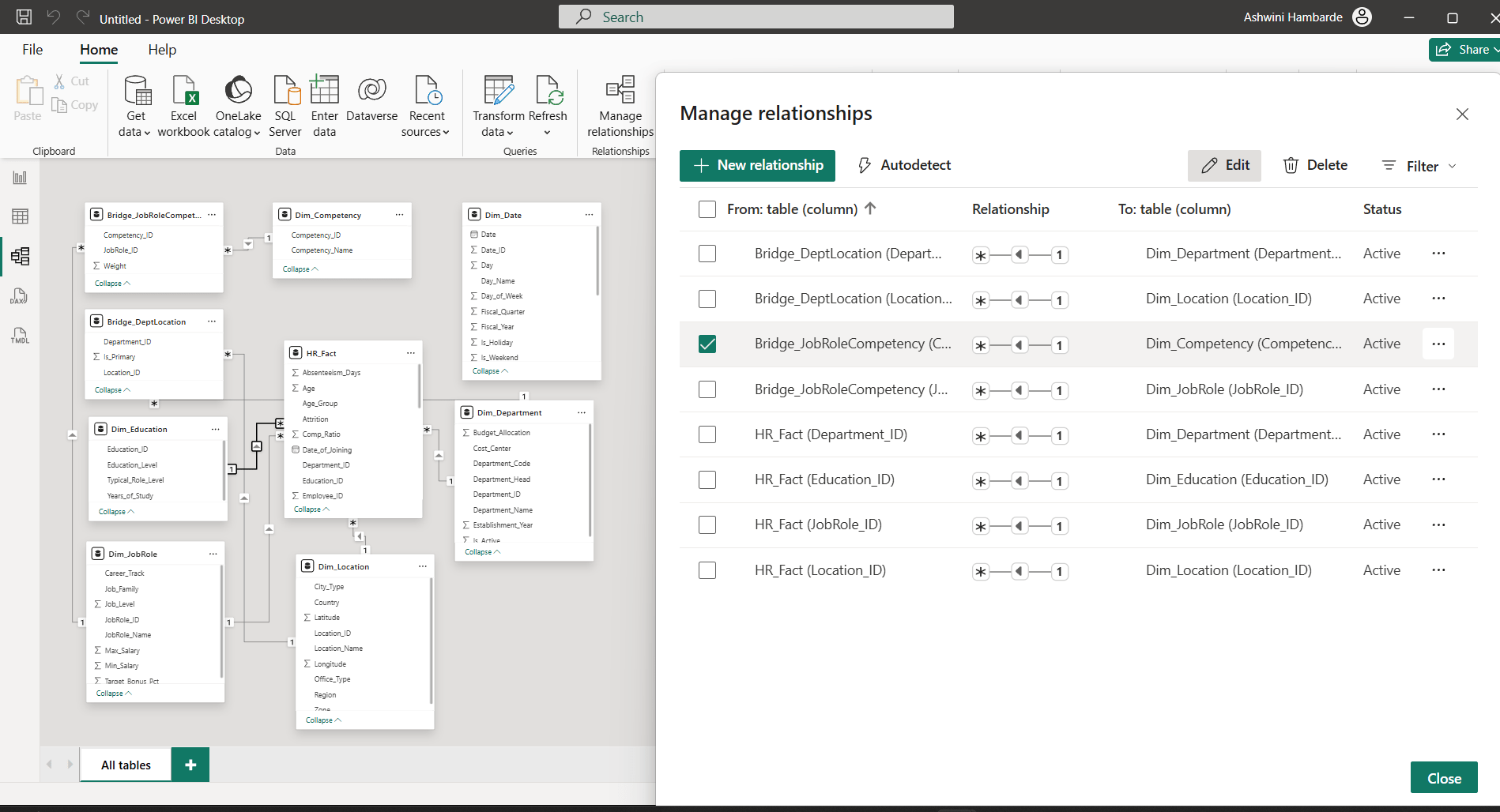
If relationship already exists, remove that and create new one by using
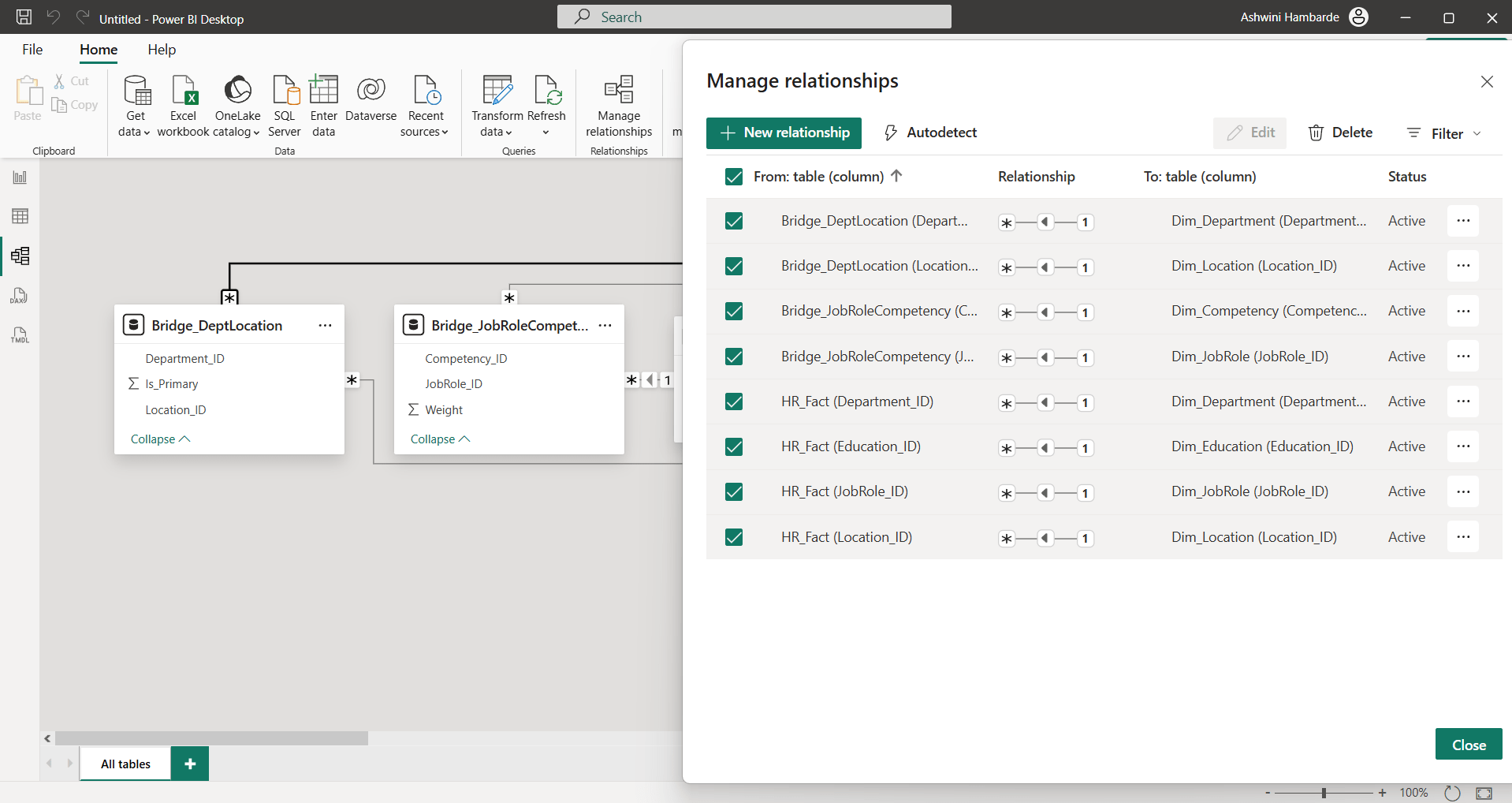
Home tab—> Manage Relationship—-> Select from table(column) check box —> delete —->Confirm Delete—>Close
5
Zoom in relationship view, to see all tables, and bring them near to each other
Check the fact table and dimension table, arrange them in a circular manner. Keep Fact table in center of all dimension table
6
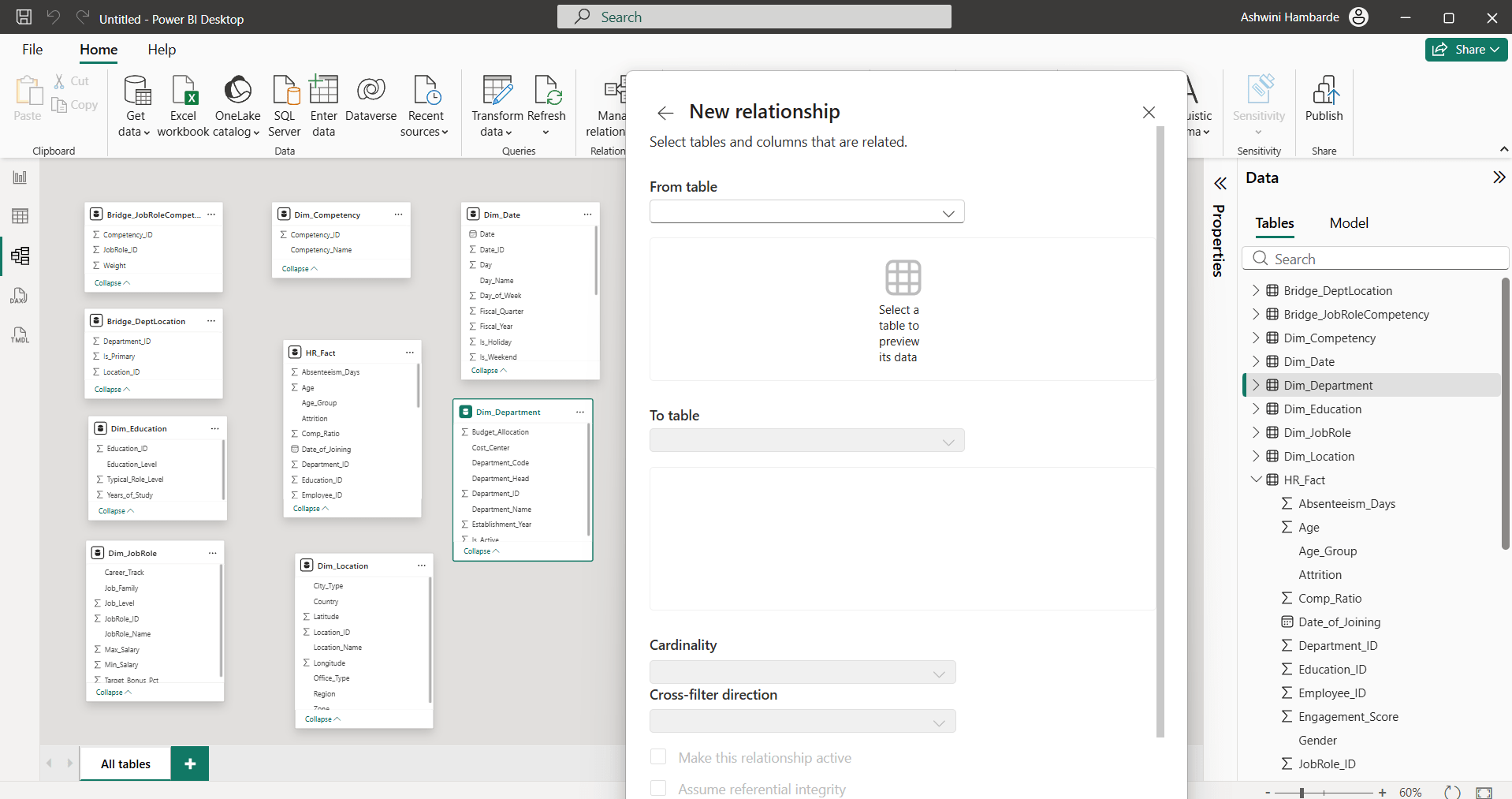
Go to Home tab—-> manage relationship —>New Relationship
7
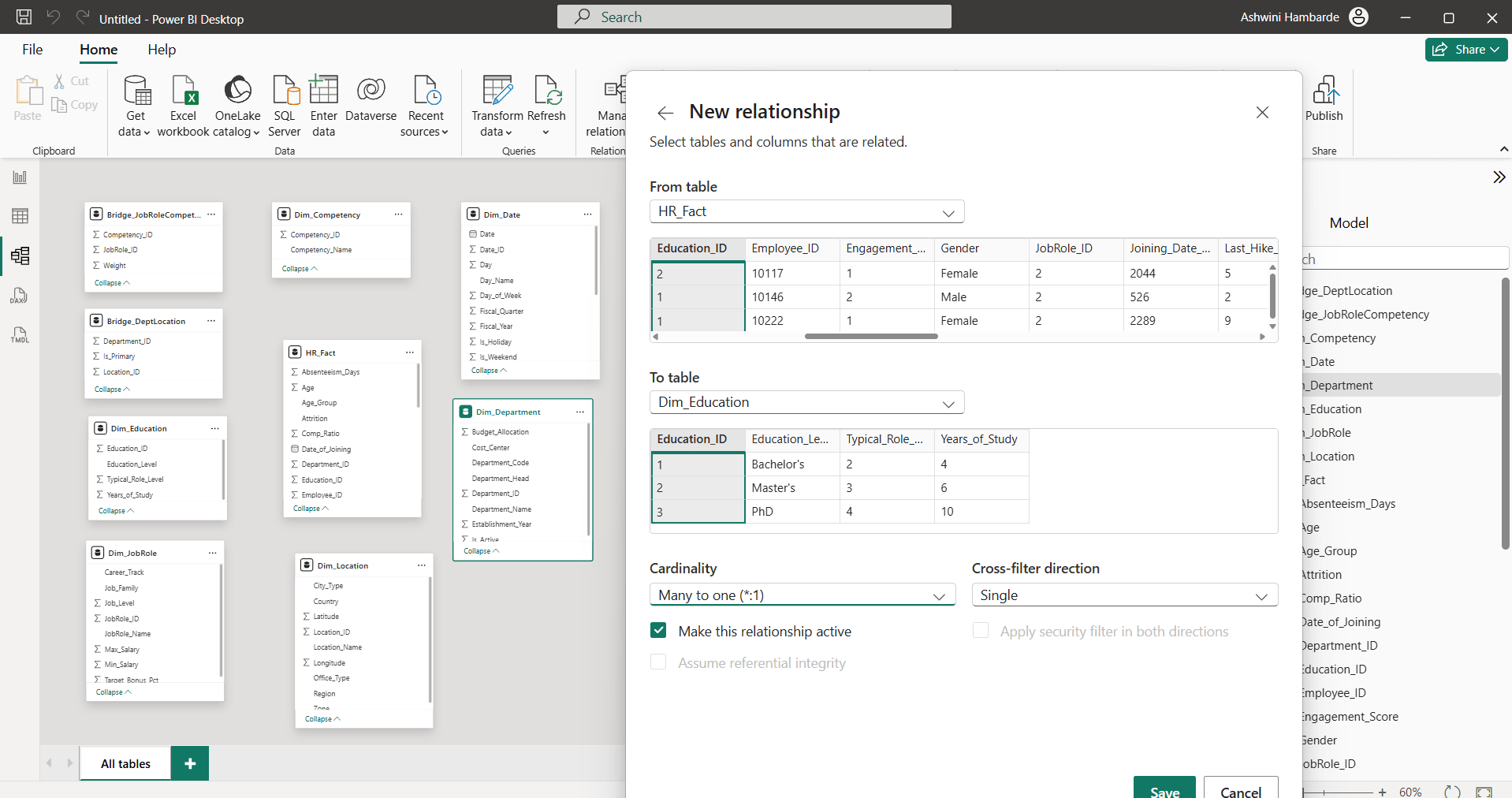
Select from table(fact table) and to table(dimension table), Select common column from table
Task 2: Define Cardinality
1
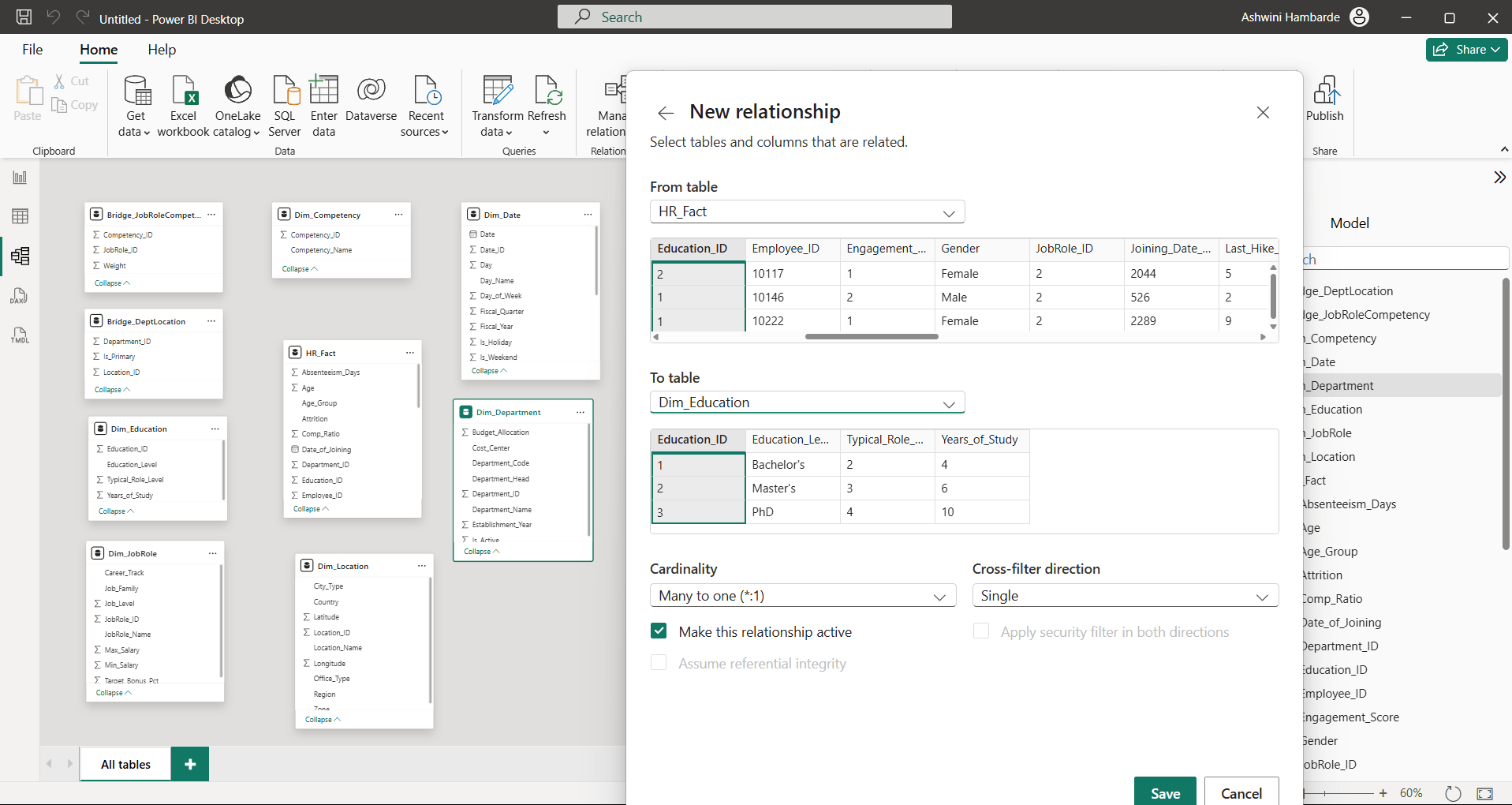
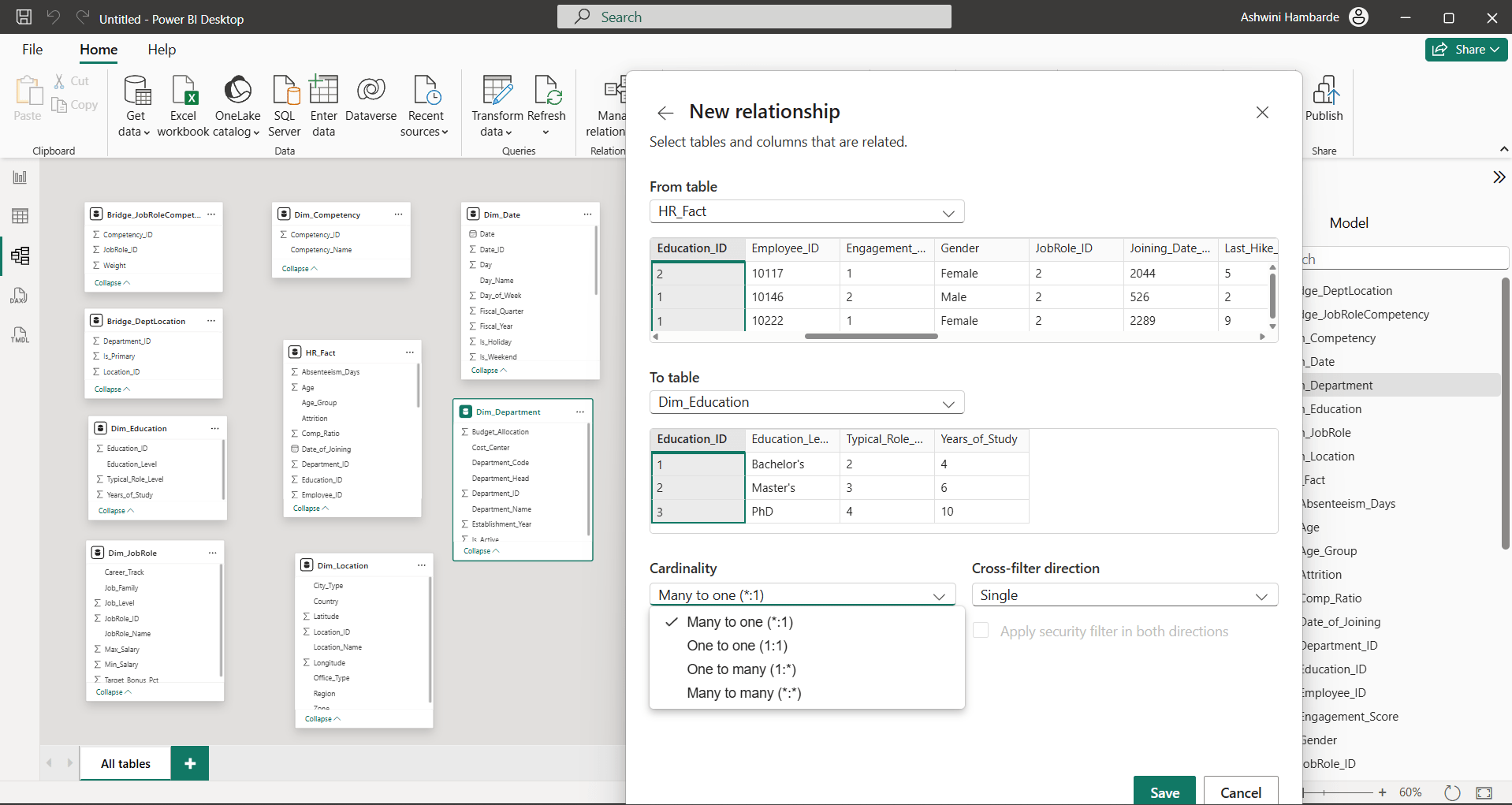
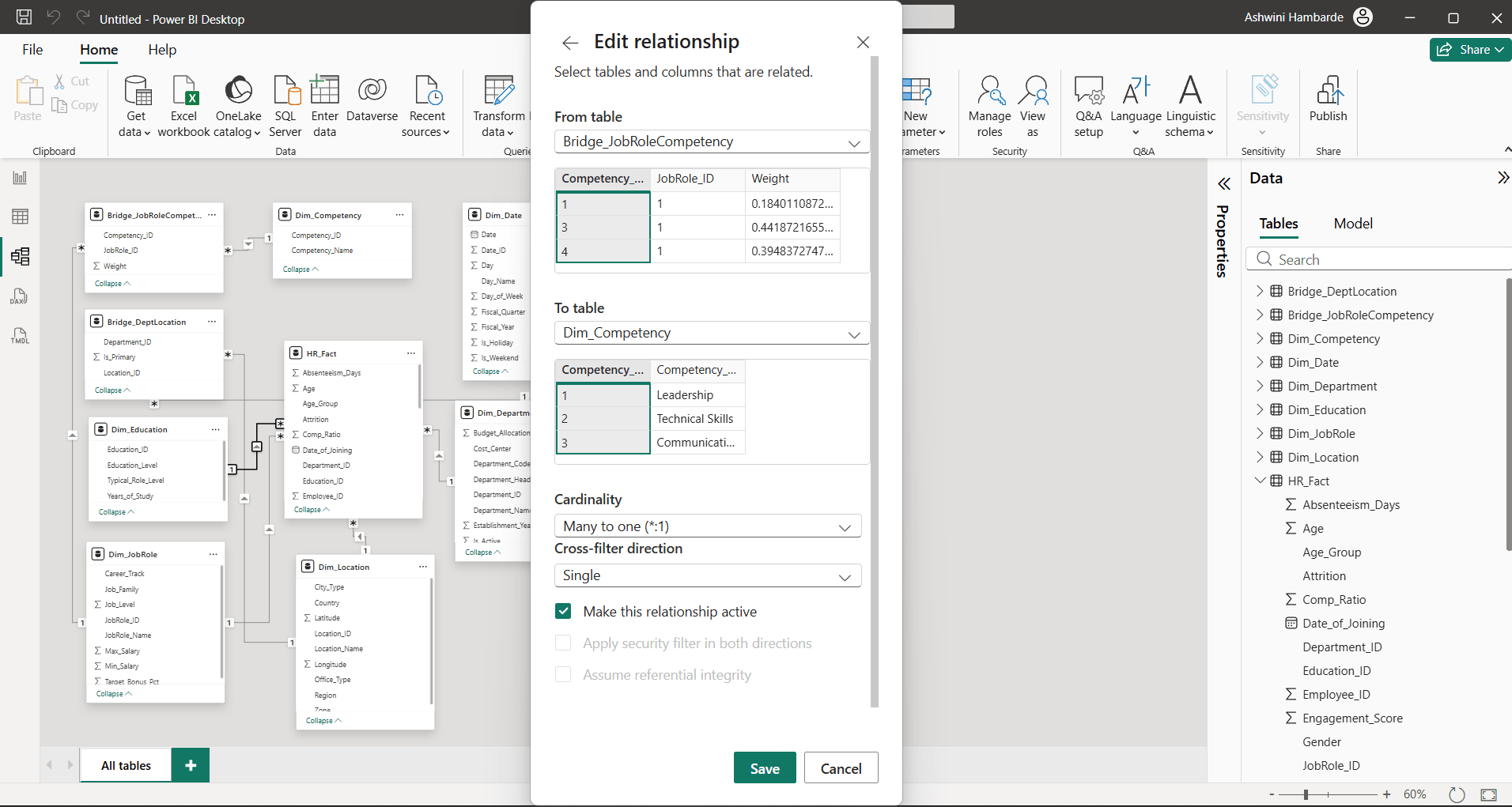
Once you select to table and from table with common column, you can select Cardinality type
2
Select Fact to dimension table is many to one (* : 1) type
Task 3: Configure cross-filter direction
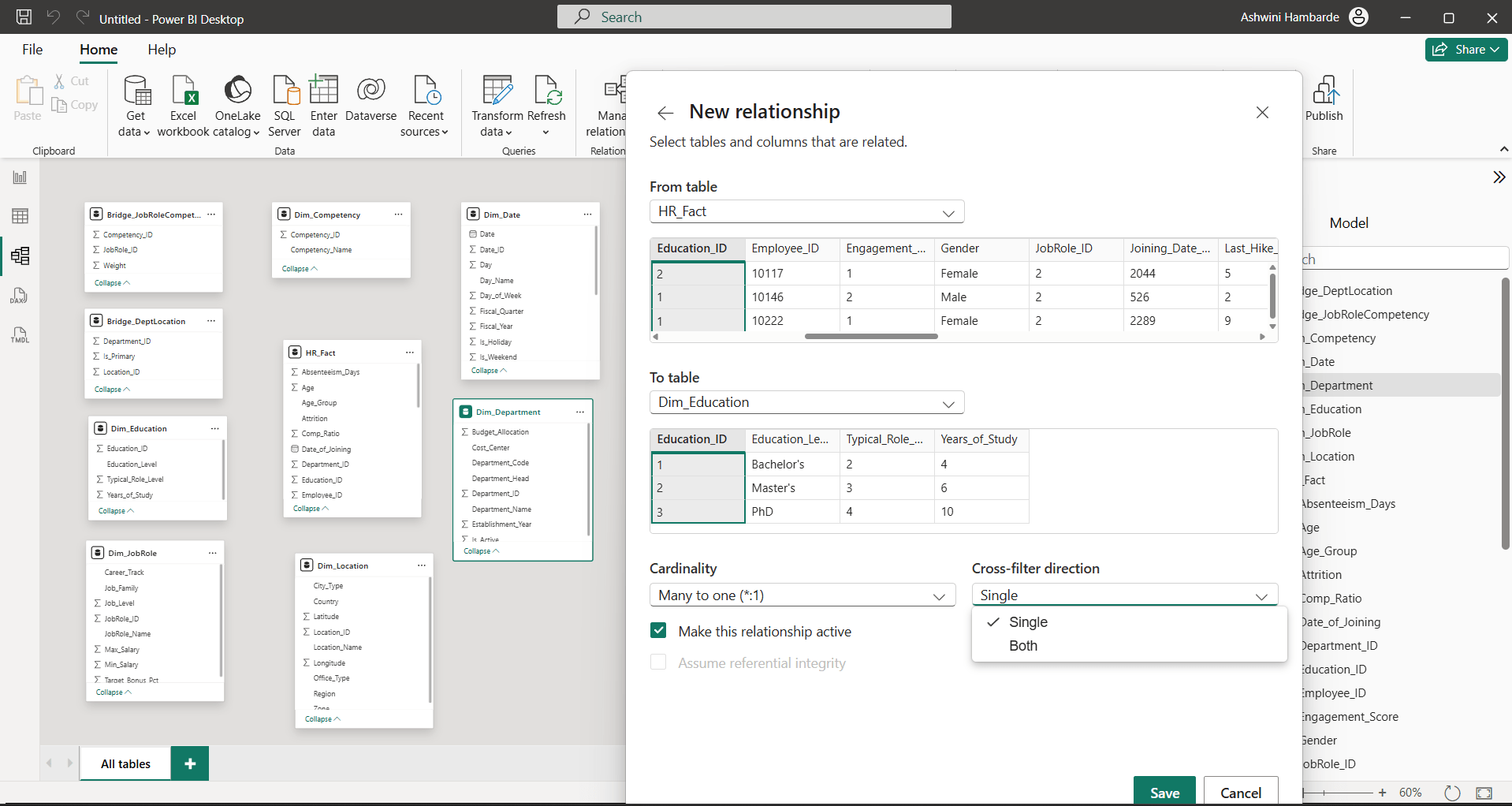
Select cross-filter direction either single or both, by type of relationship Typical Pattern for selection:
| Relationship | Recommended |
|---|---|
| Dimension → Fact | Single |
| Many-to-many | Sometimes Both |
| Bridge tables | Often Both |
| Complex slicer interaction | Sometimes Both |
So , We are selecting single cross filter direction—> Save Repeat the same steps for all tables in the model view.
Task 4: Manage Relationships in model view view
1
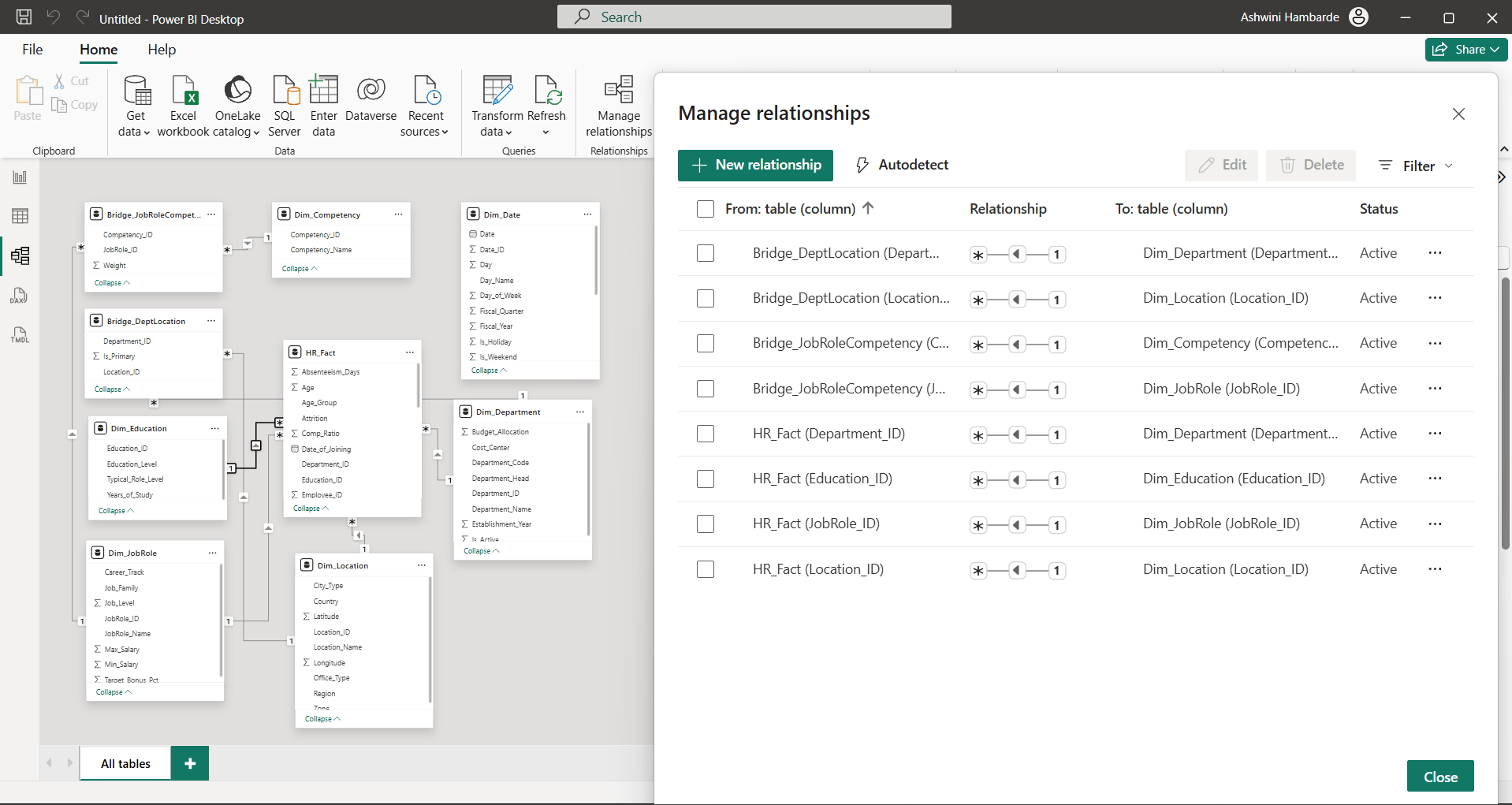
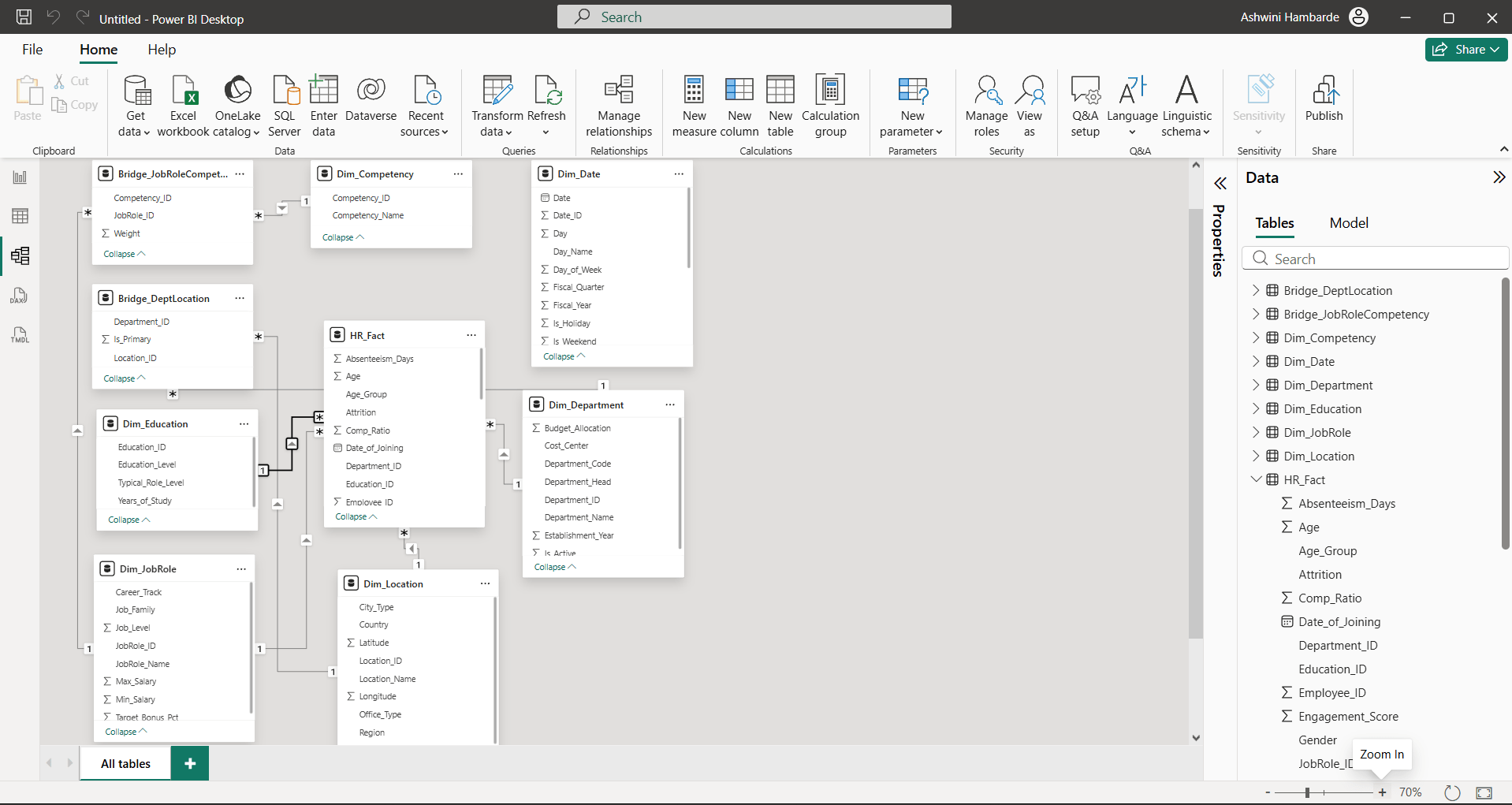
This is the final output screen for data modeling view for given dataset
2
Before Close, if you want to edit or manage any relationship , you can select specific checkbox before that relationship and select edit option
3
Make the changes and then save changes
This is your final output
Great job!
You have successfully completed building data relation for analytical model lab
Checkpoint
Next-Lab Preparation
Git Push
git push origin branchNameTopic : Prepare HR Workforce Dataset for Analysis
1) Import HR dataset
2) Clean missing values
3) Merge HR datasets
4) Append multiple datasets
By Content ITV