Handling WebElements


Alerts

Learning Outcome
5
Enter text into Prompt alerts
4
Capture and validate alert messages
3
Accept and dismiss alerts using Playwright
2
Handle Simple, Confirmation, and Prompt alerts
1
Understand different types of browser alerts
Recall
Synchronization and Auto-Waiting concepts
Basics of Playwright and test execution workflow
Performing Click actions on buttons and links
Assertions for validating application behavior
Event handling in Playwright

Browser automation and page interactions
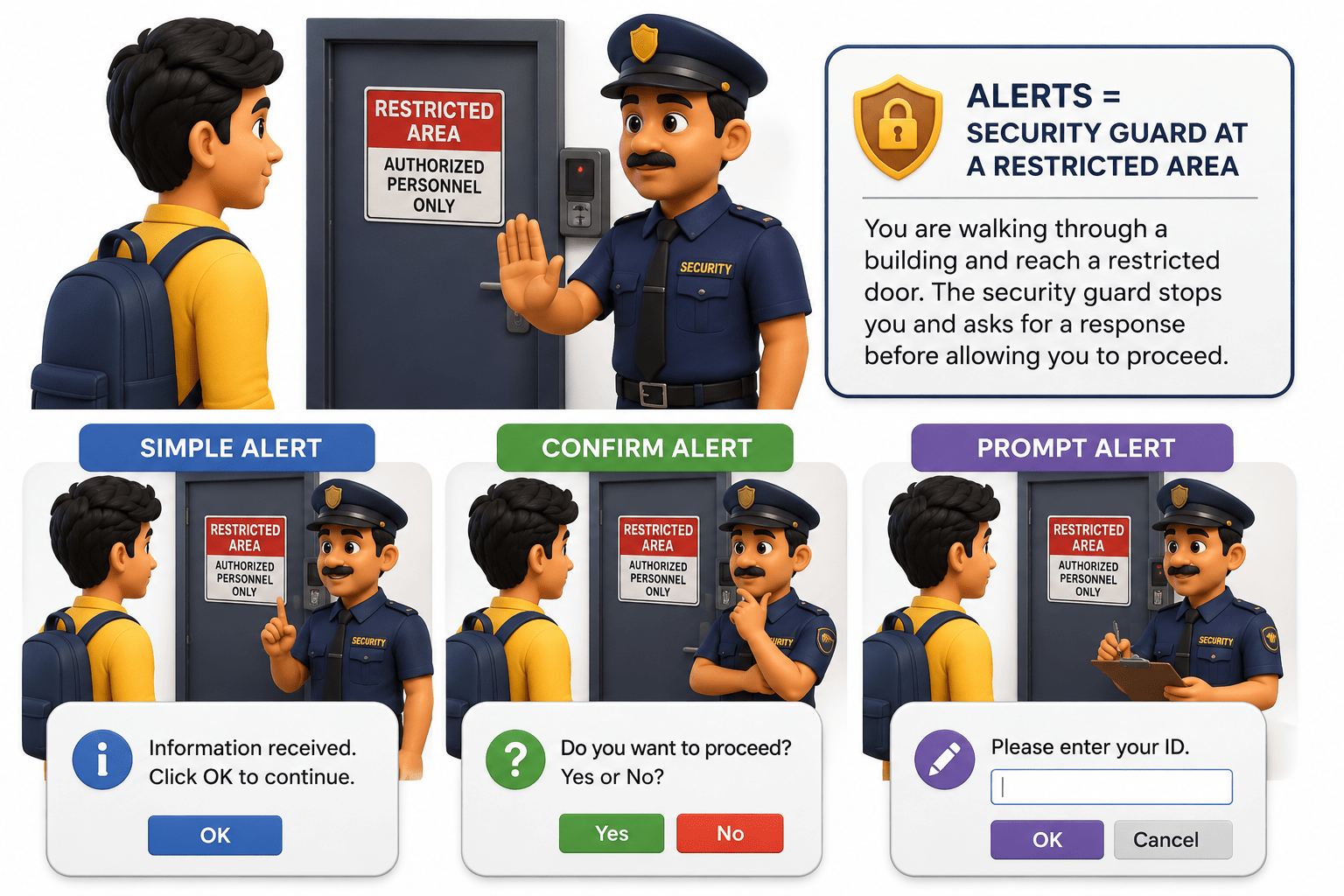
The security guard stops you and asks for a response before allowing you to proceed.
You are walking through a building and reach a restricted door
Alerts = Security Guard at a Restricted Area
Web Elements = Rooms inside the Building
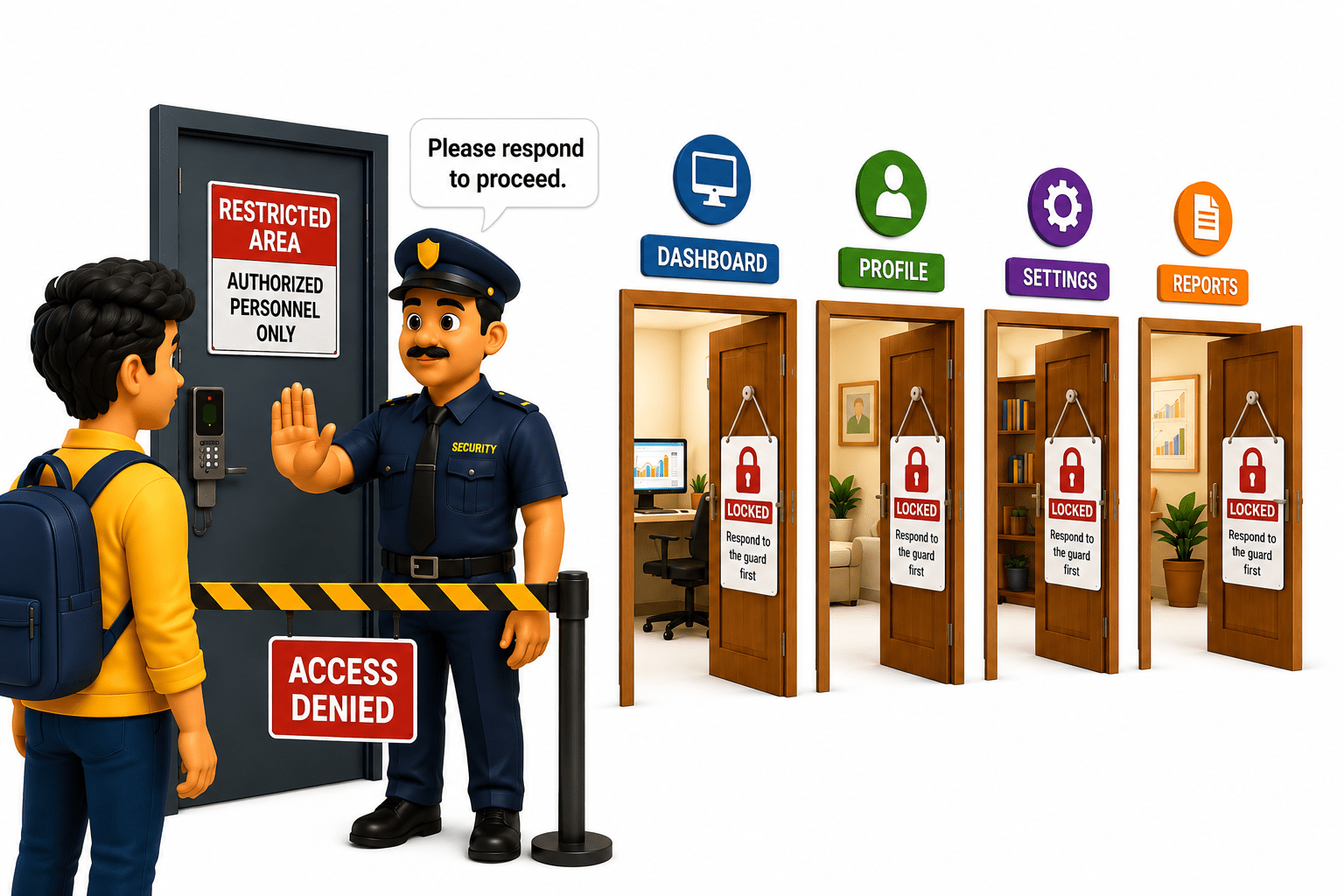
Until you respond to the security guard, you cannot enter any room or perform any activity.
Browser pop-ups that require immediate action
Browser pop-ups that require immediate action
Browser pop-ups that require immediate action
Page elements (buttons, textboxes, links, etc.) that can be accessed only after the alert is handled.
Why Alerts Need to be handle ?
Alerts block the webpage
Once an alert appears, normal interaction with the page is temporarily stopped.
Prevent automation failures
An unhandled alert can cause actions like click(), fill(), or navigation to fail.
Test execution cannot continue
Playwright must handle the alert before performing the next action.


Perform required actions
Automation may need to Accept, Dismiss, or enter text in the alert.

Validate application behavior
Testers can verify whether the correct alert message appears for a specific action.
Make tests reliable
Proper alert handling ensures the test flow continues smoothly without unexpected interruptions.
Handle different user decisions
Alerts can represent confirmation, cancellation, warnings, or user input.

Handling alerts allows Playwright to respond to browser dialogs and continue the test execution successfully.
What is an Alerts ?
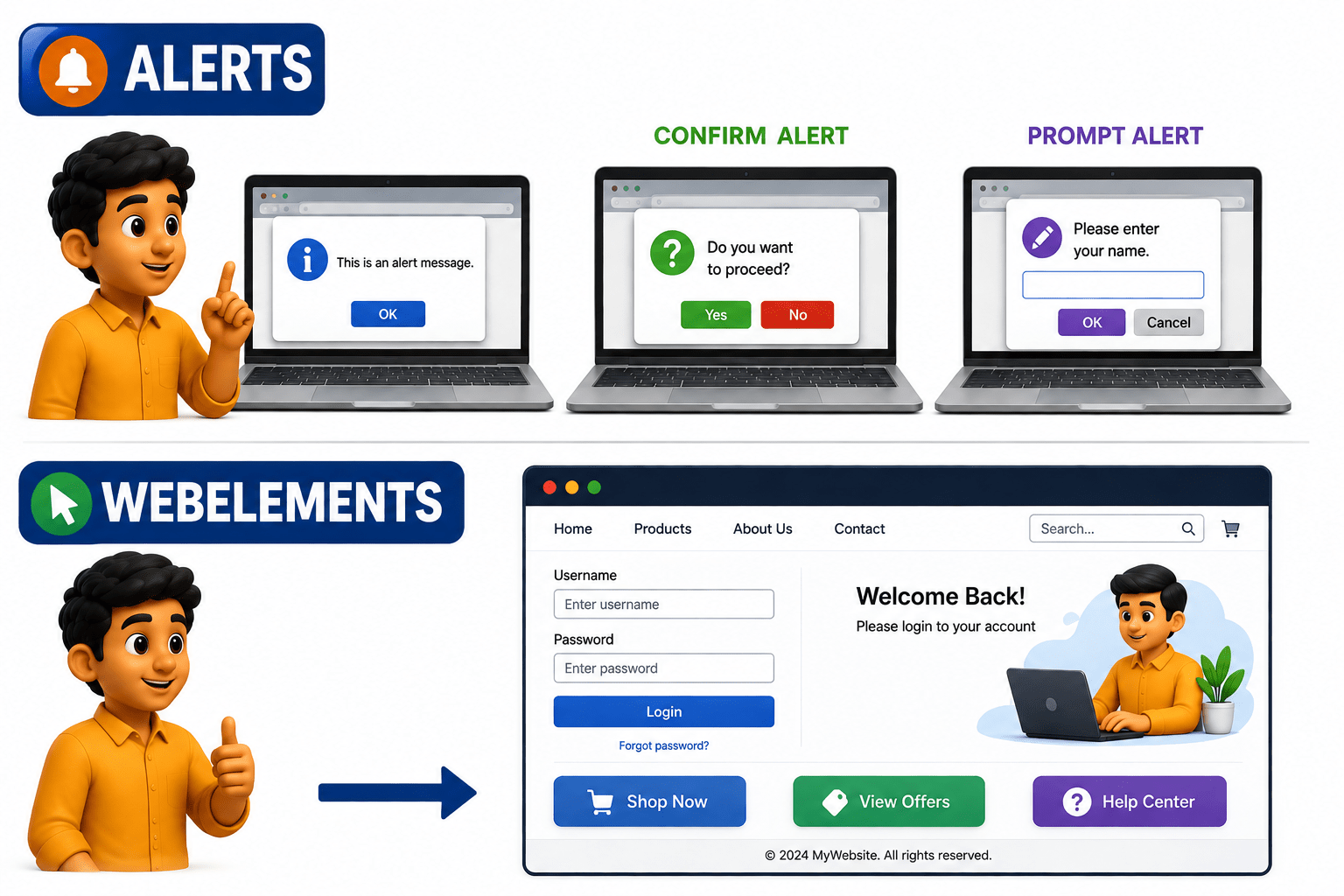
Alerts are browser pop-up messages displayed by a web application to provide information, request confirmation, or collect user input.
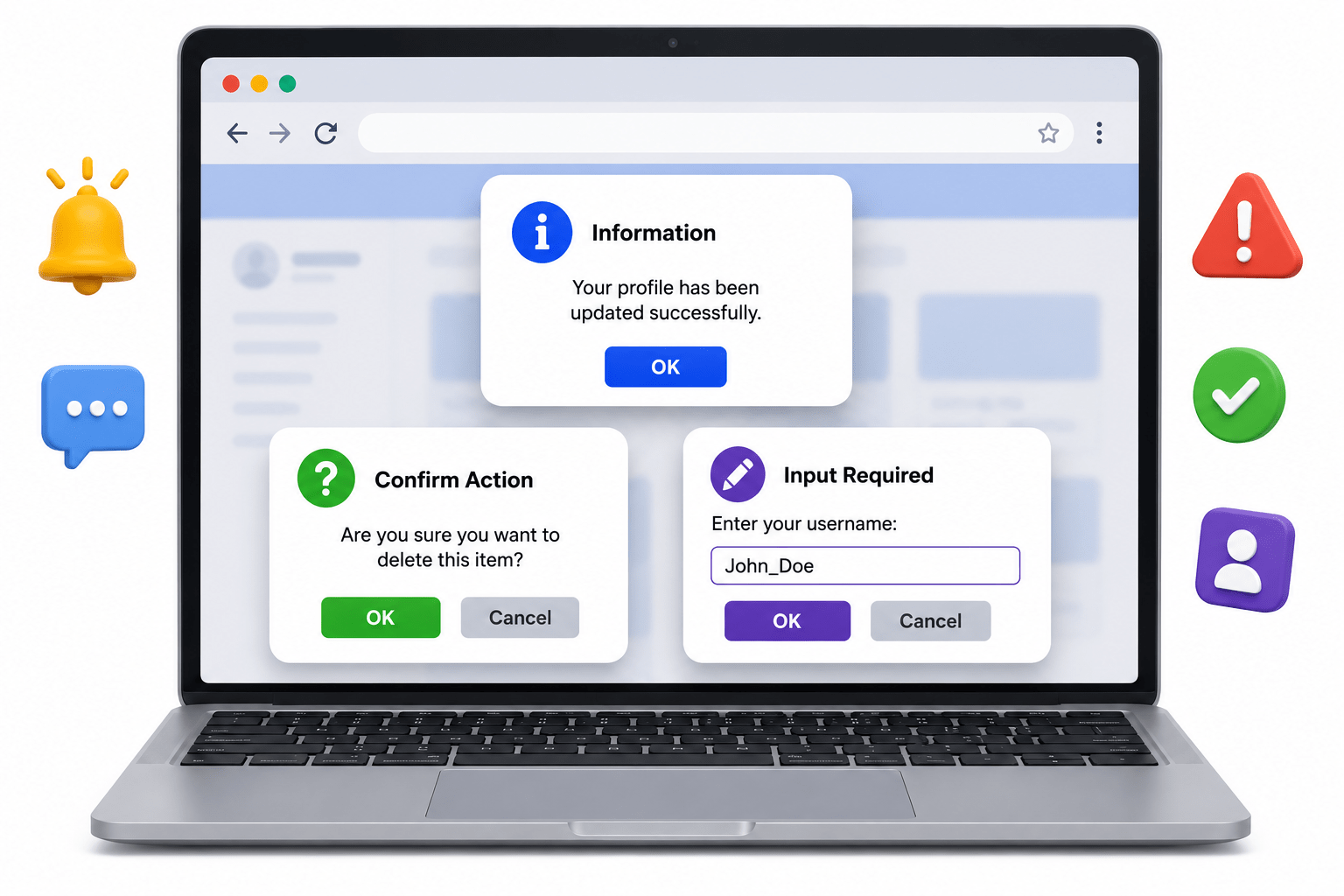
They interrupt normal interaction with the webpage until the user responds.
They can be accepted, dismissed, or provided with input depending on the alert type.
In Playwright, alerts are handled as browser dialogs.
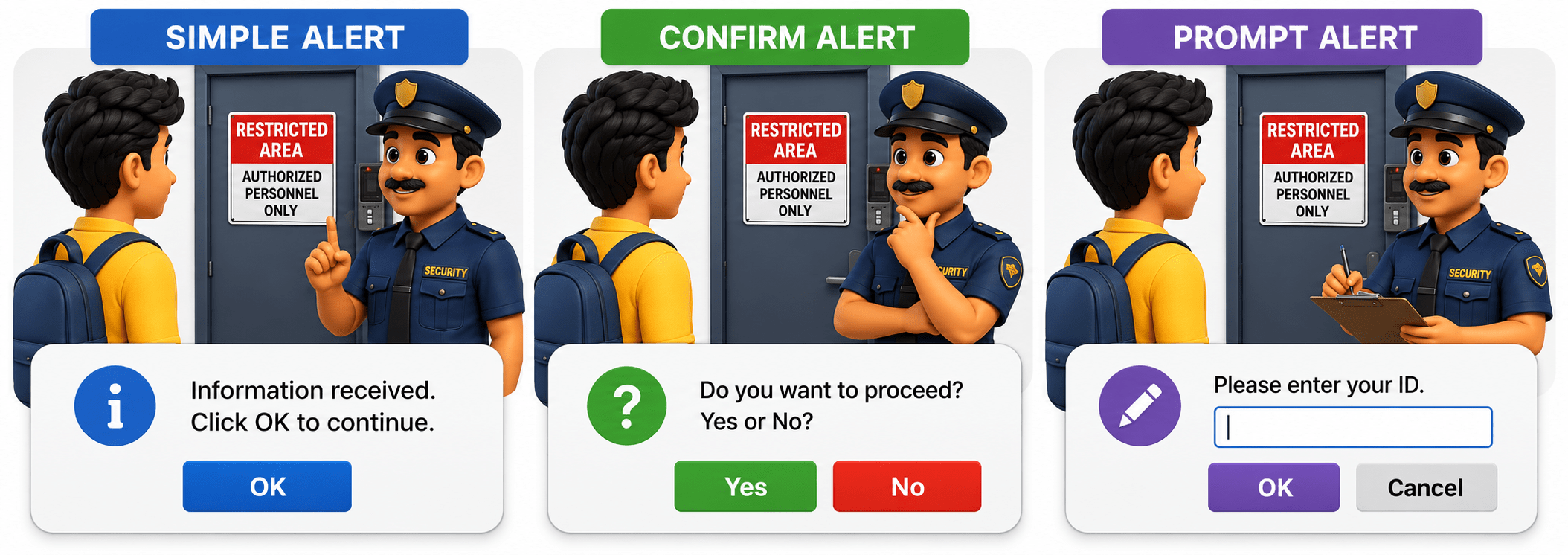
Types of Alerts
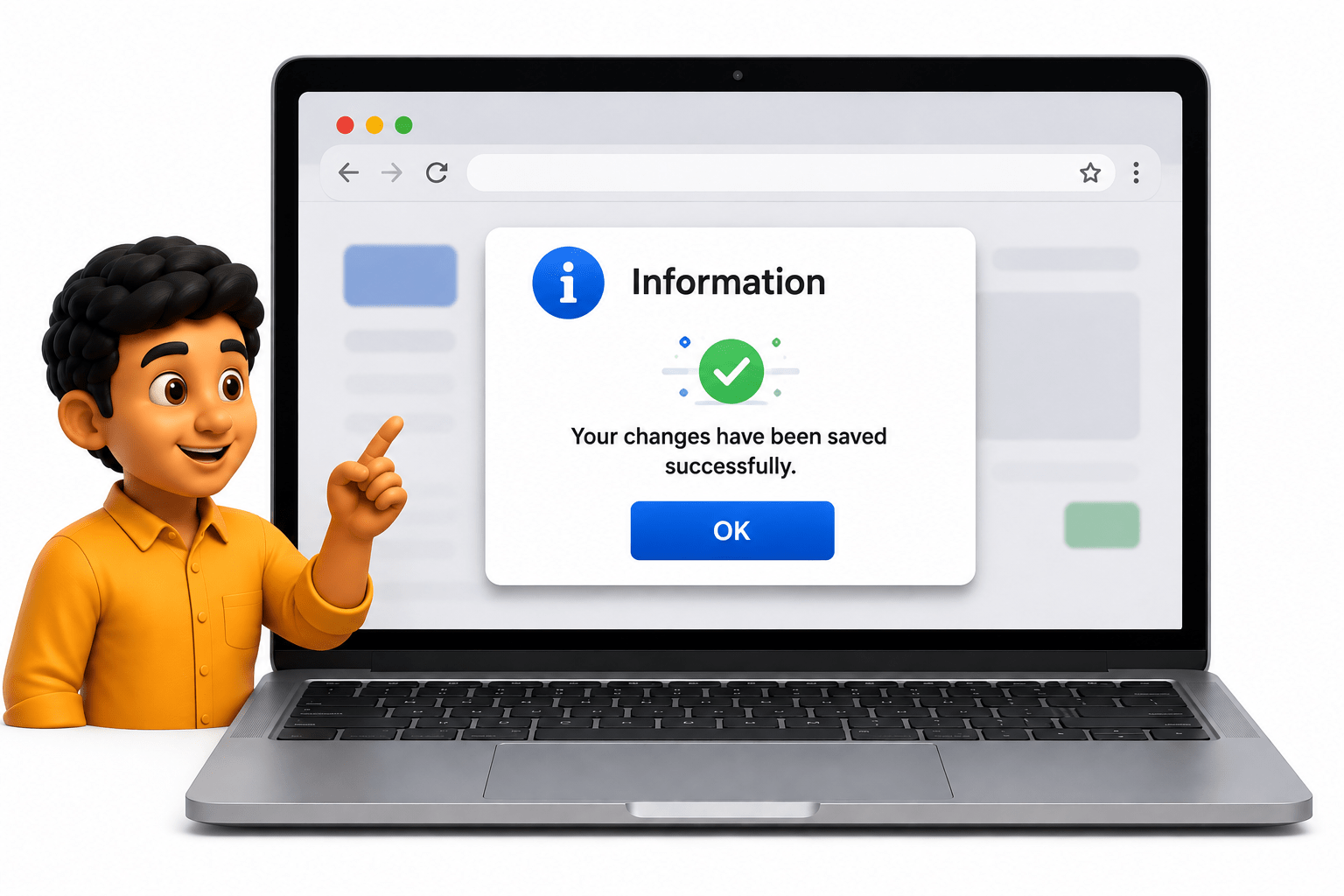
Example: “Your changes have been saved.”
Simple Alert
Contains a message and an OK button
The user must click OK before continuing
Does not accept any input








Used to display
information
warnings
messages to the user
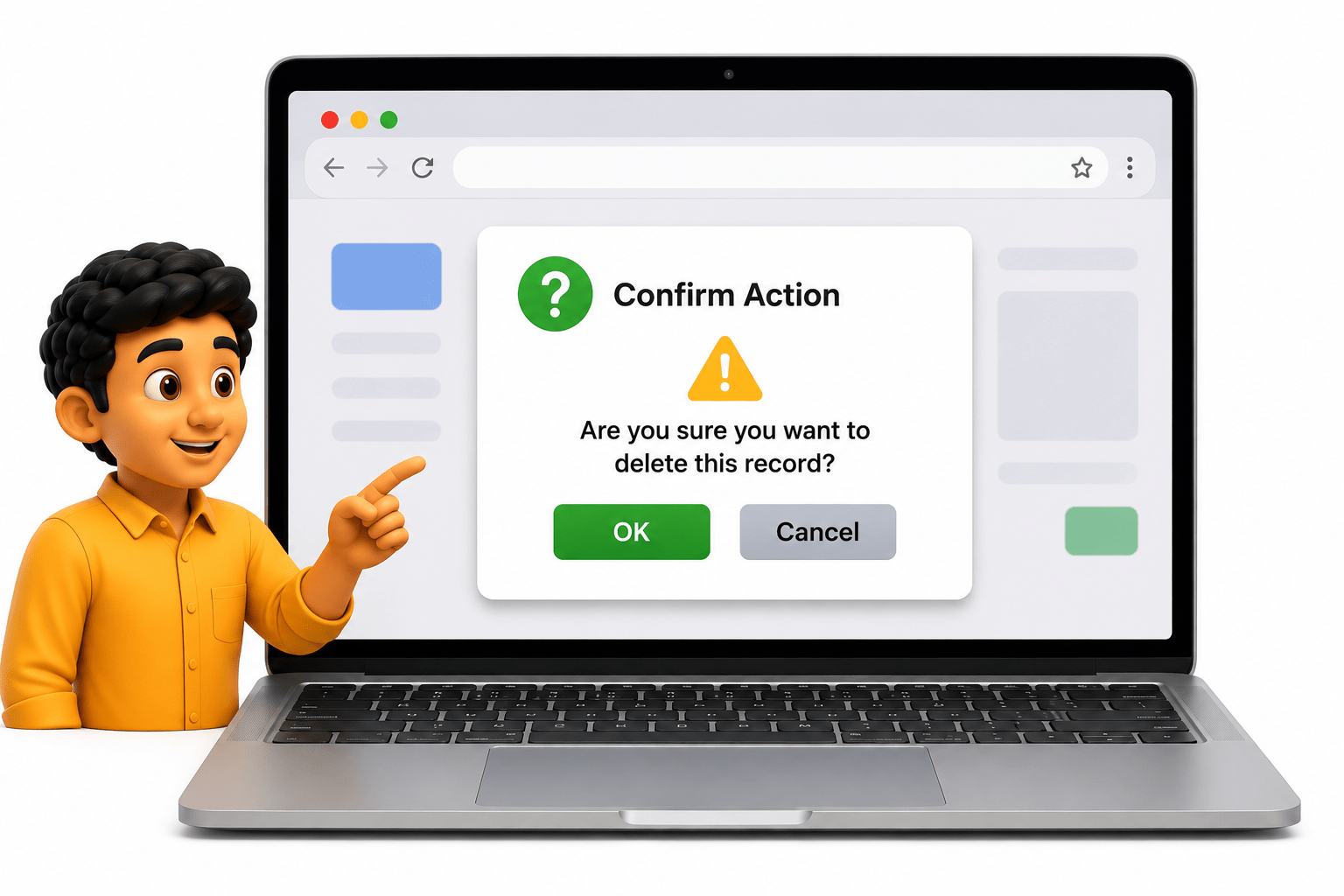
Confirmation Alert
Used when the application needs the user to confirm an action.
Example: “Are you sure you want to delete this record?”
Provides two options OK Cancel.


Confirms and continues the action
Rejects the action.
Example: “Enter your username:”
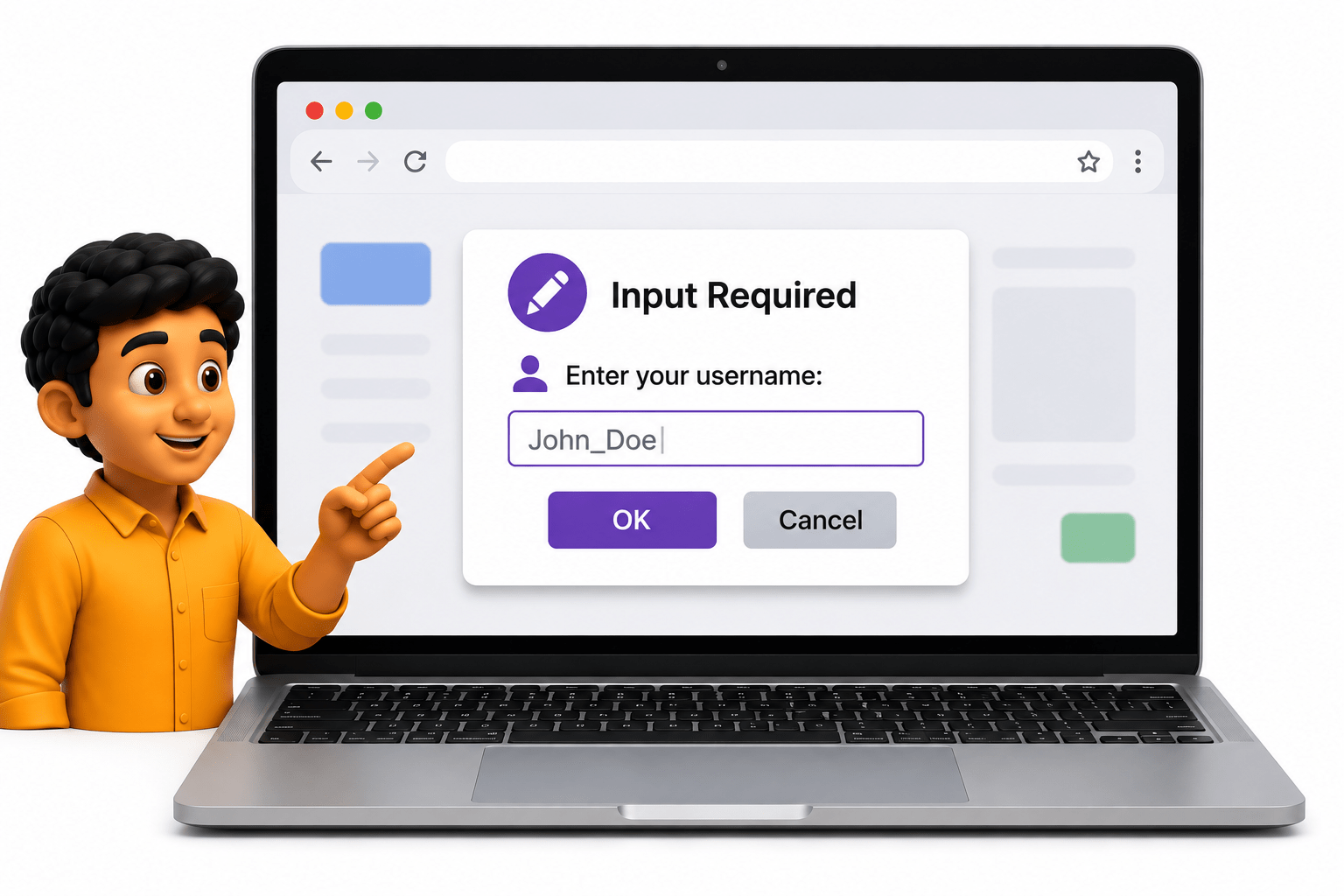
Prompt Alert


Used when the application needs input from the user.
Contains a text input field.
Provides two options OK Cancel.
Submits the entered value.
Closes the alert without submitting
How to Handle Alerts?
In Playwright, browser alerts are handled using the Dialog event.

Listen for the Dialog event
Accept the alert
Dismiss the alert
Get alert message
Enter text in Prompt
In Playwright, browser alerts are handled using the Dialog event.
Steps to Handle Alerts

Use page.onDialog() to detect an alert.
Use dialog.accept() to click OK.
Use dialog.dismiss() to click Cancel.
Use dialog.message() to capture the alert text
Use dialog.accept("text") to enter a value and click OK.
Example – Simple Alert
Example – Confirmation Alert
Example – Prompt Alert
page.onDialog(dialog -> {
    System.out.println("Alert Message: " + dialog.message());
    dialog.accept();
});

page.locator("#alertButton").click();
page.onDialog(dialog -> {
System.out.println(dialog.message());
dialog.dismiss(); // Clicks Cancel
});
page.locator("#confirmButton").click();page.onDialog(dialog -> {
System.out.println(dialog.message());
dialog.accept("John"); // Enter text and click OK
});
page.locator("#promptButton").click();Why are Alerts Important?
Provide important information to users.
Warn users about critical actions or conditions.
Confirm user actions before performing important operations.
Collect user input through Prompt alerts.
Prevent accidental actions, such as deleting data.
Require user response before continuing interaction.
Help validate application behavior during testing.
Need to be handled in automation to prevent test execution from being blocked.
Summary
4
Alerts can be accepted or dismissed.
3
Playwright Java handles alerts using the Dialog event.
2
You can validate alert messages for reliable automation.
1
Alerts are browser dialogs for information, warnings, confirmations, or input.
Quiz
Which method is used to handle a browser dialog by clicking the OK button in Playwright?
A. dialog.dismiss()
B. dialog.accept()
C. dialog.close()
D. dialog.click()

Which method is used to handle a browser dialog by clicking the OK button in Playwright?
A. dialog.dismiss()
B. dialog.accept()
C. dialog.close()
D. dialog.click()

Quiz-Answer